{{item.name}}
Price:
{{currency + item.price}}
Qty:
{{item.amount}}

If you move between home and office, connect your MacBook Pro to an external monitor every day, and constantly deal with adapters, chargers, and inconsistent display settings, you have probably already felt how the wrong monitor can slow down your workflow.
A MacBook Pro is built with a sharp display, strong brightness, high contrast, and P3 wide color support. But when an external monitor does not match that experience, the benefits of your Mac® can be reduced.
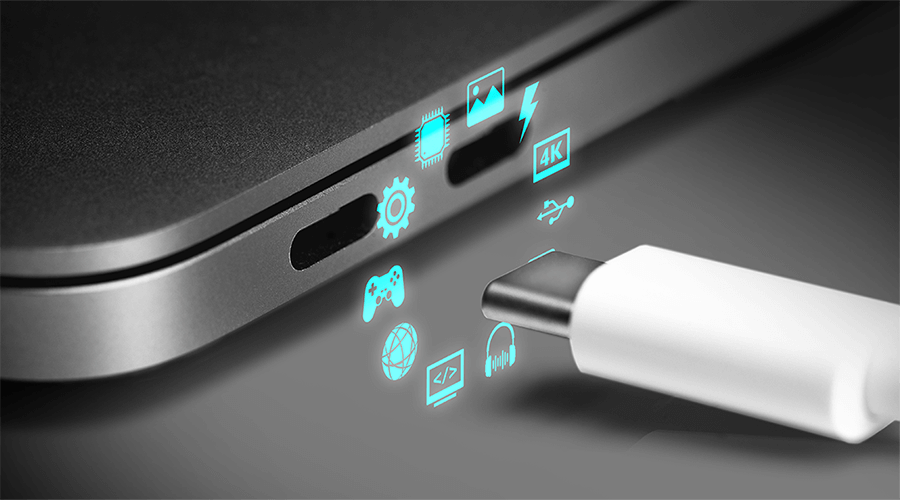
For MacBook Pro users, USB-C and Thunderbolt are more than just ports. They are the main connection path for video, data, and charging. The best USB-C monitor for MacBook Pro in 2026 should help you connect everything through one simple cable while keeping your display sharp, your laptop charged, and your workspace clean.
If you are looking for MacBook Pro monitor recommendations, start with your main workflow.
For visual creators: choose a color accurate monitor for MacBook Pro with P3 wide color gamut support, strong factory calibration, and reliable consistency between your MacBook display and external screen. This matters for designers, photographers, and video editors who need to make confident color decisions.
For developers: a coding or programming monitor for MacBook Pro USB-C should prioritize sharp text, comfortable viewing, and enough screen space for code, documentation, terminals, and browser windows.
For everyday productivity users: a USB-C monitor with Power Delivery for MacBook can make the biggest difference. A single cable can handle display output, laptop charging, and connected peripherals, helping you reduce clutter and create a cleaner workspace.
In general, an ideal USB-C monitor for MacBook Pro should offer 4K or higher resolution, stable bandwidth through a full-function USB-C port with DP Alt Mode, at least 65W Power Delivery, and reliable color performance. These features help ensure the monitor is not just compatible with your MacBook Pro, but truly extends your Mac workflow.
Related reading: What is USB-C DisplayPort (DP Alt Mode) and Why it Matters
Find BenQ Mac-friendly USB-C monitors by different workflow.
Apple’s display support refers to external monitors that are handled directly by macOS® and the Mac’s GPU, without the need for additional display software. This type of native support is important because it generally provides more stable performance, better access to the monitor’s full resolution and refresh-rate options, and more consistent behavior when the Mac goes to sleep or wakes up.
The number of external displays your MacBook Pro can support depends on the Apple® silicon chip inside your device, including M1, M2, M3, M4, M5, their Pro or Max versions, and the latest MacBook Neo with the A18 Pro chip.
Before planning your MacBook Pro monitor setup, always check Apple’s official display support information for your exact MacBook Pro model.
Reference: How many displays can be connected to MacBook Pro - Apple Support
If you want to learn more about how to build a dual-monitor or multi-monitor workspace for MacBook Pro, you can also refer to this setup guide: Dual Display MacBook® Pro Setup Guide: USB-C, Thunderbolt, Daisy Chain, and macOS® Settings
Many people buy a high-spec monitor and still feel the experience is not ideal. In many cases, the issue is not only the monitor itself, but also how resolution, macOS® HiDPI scaling, bandwidth, USB-C functions, color accuracy, and Power Delivery work together.
The following factors can help you choose a monitor that fits your MacBook Pro instead of becoming a bottleneck.
On macOS, higher pixel density helps text, icons, and interface details look sharper.
macOS uses HiDPI scaling, so pixel density has a major impact on how sharp text, icons, and interface elements appear. If the pixel density is too low, a monitor may look acceptable on paper but feel slightly soft or less refined in daily use.
For example, on a 27-inch screen, a 2K monitor offers around 109 PPI, which may make text and interface details look less sharp on macOS. Upgrading to 4K brings the pixel density to around 163 PPI, creating a better balance between clarity and usable workspace. If you want a display experience closer to the Retina-like sharpness of a MacBook built-in screen, a 5K monitor reaches around 218 PPI and can significantly reduce visible jagged edges and blur.
USB-C and Thunderbolt ports may look the same, but they do not always provide the same bandwidth or workflow flexibility.
A USB-C monitor can provide up to 10Gbps of bandwidth for data and video, and it can support up to 100W of power for laptop charging. In a simple display setup, USB 3.2 Gen 2 can support 4K at 60Hz. However, when you also use the monitor’s built-in hub for data transfer, the video signal and data share the same bandwidth. If the available bandwidth becomes limited, the system may automatically lower the refresh rate, for example from 60Hz to 30Hz. This can make motion feel less smooth, create visible blur, or make the cursor feel less responsive.
A Thunderbolt monitor can provide up to 40Gbps of bandwidth for data and video. It also supports up to 100W charging, but the higher bandwidth makes it more suitable for heavy workloads, fast file transfers, high-resolution creative projects, and daisy chain monitor setups where display and data performance need to stay stable at the same time.
That does not mean every MacBook Pro user needs Thunderbolt. If your main goal is to connect one external monitor, charge your laptop, and use basic accessories, USB-C can be enough. Thunderbolt becomes more helpful when you need more bandwidth, faster external drive performance, or a USB-C monitor daisy chain MacBook workflow.
Related reading: Thunderbolt 3, Thunderbolt 4, and USB 3.1 Gen2 Type C: Faster Transmission, Better Productivity
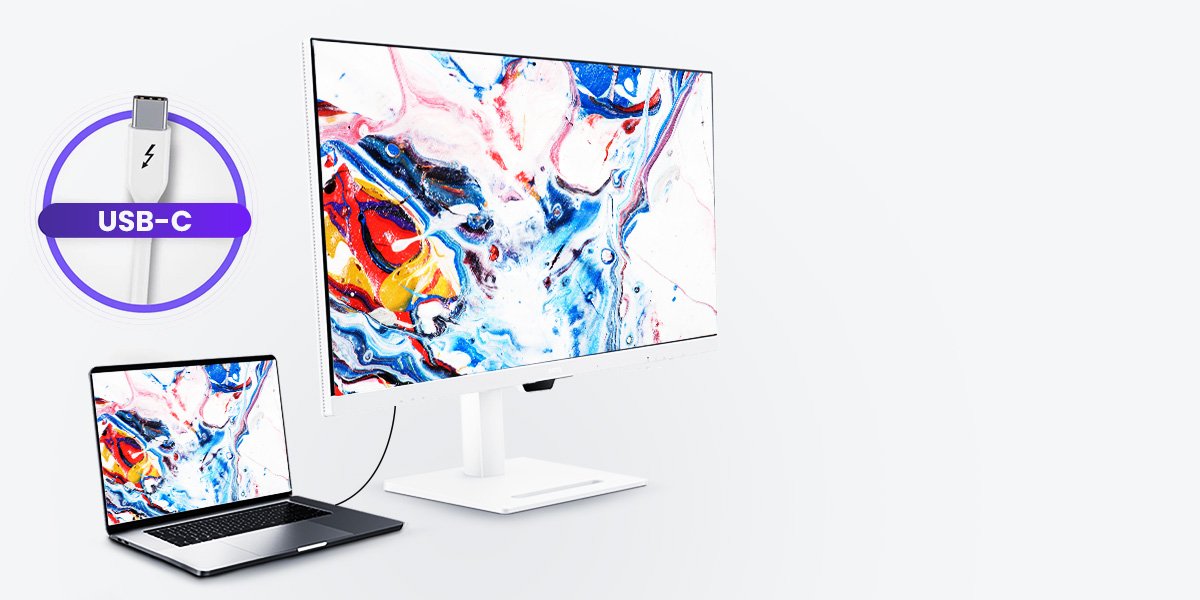
A full-function USB-C monitor should support video output, data transfer, and Power Delivery through the same cable.
When choosing a MacBook Pro monitor, do not only check whether it has a USB-C port. You need to confirm whether that USB-C port is fully functional.
A Mac-friendly USB-C monitor should support three key functions: video output through DisplayPort Alt Mode, data transfer for connected peripherals, and Power Delivery for charging your MacBook Pro.
This is important because not all USB-C ports or cables are the same. Some USB-C connections only support charging or basic data transfer, while others can carry video, data, and power at the same time. Always check the monitor specifications and use a cable that supports video output and enough charging power.
Creative users should prioritize wide color gamut, factory calibration, and consistent color between the MacBook Pro and external monitor.
After resolution and bandwidth, color accuracy is one of the most important factors for creative work. For designers, photographers, and video editors, an external monitor needs to show colors consistently and predictably, especially when working between a MacBook Pro display and a larger external screen.
A color-accurate monitor for MacBook Pro should offer wide color gamut coverage, consistent brightness, and reliable factory calibration. Since many Mac devices are built around the P3 wide color experience, choosing a P3 color monitor can help the external screen better match the MacBook Pro display. For many creative workflows, DCI-P3 coverage of 95% or higher and a Delta E value of 2 or lower can help colors appear more consistent across devices, reducing visual differences and the need for repeated edits.
Find and Compare Mac-friendly BenQ USB-C monitors for Color-Critical Works.
sRGB
P3
A USB-C monitor with enough Power Delivery can charge your MacBook Pro while displaying video through the same cable.
For lighter work, 65W Power Delivery may be enough. For heavier creative work, coding, multitasking, or larger MacBook Pro models, 90W or 96W Power Delivery is usually a better choice. This helps keep your MacBook Pro charged even when it is under heavier load.
Cable specifications can also affect the overall stability of your setup. Make sure the USB-C cable you use supports DisplayPort Alt Mode for video output and is certified for enough Power Delivery to handle charging. This helps ensure the same cable can support both display and power needs, reducing the risk of no signal, unstable charging, or an unreliable connection.
If you want a more universal solution, check the USB-C or USB Type-C logo and product specifications to confirm whether the port supports DisplayPort Alt Mode. For full confirmation, always refer to the monitor’s detailed specification sheet to verify complete DP Alt Mode support.
When your MacBook Pro does not natively support the display setup you want, a hub or dock may help extend your workspace. For example, some DisplayLink-based docks can support additional external displays, depending on your Mac model and setup.
This is especially relevant if you are planning a dual monitor setup for MacBook Pro USB-C but your MacBook Pro chip has native external display limitations.
Learn More: How to Set up Triple Monitors for MacBook Air and MacBook Pro with USB-C hub (M1, M2, M3, M4)
When choosing a monitor, it is often more helpful to start from how you work instead of comparing every specification line by line.
Best for: Designers, photographers, and video editors who need reliable color and visual detail.
For visual creators, the monitor is part of the creative decision-making process. If color is inaccurate or shadow detail is unclear, the final work may not match your intention, and you may spend more time making corrections.
Designers should look for a color accurate monitor for MacBook Pro that offers wide color gamut support, reliable calibration, and consistent color between the MacBook display and external screen. Photographers should prioritize tonal detail, accurate skin tones, and screen uniformity. Video editors should consider resolution, color consistency, and stable USB-C or Thunderbolt connectivity.
Recommended models: PD2730S, PD2732U, PD2706U, SW272U, SW272QN, PV3250U, PV2750U
Best for: Developers who spend long hours reading code, documentation, terminals, and browser previews.
For developers, the monitor needs to support long hours of reading and focus. A coding monitor for MacBook Pro USB-C should make text look crisp, reduce eye fatigue, and provide enough space for code editors, terminals, documentation, and browser previews.
Instead of only looking for the most dramatic specs, developers should prioritize readability, comfort, anti-glare performance, and a stable USB-C setup that keeps the desk clean.
Recommended models: RD280U, RD280UA, RD280UG, RD320U, RD320UA, RD270Q, RD240Q
Best for: MacBook Pro users who want fewer cables, easier docking, and a cleaner hybrid workspace.
For everyday productivity users, the most valuable upgrade is often simplicity. If your desk is crowded with chargers, dongles, and cables, a USB-C monitor with Power Delivery for MacBook can make your workspace feel much cleaner.
With one cable, you can connect your MacBook Pro to a larger screen, charge your laptop, and access your keyboard, mouse, or other peripherals. This makes it easier to move between home, office, and hybrid work setups.
Recommended models: MA270U, MA320U, MA270UP, MA320UP, MA270S, MA320UG
Many monitors can connect to a MacBook Pro, but not all of them are designed to feel natural in a Mac workflow. A BenQ USB-C monitor for Mac is designed to help reduce setup friction and make external display use feel more consistent with daily Mac work.
Build a Mac workspace around the way you work. Explore BenQ monitors curated for everyday flow, creative confidence, photographic fidelity, and coding clarity.
USB-C and Thunderbolt ports look similar, but they offer different bandwidth levels. USB-C can provide up to 10Gbps of bandwidth for data and video, plus up to 100W charging. Thunderbolt can provide up to 40Gbps of bandwidth and also supports up to 100W charging, making it better suited for heavy workloads, fast file transfers, and daisy chain monitor setups.
Yes, but you need to check the Power Delivery wattage provided by the monitor. MacBook Pro models, especially 14-inch and 16-inch versions, can consume more power during heavy workloads such as video editing. A monitor with 90W or higher Power Delivery is recommended to help keep the battery charged while you work. If the monitor only provides 15W to 30W, the power supply may not be enough for sustained use.
No. MacBooks include intelligent power management that detects multiple power sources and chooses the most suitable one. It will not overcharge simply because both a power adapter and a USB-C monitor are connected.
Some entry-level Apple silicon chips have native external display limitations. For example, certain M1 and M2 MacBook models support only one external display. If you need more monitors, you may need a compatible dock or another supported setup.
Yes, but the cable must support video output through DisplayPort Alt Mode. Many low-cost USB-C cables only support charging or low-speed data transfer. To drive a 4K image reliably, look for a high-quality cable marked with USB 3.2 Gen 2, USB4, or Thunderbolt 4 certification, and make sure it supports 100W Power Delivery.
If your MacBook Pro USB-C monitor is not working or shows no signal, first check whether your USB-C cable supports video output through DisplayPort Alt Mode. A regular charging-only cable cannot transmit a video signal. Next, make sure the monitor’s input source is correctly set to USB-C. If there is still no image, try another Thunderbolt port on your MacBook Pro.
* Trademarks: Apple®, Mac®, MacBook®, iPhone®, iPad®, Mac mini®, Mac Studio®, and macOS® are registered trademarks of Apple Inc.
Build a Mac workspace around the way you work. Explore BenQ monitors curated for everyday flow, creative confidence, photographic fidelity, and coding clarity.
{{item.productWordingTag}}
{{currency}}{{item.finalPrice| numberThousandsCommas | numberDecimalPoint}} Save {{currency}}{{item.saveAmount | numberThousandsCommas | numberDecimalPoint}} Save {{item.savePercent | numberThousandsCommas | numberDecimalPoint}}%
new device price{{currency}}{{item.regularPrice| numberThousandsCommas | numberDecimalPoint}}