For programmers, a dual monitor desk setup is more than just a cool-looking workstation. It’s about maximizing focus, boosting productivity, and protecting your eyes during long hours of coding. With the right setup, you can keep your IDE, documentation, and terminal visible at the same time, without constantly switching tabs.
In this guide, we’ll explore the pros and cons of dual monitors, the essential gear you need, programmer-specific setup ideas, workflow hacks, and the one overlooked factor that becomes even harder to solve as your setup gets wider: lighting.
Before investing in a dual monitor desk setup, it’s worth weighing the trade-offs. Programmers often enjoy the productivity gains of a second screen, but the setup also comes with extra costs and space requirements. The table below highlights the most common advantages and drawbacks so you can decide if dual monitors are the right fit for your workflow.
Pros
Cons
For a dual monitor desk setup, consistency matters. Choose monitors of the same size and resolution to keep windows aligned and text sharp. Many programmers prefer 28–32 inches for a single large screen, while 24–28 inches pair well in dual setups, especially if one is vertical for viewing more lines of code.
Features like higher resolution, anti-glare panels, and coding modes can further improve clarity and comfort during long sessions.
A monitor arm is one of the simplest upgrades to transform your desk. By lifting your screens off the surface, it frees up valuable workspace and creates a cleaner, more organized setup. More importantly, it helps you position your monitors at the right height and angle, reducing neck, shoulder, and eye strain during long coding sessions.
For programmers using dual monitors, arms offer even greater flexibility. You can align both screens seamlessly, rotate one vertically to see more lines of code, or adjust angles for smoother workflows. While adjustable stands provide some basic height control, a monitor arm gives you full ergonomic freedom.
A good rule of thumb: at least 55–60 inches wide and 30 inches deep. This depth ensures you can keep an arm’s length viewing distance. Pair with a standing desk or ergonomic chair for long debugging sessions.
Laptop programmers benefit from docking stations to centralize connections. A single hub for USB, HDMI, Ethernet, and charging keeps your workspace clean and efficient.
Use quality cables: HDMI, DisplayPort, or USB-C, depending on your device. Cheap or mismatched cables often cause flickering screens or random disconnects during builds.
Most dual monitor guides stop at hardware. But lighting is critical, especially for programmers who often code in dark rooms. The main challenge is contrast glare: bright screens against a dark wall force your eyes to constantly adjust.
With two monitors, lighting becomes even harder to manage. A traditional desk lamp may illuminate only part of the workspace, create screen reflections, or take up valuable desk space. For a dual monitor setup, the goal is to provide wide, controlled lighting across both screens and the desk without adding glare or clutter.
ScreenBar Max is designed specifically for this kind of wider dual-monitor workspace, using extended lighting coverage and glare-control optics to illuminate the work area while keeping light away from the screens.
Once you’ve got the right monitors, arms, and desk in place, the next step is deciding how to arrange everything. Your layout can completely change how efficient or comfortable your coding sessions feel. Some setups maximize visibility, others save space, and a few are tailored for collaboration. Below are ten practical ideas that programmers can adapt to their own workspace.
Two monitors side by side, both at eye level. Ideal for IDE right, documentation left.
Main monitor centered for coding, secondary monitor angled for logs, dashboards, or Slack.
Image for illustrative purposes only. Setup shown is for layout reference.
Rotate one screen vertically for easier reading of long code, logs, or API docs.
Image for illustrative purposes only. Setup shown is for layout reference.
Place one screen above the other. Use the top for terminals or monitoring tools, and the bottom for your coding environment.
Perfect for pair programming or separating multiple projects.
Image for illustrative purposes only. Setup shown is for layout reference.
For mobile programmers, docking a laptop into a larger external monitor is a compact and effective workflow.
Compact arms and risers help maximize limited desk space. Vertical screens save even more room.
Image for illustrative purposes only. Setup shown is for layout reference.
Combine your dark IDE theme with warm desk lighting to reduce harsh contrast and eye strain.
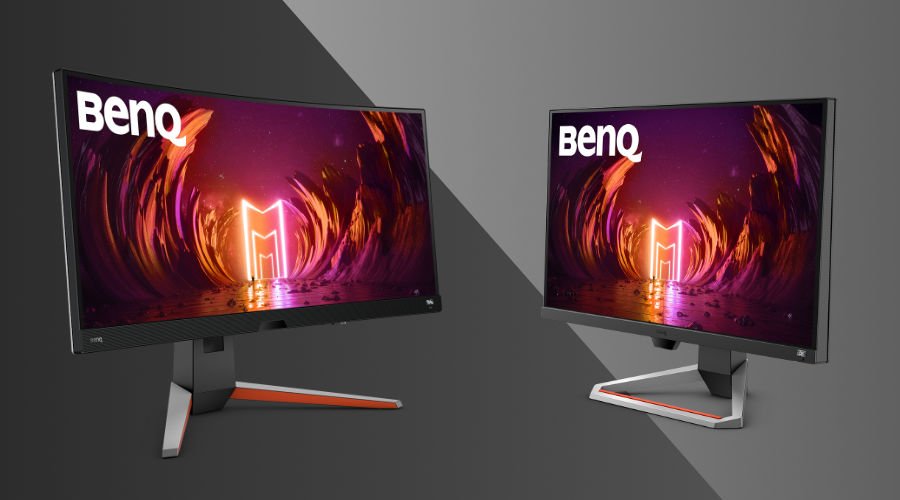
Curved screens provide immersion for wide code reviews, while flat monitors offer pixel-precise accuracy for UI design.
Mount your monitors on a wall bracket to free desk space and create a minimalist look.
Image for illustrative purposes only. Setup shown is for layout reference.
Setting up two monitors isn’t just about the hardware, small workflow tweaks can also make coding smoother. Programmers often benefit from:
OS display settings
Extend mode on Windows, Arrangement on Mac, or multi-display configs in Linux.
Keyboard shortcuts
Quickly move windows across screens or switch focus without the mouse.
Coding layouts
Keep your IDE on one screen, and use the other for docs, logs, or communication tools.
These hacks save time, but they only go so far. Many programmers still struggle with eye strain, not because of workflow, but because of lighting. That’s where the next part of your setup matters most.
Even the best monitor placement and workflow tweaks won’t fix one of the biggest challenges of dual monitor setups: contrast glare. Bright screens in front of a dark background force your eyes to readjust over and over, leading to strain, headaches, and fatigue. Traditional desk lamps rarely help, they create glare on the monitors, uneven lighting on the desk, and take up space you’d rather keep clear.
That’s why dual monitor lighting deserves its own solution. Instead of simply adding more light, the goal is to create a more balanced, glare-controlled environment that works with the entire two-screen workspace.
A regular desk lamp may struggle to cover a wider two-screen workspace evenly while avoiding screen glare. A dual monitor desk lamp is designed to provide broader, more controlled illumination across both screens and the surrounding work area, helping reduce glare and visual discomfort. For programmers who frequently move between code, documents, and other tools, it creates a more balanced lighting environment across the entire desk.
BenQ ASYM-TriZone™ Technology
Bias Lighting (Backlighting)
Choosing the right ScreenBar depends not only on how many monitors you use, but also on how they are arranged. ScreenBar Max is designed for wider dual monitor workspaces, such as side-by-side or angled setups, where broader lighting coverage and flexible positioning are needed. ScreenBar Halo 2 is better suited to stacked monitors, laptop + external monitor setups, or more compact workspaces where lighting is centered around one primary screen.
Use the table below to find the ScreenBar that best fits your monitor layout and lighting needs.
Setup Scenario
Lighting Need
Recommendation
Dual monitors (symmetrical/asymmetrical)
Wider, even lighting across two screens and the desk
1 × ScreenBar Max
Dual monitors (symmetrical/asymmetrical)
Flexible positioning with glare control across different screen angles
1 × ScreenBar Max
Laptop + External
Focused lighting around one primary monitor and the nearby work area
1 × ScreenBar Halo 2
Compact desk (any layout)
Controlled lighting for a more compact, single-display workspace
1 × ScreenBar Halo 2
Wide / L-shaped desk
Broader lighting coverage across a larger two-screen workspace
1 × ScreenBar Max
Tip
Dual monitors do not have to follow one fixed layout. With ScreenBar Max, you can adjust the lamp height and sliding rail to better match side-by-side, angled, or mixed-orientation setups. Fine-tune the light position based on your monitor arrangement and workspace depth for more even desk illumination.
A great dual monitor setup should make your workspace feel more efficient, comfortable, and easier to use, not more complicated. Once your monitors, desk layout, and workflow are in place, lighting is another important piece that helps bring the whole setup together.
For programmers working across a wider dual monitor setup, ScreenBar Max is designed to provide broader, glare controlled lighting across the workspace. For single, ultrawide, stacked, or more compact monitor setups, ScreenBar Halo 2 offers a more focused lighting solution with front and back lighting for a balanced work environment.
The best setup is ultimately the one that fits how you work, helping you stay focused and comfortable through long coding sessions.
For side-by-side, angled, or wider dual monitor setups, ScreenBar Max is designed to provide broader, more flexible lighting across the workspace. For stacked monitors or more compact setups, ScreenBar Halo 2 may be a better fit.
Around 300–500 lx on the desk surface is generally suitable for computer work, providing enough task lighting without making the workspace excessively bright.
A dual monitor desk lamp is designed for a wider two-screen workspace. It provides broader, more controlled illumination while helping reduce screen glare and uneven lighting across the desk.
Yes. ScreenBar Max features adjustable height and a sliding rail, allowing the light position to be fine-tuned for side-by-side, angled, and mixed-orientation monitor setups.
Monitor Lighting that Empowers Your Focus and Flow