Projector
Explore Business Projector
Professional Installation Exhibition & Simulation Conference Room Meeting Room Education ProjectorsMonitor
Lighting
Interactive Display | Signage
We use cookies and similar technologies on this website to improve our service for you and bring you a more personalized user experience.
By accepting optional cookies, you can enjoy:
Personalized support and live chat (Functional cookies)
Relevant content via anonymized analytics (Analytics / Performance cookies)
Ads and marketing tailored to your interests (Advertising / Targeting cookies)
By clicking “Accept all”, you consent to the use of cookies, including optional cookies. Click “Reject all” to reject optional cookies or click “Cookie Setting” to manage your preferences. Please note that rejecting optional cookies may affect certain website features and functionality. Find out more in our Cookie Policy and Privacy Policy.
Always active
These cookies are required for the operation of the website and cannot be configured.
These cookies allow us to offer you customized content according to your profile, your interests and your usage. By accepting these cookies, you help us to improve the layout and features of our site.
These cookies allow us to understand how you access the site and your browsing habits (e.g. pages viewed, time spent on a page, content clicked). They allow us to analyze the performance and design of our site and to detect possible errors. Owing to these performance indicators, we are constantly improving our site and our products, content and offers.
These cookies are used for BenQ advertisements displayed on third-party websites, including social media, and are tailored to your preferences and to help us measure the effectiveness of our advertising campaigns. They remember that you have visited our site and share this information with partners, such as advertisers, for the purpose of targeted advertising. If you refuse these cookies, advertising (including ours) will continue to be displayed as you browse the Internet, although they will not be specific to your personal interests, and will therefore be less relevant.
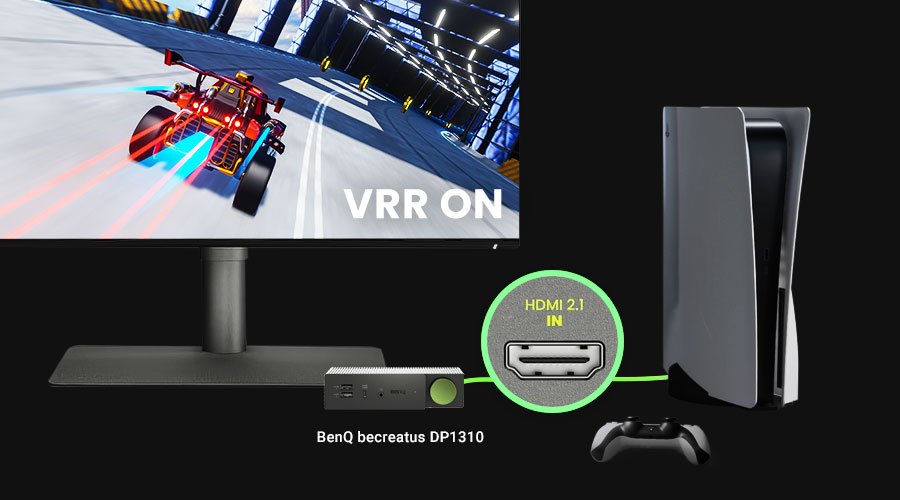
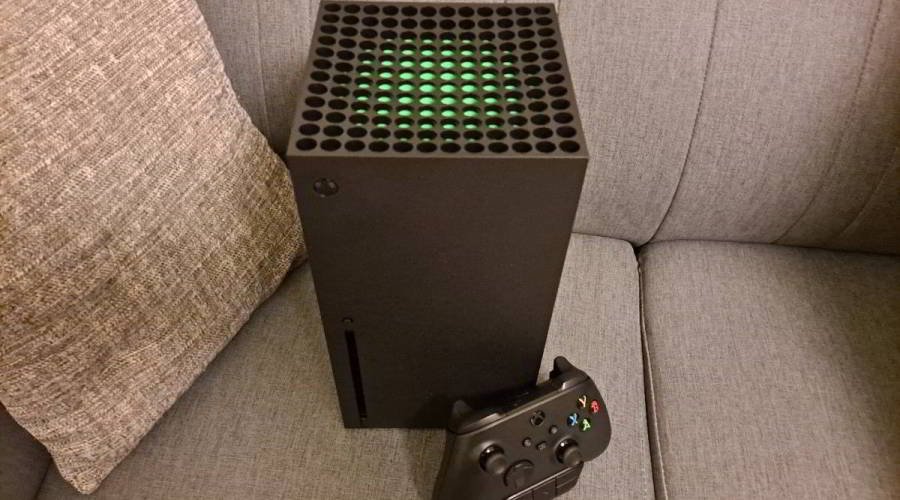
The upcoming PlayStation 5 and Xbox Series X, as well as new graphics cards from NVIDIA and AMD, all have one thing in common. They’re all going to support HDMI 2.1 and aim to go beyond 4K and closer to 8K resolution. The biggest thing with HDMI 2.1 is the exponential growth in bandwidth compared to HDMI 2.0, which has been most associated with 4K 60Hz. However, HDMI 2.0 also does have the ability to execute 4K 120Hz. As we’ve discussed before, it’s all a matter of bandwidth and the right settings.
Getting it to Work
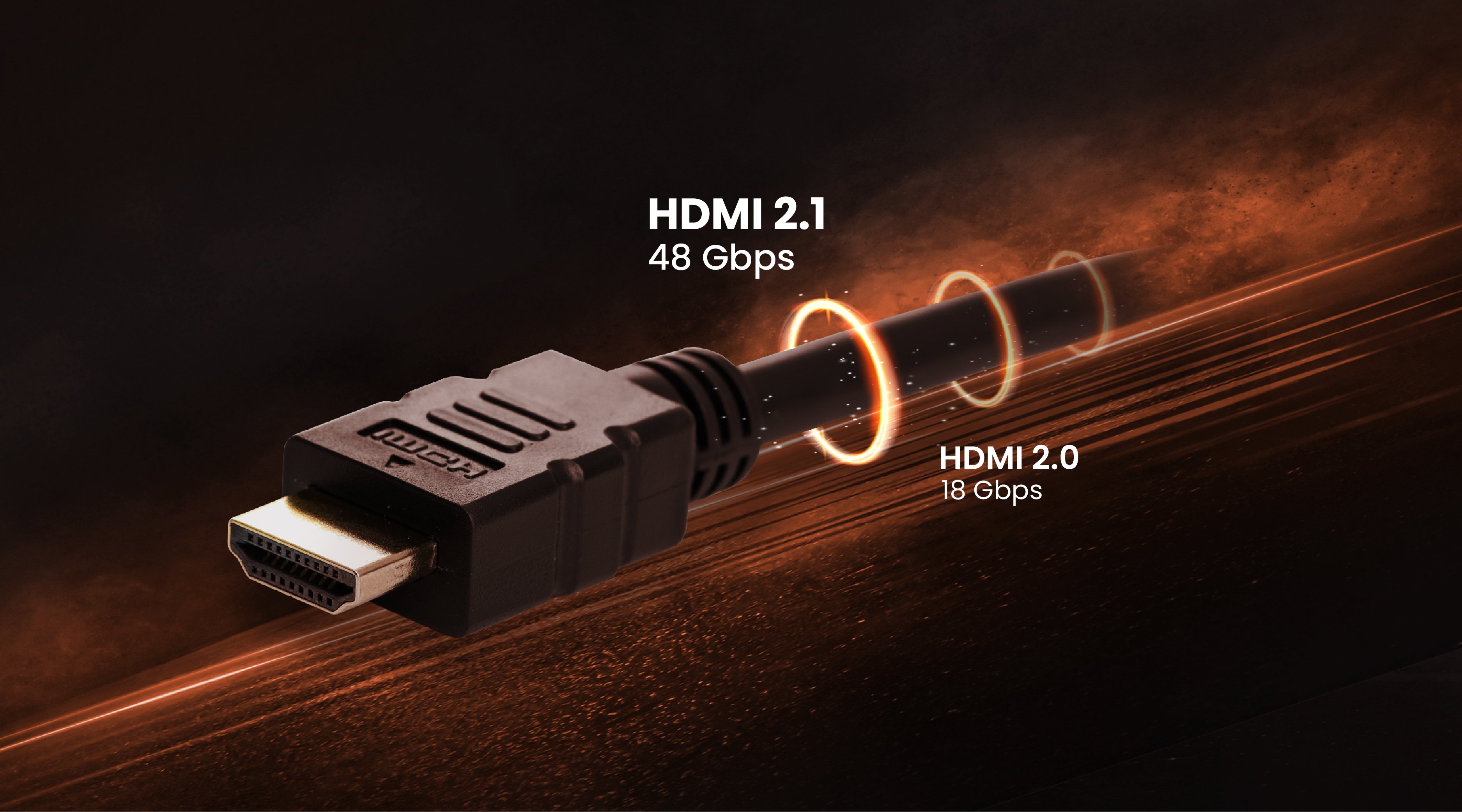
HDMI 2.1 has 48Gbps carry capacity, compared to just 18Gbps for HDMI 2.0. Now, the 18Gbps of HDMI 2.0 assumes video delivery with HDR, 4:4:4 chroma, and 10-bit color coding. At a resolution of 3840 x 2160, that would fill up the entire bandwidth with a maximum framerate of 60Hz, and often 4:4:4 won’t be possible, only 4:2:2. However, if we can force 8-bit color coding (16.7 million colors), no HDR, and 4:2:0 chroma subsampling, then 4K 120Hz actually turns out to “cost” about 16Gbps, which is technically possible on HDMI 2.0.
Current game consoles and graphics cards all allow for such controls over video settings, although many games and apps will force override user-defined parameters. In theory, though, HDMI 2.0 (effectively HDMI 2.0b since late 2016) can do 4K 120Hz.
This mostly applies to PC, where cards like the GTX 2080 Ti can actually pull off 120 frames per second in certain games while running in 4K. The PS4 Pro and Xbox One X won’t allow 120Hz in 4K anyway. At most you’ll be able to get 120Hz in 1440p with some televisions and monitors, though you’re more likely to be limited to 120Hz in 1080p, even if you have a very fast 2K display.
So, if you currently have a top of the line NVIDIA card, go into the NVIDIA Control Center and change display settings as described above. Force 8-bit color, limited RGB, and 4:2:0 chroma subsampling. Right click on your Windows desktop, go into display settings there, and make sure HDR is unchecked. This’ll save every bit of bandwidth possible so you can squeeze those 120 frames per second via HDMI 2.0 whenever possible.
Several “buts” if we’re being honest. If you’re on PC, then you may as well save yourself all this video math by going with DisplayPort, which since version 1.3 has been able to do 4K 120Hz with ease thanks to an effective bandwidth of nearly 30Gbps. This is why you have plenty of wonderful 100Hz and above monitors in and around 4K to choose from in the PC realm, as DisplayPort is standard in that context. However, HDMI offers a far more universal approach and works equally well for PCs, consoles, and a whole host of input sources, like streaming boxes. While USB-C alt mode may increase the ubiquity of DisplayPort, for now HDMI is the more popular. Which is why we thought you’d want to know that 4K 120Hz is already doable with HDMI.
Another important “but” is that HDMI 2.0 doesn’t officially support 4K at over 60Hz, only HDMI 2.1 does. Experimenting and trying to force 120Hz won’t hurt anything or invalidate warranties, but it may not work. A lot of it will also depend on the quality of the HDMI cable you’re using. Good ones have the full 18Gbps while shady products may go as low as 15Gbps, which won’t be enough. Go with an ultra high speed HDMI cable from a brand you know and trust.
Also, don’t expect your PS4 Pro or Xbox One X to accept 4K resolution at 120Hz refresh rate. They simply won’t allow that combination, so no need to get frustrated. In practical terms, 4K 120Hz is a PC-only combo for now, at least until more powerful consoles arrive.
{{item.productWordingTag}}
{{currency}}{{item.finalPrice| numberThousandsCommas | numberDecimalPoint}} Save {{currency}}{{item.saveAmount | numberThousandsCommas | numberDecimalPoint}} Save {{item.savePercent | numberThousandsCommas | numberDecimalPoint}}%
new device price{{currency}}{{item.regularPrice| numberThousandsCommas | numberDecimalPoint}}