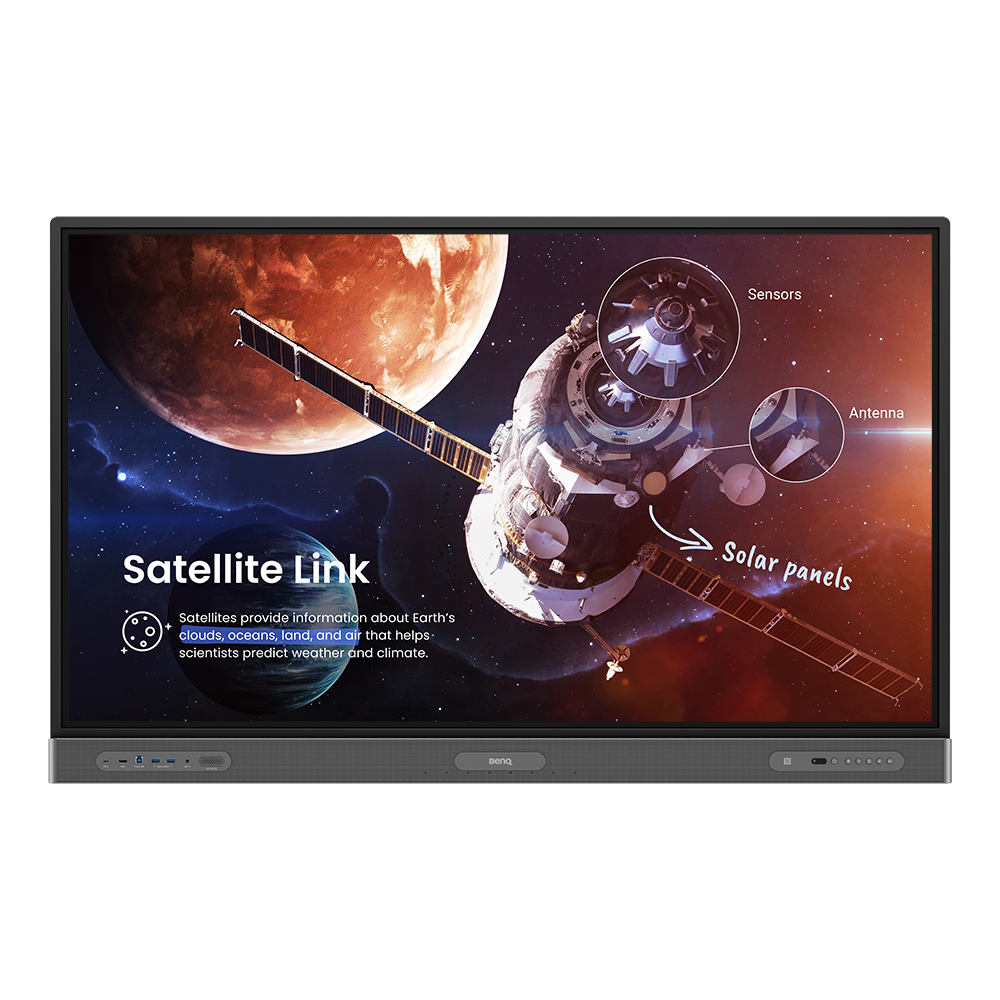
Pro Series Education Interactive Display 65” | RP6503
Encourage active participation in class while protecting student and teacher health with BenQ’s best interactive display for education.
Application
 How do I add a device by using QR code for DMS Cloud?

A device must be added first in order to remotely monitor, control, and configure devices individually or as groups. Please follow the demo video to add device using QR code for DMS Cloud.
Learn More
How do I use DMS Cloud to control the device remotely?
Devices can be controlled remotely in DMS Cloud. Please follow the demo video for detail steps.
Learn More
Why does it show "Display ID is invalid" when I tried to register EasySetting with my device?
Please make sure to check the followings:
(1) Is the network working properly? Make sure to use LAN instead of Wi-Fi for internet access.
(2) Make sure EasySetting whitelist is set up already. Learn More
(1) Is the network working properly? Make sure to use LAN instead of Wi-Fi for internet access.
(2) Make sure EasySetting whitelist is set up already. Learn More
Where can I download InstaShare App for Android/iOS/Windows/MAC OS?
Please refer to the following download sites for the app:
- Android phone/tablet: Search for "InstaShare" in Google Play and download the app.
- iOS phone/tablet: Search for "InstaShare" in the App Store and download the app.
- Windows/MAC: Follow the below steps to download the app from IFP:
(1) Ensure both IFP and PC are connected to the same network.
(2) Open IFP InstaShare app.
(3) Follow InstaShare instructions to download the app. Learn More
- Android phone/tablet: Search for "InstaShare" in Google Play and download the app.
- iOS phone/tablet: Search for "InstaShare" in the App Store and download the app.
- Windows/MAC: Follow the below steps to download the app from IFP:
(1) Ensure both IFP and PC are connected to the same network.
(2) Open IFP InstaShare app.
(3) Follow InstaShare instructions to download the app. Learn More
How do I connect with InstaShare?
InstaShare software is designed to allow seamless wireless presentation and collaboration, utilising smooth streaming of both audio files and Full HD videos.
Users can also mirror and control all digital content across their devices including BenQ IFPs, PCs, tablets, and smartphones, empowering contributors to enrich their sessions with a variety of multimedia resources.
Here is the step by step tutorial for connecting your device with InstaShare.
Learn More
Why can't I cast to an InstaShare 2 Host?
Please kindly check the following:
1. Make sure the client app/software is for InstaShare 2.
2. Make sure to enable the ports which are needed for InstaShare 2.
3. Make sure the client app/software and the host on BenQ display are connected to the same
network.
4. When the client app/software and the host on BenQ display are in different VLANs, make sure that
the network of the school/enterprise supports inter-vLAN connection.
Does InstaShare 2 support Miracast?
Yes, InstaShare 2 supports Miracast.
Learn More
How to install InstaShare 2?
How to connect the display to the internet?
How to access cloud storage files via AMS?
How to access files from a USB storage device?
How to access files from a local network drive?
How to display content from a laptop
How to display content from an Android tablet or smartphone
How to add a network drive to AMS?
The following steps should be performed by an administrator.
Learn More
How to link a cloud storage account to AMS?
1. Go to https://ams.benq.com.
Learn More
How to unlink a cloud storage account from AMS?
1. Go to https://ams.benq.com.
Learn More
How to enable AMS on the display?
How to bind the NFC card to the BenQ Account Management System (AMS) accouont?
To make it more convenient for users to access and manage their files and personal device environment, BenQ releases Account Management System (AMS) to make it easier for users to access and manage files as well as accounts.
This video will guide you on how to bind the NFC card to the AMS account. Link Learn More
This video will guide you on how to bind the NFC card to the AMS account. Link Learn More
How to bind your display to the BenQ Account Management System (AMS) account?
To make it more convenient for users to access and manage their files and personal device environment, BenQ releases Account Management System (AMS) to make it easier for users to access and manage files as well as accounts.
This video will guide you on how to bind your displays to the AMS account.
Learn More
How to add a corporate network drive to the BenQ Account Management System (AMS) account?
To make it more convenient for users to access and manage their files and personal device environment, BenQ releases Account Management System (AMS) to make it easier for users to access and manage files as well as accounts.
This video will guide you on how to add a corporate network drive to the AMS account.
Learn More
How to access your cloud storage in BenQ Account Management System (AMS)?
To make it more convenient for users to access and manage their files and personal device environment, BenQ releases Account Management System (AMS) to make it easier for users to access and manage files as well as accounts.
This video will guide you on how to access your cloud storage in AMS.
Learn More
How do I delete/unbind the device from DMS Cloud?
BenQ DMS (Device Management Solution), combined with DMS Cloud and DMS Local, featuring leading technologies and intuitive interface, is your ultimate solution for device management.
This video will guide you on how to unbind a display from DMS. Learn More
This video will guide you on how to unbind a display from DMS. Learn More
How to bind your display to X-Sign Broadcast?
X-Sign Broadcast is a wireless broadcast system that can push alerts, messages and announcements during class.
This video will guide you on how to bind your display to X-Sign Broadcast.
Learn More
How to push real-time messages from X-Sign Broadcast?
X-Sign Broadcast is a wireless broadcast system that can push alerts, messages and announcements during class.
This video will guide you on how to push real-time messages from X-Sign Broadcast.
Learn More
How to schedule messages in X-Sign Broadcast?
X-Sign Broadcast is a wireless broadcast system that can push alerts, messages and announcements during class.
This video will guide you on how to schedule messages in X-Sign Broadcast.
Learn More
How to manage tags in X-Sign Broadcast?
X-Sign Broadcast is a wireless broadcast system that can push alerts, messages and announcements during class.
This video will guide you on how to manage tags in X-Sign Broadcast.
Learn More
How can I set up the touch function in extended display mode?
Please refer to the video below for detailed instructions for how to set up touch functionality in extended display mode.
Learn More
How to display content from an iPhone or iPad?
How to pair the InstaShare Button?
Experience wireless screen sharing with a single click.
The InstaShare Button lets you share content to your BenQ board from any laptop without cables.
A tutorial on how to pair the InstaShare Button is located here:
Learn More
How to install InstaShare2 without the virtual sound driver?
If you wish to install InstaShare 2 without the virtual sound driver (Instashare2Vad), please follow the steps in the video to install without it.
Learn More
How to change picture mode and open website through DMS automation?
Please follow the step-by-step instructions in the video to change picture mode and open the website through DMS automation.
Learn MoreFurther Query
Why isn't "Display ID" shown on the device?
"Display ID" will not be shown if the network is not available. Please make sure your device is successfully connected to the Internet.
Learn More
Why does it turn to full screen automatically when I select InstaShare "2-Split Screen" or "4-Split Screen" to play a YouTube video with an iPhone?
When a YouTube video is played through an iPhone, it will turn to full screen automatically, this is a known behavior for iOS devices.
Learn More
How can I export logs on RP/RM/RE series models?
In order to assist you further, it would be helpful if you could provide us with system logs when you experience any issues with BenQ displays.
This video will guide you on how to export system logs for the BenQ RP/RM/RE series.
Learn More
Why can’t I project the screen from my laptop using InstaShare2 Miracast P2P?
To use Miracast P2P, either connect to a 5GHz Wi-Fi channel between 36 and 48, or disconnect from your current Wi-Fi.
Learn More
How do I add a device by using QR code for DMS Cloud?
A device must be added first in order to remotely monitor, control, and configure devices individually or as groups. Please follow the demo video to add device using QR code for DMS Cloud.
Learn More
How do I use DMS Cloud to control the device remotely?
Devices can be controlled remotely in DMS Cloud. Please follow the demo video for detail steps.
Learn More
Why does it show "Display ID is invalid" when I tried to register EasySetting with my device?
Please make sure to check the followings:
(1) Is the network working properly? Make sure to use LAN instead of Wi-Fi for internet access.
(2) Make sure EasySetting whitelist is set up already. Learn More
(1) Is the network working properly? Make sure to use LAN instead of Wi-Fi for internet access.
(2) Make sure EasySetting whitelist is set up already. Learn More
Where can I download InstaShare App for Android/iOS/Windows/MAC OS?
Please refer to the following download sites for the app:
- Android phone/tablet: Search for "InstaShare" in Google Play and download the app.
- iOS phone/tablet: Search for "InstaShare" in the App Store and download the app.
- Windows/MAC: Follow the below steps to download the app from IFP:
(1) Ensure both IFP and PC are connected to the same network.
(2) Open IFP InstaShare app.
(3) Follow InstaShare instructions to download the app. Learn More
- Android phone/tablet: Search for "InstaShare" in Google Play and download the app.
- iOS phone/tablet: Search for "InstaShare" in the App Store and download the app.
- Windows/MAC: Follow the below steps to download the app from IFP:
(1) Ensure both IFP and PC are connected to the same network.
(2) Open IFP InstaShare app.
(3) Follow InstaShare instructions to download the app. Learn More
How do I connect with InstaShare?
InstaShare software is designed to allow seamless wireless presentation and collaboration, utilising smooth streaming of both audio files and Full HD videos.
Users can also mirror and control all digital content across their devices including BenQ IFPs, PCs, tablets, and smartphones, empowering contributors to enrich their sessions with a variety of multimedia resources.
Here is the step by step tutorial for connecting your device with InstaShare.
Learn More
Why can't I cast to an InstaShare 2 Host?
Please kindly check the following:
1. Make sure the client app/software is for InstaShare 2.
2. Make sure to enable the ports which are needed for InstaShare 2.
3. Make sure the client app/software and the host on BenQ display are connected to the same
network.
4. When the client app/software and the host on BenQ display are in different VLANs, make sure that
the network of the school/enterprise supports inter-vLAN connection.
Does InstaShare 2 support Miracast?
Yes, InstaShare 2 supports Miracast.
Learn More
How to install InstaShare 2?
How to connect the display to the internet?
How to access cloud storage files via AMS?
How to access files from a USB storage device?
How to access files from a local network drive?
How to display content from a laptop
How to display content from an Android tablet or smartphone
How to add a network drive to AMS?
The following steps should be performed by an administrator.
Learn More
How to link a cloud storage account to AMS?
1. Go to https://ams.benq.com.
Learn More
How to unlink a cloud storage account from AMS?
1. Go to https://ams.benq.com.
Learn More
How to enable AMS on the display?
How to bind the NFC card to the BenQ Account Management System (AMS) accouont?
To make it more convenient for users to access and manage their files and personal device environment, BenQ releases Account Management System (AMS) to make it easier for users to access and manage files as well as accounts.
This video will guide you on how to bind the NFC card to the AMS account. Link Learn More
This video will guide you on how to bind the NFC card to the AMS account. Link Learn More
How to bind your display to the BenQ Account Management System (AMS) account?
To make it more convenient for users to access and manage their files and personal device environment, BenQ releases Account Management System (AMS) to make it easier for users to access and manage files as well as accounts.
This video will guide you on how to bind your displays to the AMS account.
Learn More
How to add a corporate network drive to the BenQ Account Management System (AMS) account?
To make it more convenient for users to access and manage their files and personal device environment, BenQ releases Account Management System (AMS) to make it easier for users to access and manage files as well as accounts.
This video will guide you on how to add a corporate network drive to the AMS account.
Learn More
How to access your cloud storage in BenQ Account Management System (AMS)?
To make it more convenient for users to access and manage their files and personal device environment, BenQ releases Account Management System (AMS) to make it easier for users to access and manage files as well as accounts.
This video will guide you on how to access your cloud storage in AMS.
Learn More
How do I delete/unbind the device from DMS Cloud?
BenQ DMS (Device Management Solution), combined with DMS Cloud and DMS Local, featuring leading technologies and intuitive interface, is your ultimate solution for device management.
This video will guide you on how to unbind a display from DMS. Learn More
This video will guide you on how to unbind a display from DMS. Learn More
How to bind your display to X-Sign Broadcast?
X-Sign Broadcast is a wireless broadcast system that can push alerts, messages and announcements during class.
This video will guide you on how to bind your display to X-Sign Broadcast.
Learn More
How to push real-time messages from X-Sign Broadcast?
X-Sign Broadcast is a wireless broadcast system that can push alerts, messages and announcements during class.
This video will guide you on how to push real-time messages from X-Sign Broadcast.
Learn More
How to schedule messages in X-Sign Broadcast?
X-Sign Broadcast is a wireless broadcast system that can push alerts, messages and announcements during class.
This video will guide you on how to schedule messages in X-Sign Broadcast.
Learn More
How to manage tags in X-Sign Broadcast?
X-Sign Broadcast is a wireless broadcast system that can push alerts, messages and announcements during class.
This video will guide you on how to manage tags in X-Sign Broadcast.
Learn More
How can I set up the touch function in extended display mode?
Please refer to the video below for detailed instructions for how to set up touch functionality in extended display mode.
Learn More
How to display content from an iPhone or iPad?
How to pair the InstaShare Button?
Experience wireless screen sharing with a single click.
The InstaShare Button lets you share content to your BenQ board from any laptop without cables.
A tutorial on how to pair the InstaShare Button is located here:
Learn More
How to install InstaShare2 without the virtual sound driver?
If you wish to install InstaShare 2 without the virtual sound driver (Instashare2Vad), please follow the steps in the video to install without it.
Learn More
How to change picture mode and open website through DMS automation?
Please follow the step-by-step instructions in the video to change picture mode and open the website through DMS automation.
Learn More