BenQ respect your data privacy. We use cookies and similar technologies to ensure you get the best experience when visiting our website. You can either accept these cookies by clicking “Accept Cookies”, or click “Only Required Cookies” to refuse all non-essential technologies. You can customise your cookie settings here at any time. For further information, please visit our Cookie Policy and our Privacy Policy.
Page updated: May 2020
Some essential features on BenQ sites just won’t work without cookies. And having other cookies switched off can seriously affect the way you’ll be able to enjoy our services.
Please check your cookie settings below and turn on any cookies you’re happy with.
“Strictly necessary” cookies can’t be turned off. But Functional and Performance cookies can be turned on or off below. You can learn more about cookies and what they do on our other pages.
If you've chosen to block third-party cookies on your browser, your cookie preferences won't carry over from benq.eu to benq.xx and vice versa. Please make sure to set your cookie preferences in both places.
On
These cookies are essential so that you can move around the website and use its features. Without these cookies services you have asked for cannot be provided.
On
Off
These cookies allow the website to remember choices you make to give you better functionality and personal features.
On
Off
Performance cookies
These cookies help to improve the performance of BenQ. If you want to opt-out of advertising cookies, you have to turn-off performance cookies. We also use Google Analytics, SessionCam and Hotjar to track activity and performance on the BenQ website. You can control the information provided to Google, SessionCam and Hotjar. To opt out of certain ads provided by Google you can use any of the methods set forth here or using the Google Analytics opt out browser add-on here. To opt-out of SessionCam collecting data, you can disable tracking completely by following link:https://sessioncam.com/choose-not-to-be-recorded/. To opt-out of Hotjar collecting data, you can disable tracking completely by following link:https://www.hotjar.com/privacy/do-not-track/.
Advertising cookies
These cookies are used to track your activity on the BenQ website and other websites across the Internet, help measure the effectiveness of our advertising campaign and deliver advertisements that are more relevant to you and your interests. We use various advertising partners, including Amazon, Facebook, and Google. These cookies and other technologies capture data like your IP address, when you viewed the page or email, what device you were using and where you were. You can find out how to avoid them below.
BenQ respect your data privacy. We use cookies and similar technologies to ensure you get the best experience when visiting our website. You can either accept these cookies by clicking “Accept Cookies”, or click “Only Required Cookies” to refuse all non-essential technologies. You can customise your cookie settings here at any time. For further information, please visit our Cookie Policy and our Privacy Policy.
Projector
Explore Business Projector
Professional Installation Exhibition & Simulation Conference Room Meeting Room Education ProjectorsMonitor
Lighting
Interactive Display | Signage
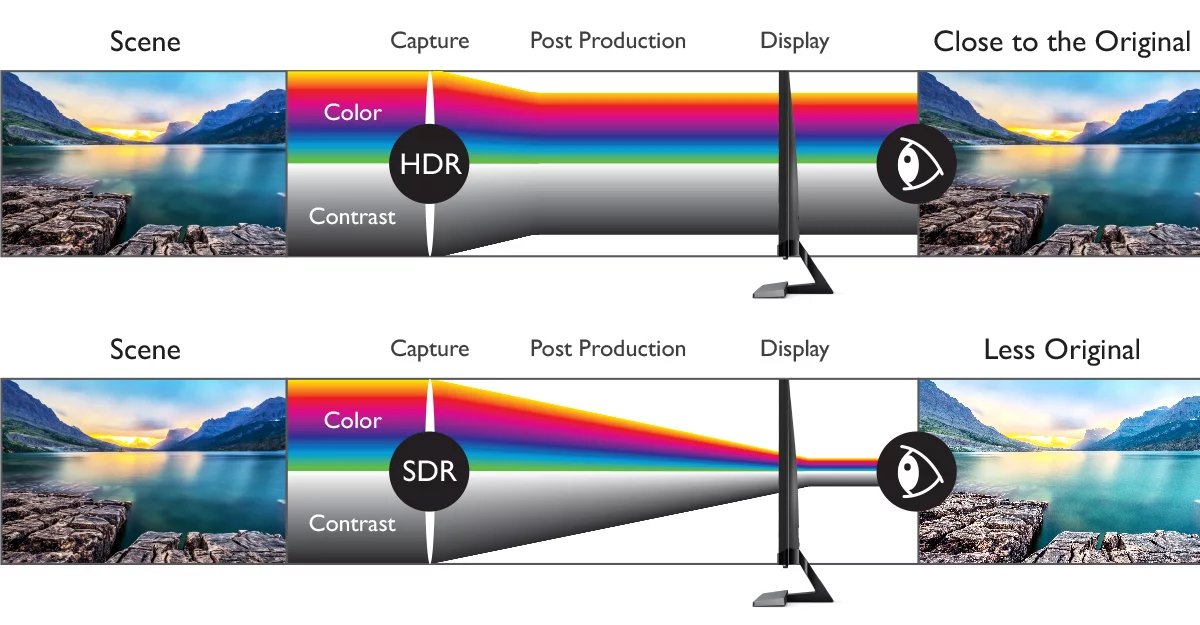
BenQ HDR displays produce a new level of realistic image quality with HDR content. Here’s how you can ensure ideal HDR video quality, and troubleshoot any issues.
When HDR content is displayed on BenQ HDR monitors a pop-up window will say “HDR On” when starting to load and decode the content. If it is not functioning correctly, you might experience the following:
1. On-screen colors look abnormal, such as the entire screen becoming overexposed and washed out.
2. On-screen content looks properly presented, but the monitor indicates “HDR Emulated” instead of “HDR On.”
Take these steps to resolve the issues:
Firstly, make sure your video content is HDR encoded. Look for the HDR logo or HDR description in playback options. For example, when watching YouTube, the video quality setting under settings should indicate “HDR.” HDR encoded videos and movies from streaming services like Netflix will display the HDR logo.
Secondly, ensure your internet connection is fast enough. Even if your internet speed is sufficient to flawlessly stream HD videos, high-resolution HDR may require faster speeds. For example, for HDR content in 4K resolution, we recommend download speeds of at least 25 megabits per second.
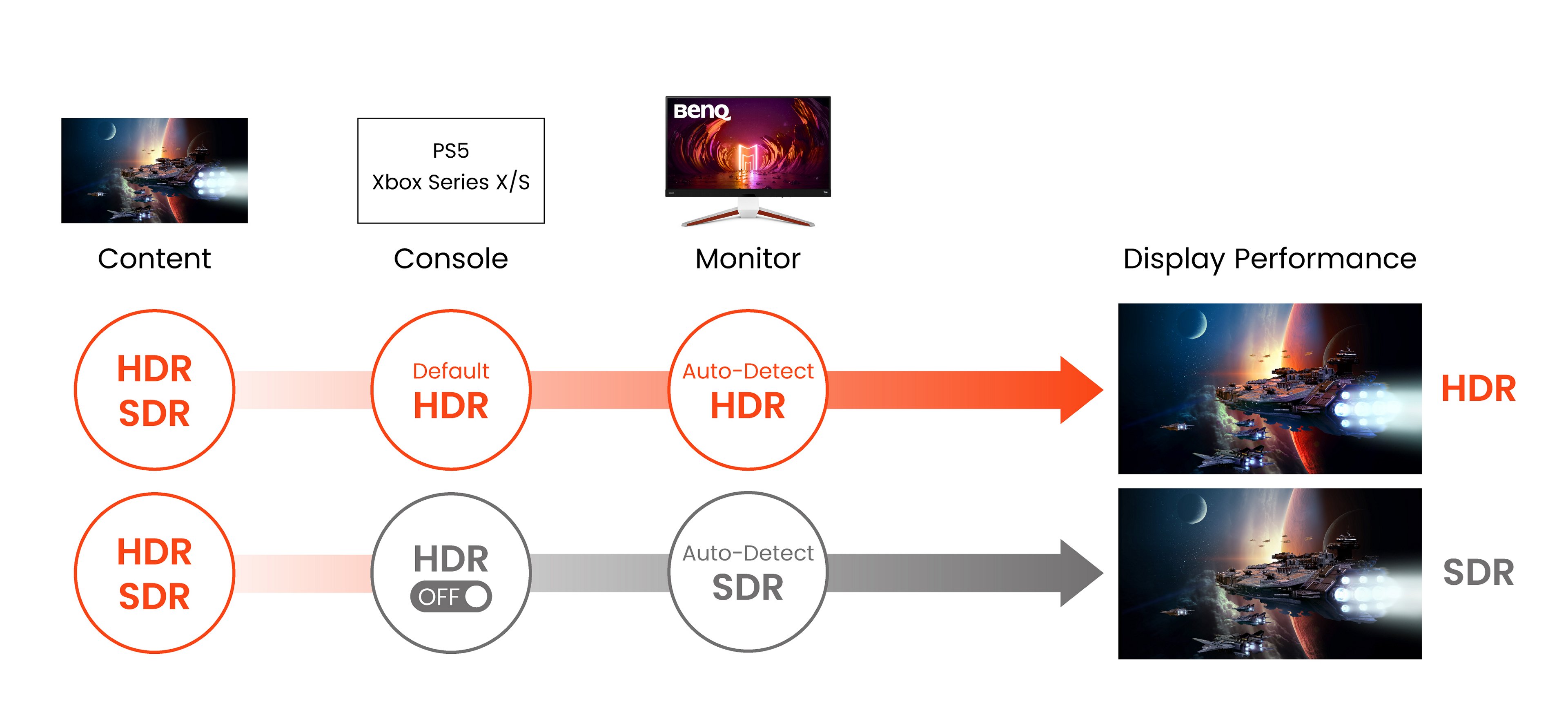
Thirdly, confirm your source device, whether a computer, laptop, streaming box, or mobile device, supports HDR as well as HDCP 2.2. Some devices may require the HDR function to be turned on manually. Please also update your device to the latest version of firmware, and make sure that the latest version supports HDR.
Lastly, make sure that the monitor is connected to the source device using the correct cable. BenQ HDR monitors come with cables that will deliver proper HDR transmission. If you are using an aftermarket HDMI cable, look for a cable that is HDMI High Speed, HDMI Premium Certified, or HDMI 1.4 compliant. If using a DisplayPort cable or DP to Mini-DP cable, look for DisplayPort Compliance Certification for DP1.2 compatibility. Confirm the version of your HDMI cables are at least HDMI 1.4 and above. The version of DP needs to be DP 1.2 or above. Finally, for USB Type C connectivity, ensure that the cable is USB-C Certified.
Taking the four simple steps above should ensure your BenQ HDR monitor displays spectacular HDR video quality, providing brilliantly lifelike images with stellar subtle details, even in dark scenes.
Still having issues? Reach out to BenQSupport.US@Benq.com.Thanks for your feedback!