Projector
Explore Business Projector
Professional Installation Exhibition & Simulation Conference Room Meeting Room Education ProjectorsMonitor
Lighting
Interactive Display | Signage
Cookie Setting
How can I change my BenQ cookie settings?
Page updated: May 2020
Some essential features on BenQ sites just won’t work without cookies. And having other cookies switched off can seriously affect the way you’ll be able to enjoy our services.
Please check your cookie settings below and turn on any cookies you’re happy with.
“Strictly necessary” cookies can’t be turned off. But Functional and Performance cookies can be turned on or off below. You can learn more about cookies and what they do on our other pages.
If you've chosen to block third-party cookies on your browser, your cookie preferences won't carry over from benq.eu to benq.xx and vice versa. Please make sure to set your cookie preferences in both places.
On
Strictly necessary cookies
These cookies are essential so that you can move around the website and use its features. Without these cookies services you have asked for cannot be provided.
On
Off
Functional cookies
These cookies allow the website to remember choices you make to give you better functionality and personal features.
On
Off
Performance cookies and advertising cookies
Performance cookies
These cookies help to improve the performance of BenQ. If you want to opt-out of advertising cookies, you have to turn-off performance cookies. We also use Google Analytics, SessionCam and Hotjar to track activity and performance on the BenQ website. You can control the information provided to Google, SessionCam and Hotjar. To opt out of certain ads provided by Google you can use any of the methods set forth here or using the Google Analytics opt out browser add-on here. To opt-out of SessionCam collecting data, you can disable tracking completely by following link:https://sessioncam.com/choose-not-to-be-recorded/. To opt-out of Hotjar collecting data, you can disable tracking completely by following link:https://www.hotjar.com/privacy/do-not-track/.
Advertising cookies
These cookies are used to track your activity on the BenQ website and other websites across the Internet, help measure the effectiveness of our advertising campaign and deliver advertisements that are more relevant to you and your interests. We use various advertising partners, including Amazon, Facebook, and Google. These cookies and other technologies capture data like your IP address, when you viewed the page or email, what device you were using and where you were. You can find out how to avoid them below.
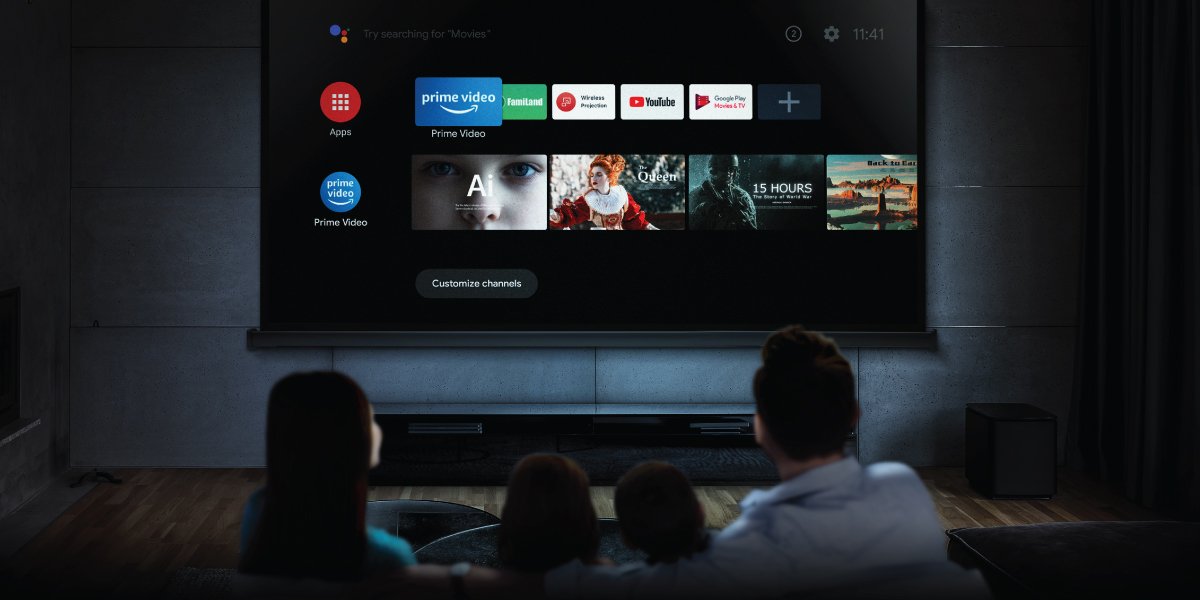
Projectors are all about big format viewing with bright lights and a cinematic feel, but they’re evolving. These days, smart projectors are a reality that’s largely caught up with TVs. If you want a projector that provides a “smart” experience, then we recommend you seek one that supports the Google-created and certified Android TV platform. That way, you get access to apps and services like Google Play, Prime Video, and YouTube right from the projector, without having to hook up a game console or laptop. Whether on a home cinema projector or a portable projector, with the addition of Android TV you vastly expand your entertainment horizons.
With Android TV the door has opened on smart projectors for home entertainment, and there’s no going back. Don’t split your enjoyment between a projector for movies and a TV for streaming – cherish all your content in the same big screen format you like so much.
Projectors don’t need to have Android TV pre-installed and certainly don’t call for any special effort on your part. A simple USB add on turns a whole plethora of projectors into smart devices that provide access to streaming entertainment. So even if your projector isn’t natively smart, so to speak, you can quickly enhance it with plug n play ease.
Once installed, the Android TV USB dongle acts as a streaming and media box with many channels and apps built-in. It simplifies streaming as you no longer need to run HDMI and power cables to a game console or PC. With the Android TV dongle, there’s no cable mess to deal with an no separate power supply required. Plug the dongle into a USB port on your projector, go into settings, find your Wi-Fi, and that’s it. You’re good to go.
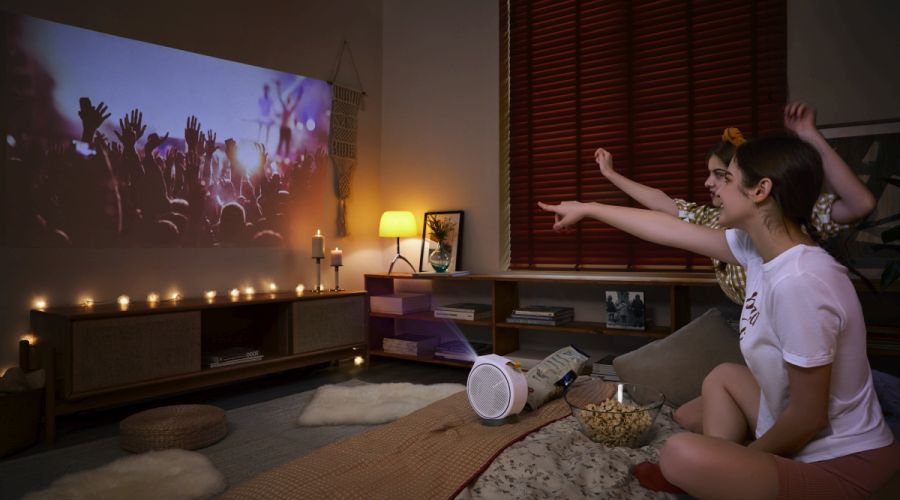
A lot of people think of projectors as niche devices reserved for movie buffs who have little interest in pop culture, contemporary TV shows, and streaming in general. That’s really not the case at all, and there’s no reason why you can’t enjoy streamed content and YouTube videos in the same big screen format that you love so much for your classic motion pictures.
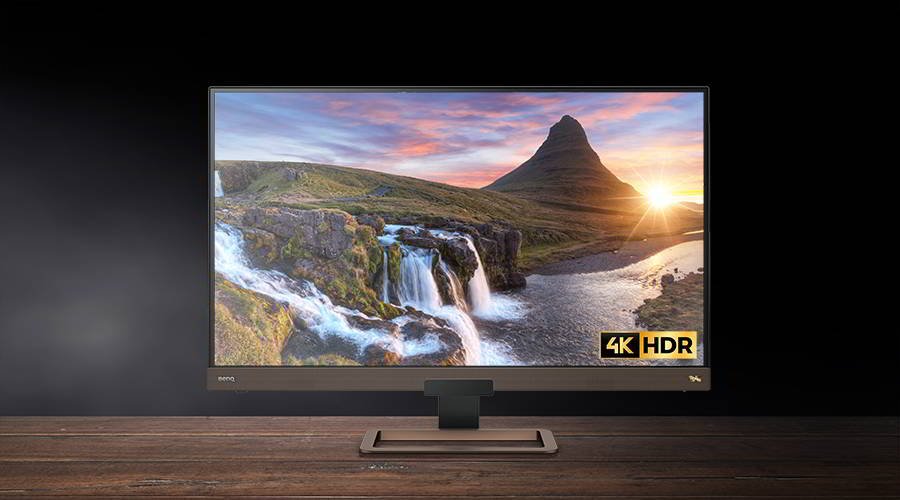
Adding Android TV instantly brings your projector into the age of online content and sets it free from an existence confined to showing off Blu-rays. With most streamed content being produced now formatted for 4K HDR, it’s a shame to not use your projector for that as well.
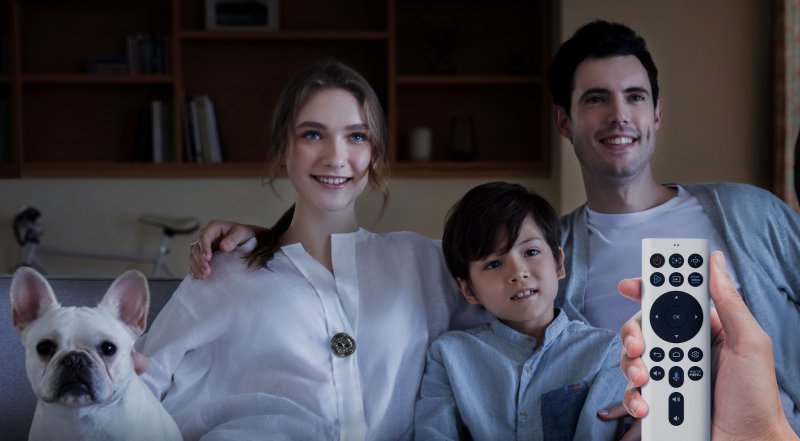
Importantly, once you add an Android TV adapter, your projector starts working with Google Assistant for convenient voice commands. Instead of fumbling with remotes, you can just say “go to YouTube”, and take it from there.
Look for Android TV adapters that are officially certified by Google for the best performance in terms of connectivity and compatibility. In the case of BenQ, we have a whole range of projectors with the suffix “i” indicating their smart prowess and inclusion of an Android TV adapter in the box. We’ve curated a rich variety of channels and apps, including the BenQ exclusive FamiLand for kids, if you’re interested and want to check it out.
As Android TV gains more prominence in the marketplace, expect additional apps and services to become available. As of this writing, for example, Netflix still requires a separate streaming box like Roku or Apple TV, or a game console. But we’re confident the service will join the Android TV platform in the near future, so check this space.
In any case, smart projectors are now a firm reality and we expect this trend to gain momentum as we move forward, especially in an era of increased focus on home entertainment. Time to plug in. If you need more guidance and assistance, we have a range of how-to videos about Android TV on projectors, so check them out.
{{item.productWordingTag}}
{{currency}}{{item.finalPrice| numberThousandsCommas | numberDecimalPoint}} Save {{currency}}{{item.saveAmount | numberThousandsCommas | numberDecimalPoint}} Save {{item.savePercent | numberThousandsCommas | numberDecimalPoint}}%
new device price{{currency}}{{item.regularPrice| numberThousandsCommas | numberDecimalPoint}}