The No.1 🏆 selling projector - GV50

Learn more

The No.1 🏆 selling projector - GV50

MA Series Monitor - Up to 13% Off All December Plus A Lucky Draw 🍏

Learn more

MA Series Monitor - Up to 13% Off All December Plus A Lucky Draw 🍏

ScreenBar Halo 2 – Comfortable, Focused Lighting for Work

Learn more

ScreenBar Halo 2 – Comfortable, Focused Lighting for Work

GP520: The Ultimate Smart 4K Projector for Every Entertainment Need

Learn more

GP520: The Ultimate Smart 4K Projector for Every Entertainment Need

The No.1 🏆 selling projector - GV50

Learn more

The No.1 🏆 selling projector - GV50

MA Series Monitor - Up to 13% Off All December Plus A Lucky Draw 🍏

Learn more

MA Series Monitor - Up to 13% Off All December Plus A Lucky Draw 🍏

VRR on Xbox Series X

  • BenQ
  • 2021-01-19

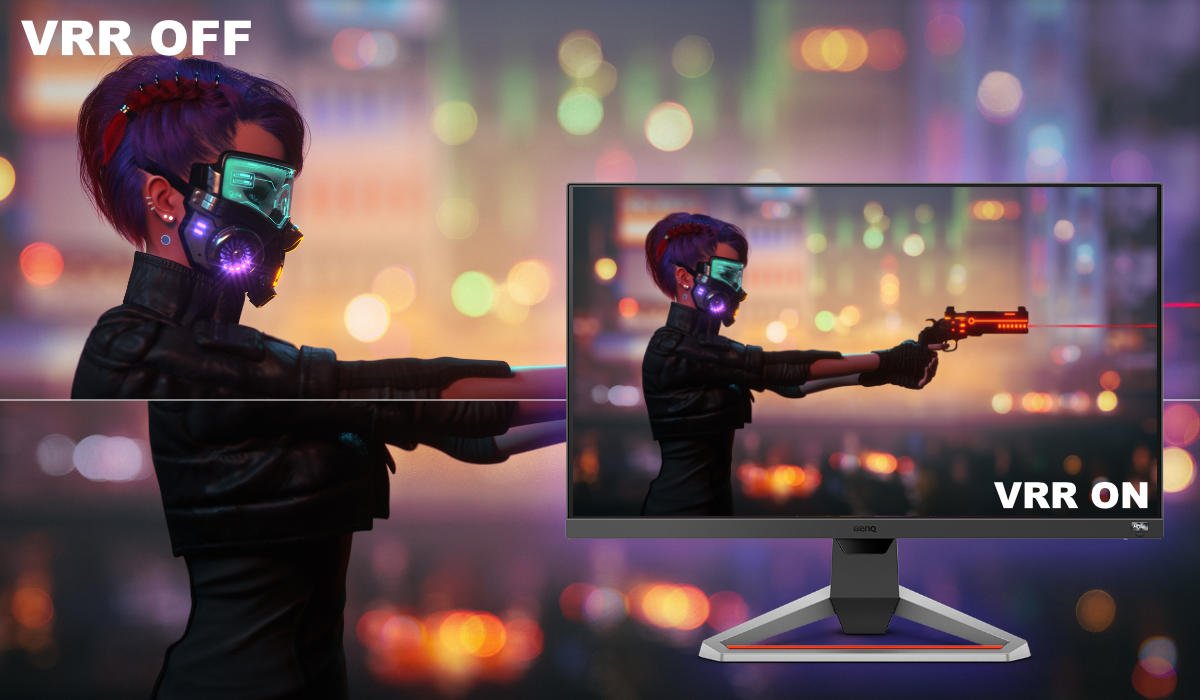
Take a look at how to enable VRR on Xbox Series S and Xbox Series X in just a few seconds

Take a look at how to enable VRR on Xbox Series S and Xbox Series X in just a few seconds

Many people have been asking about FreeSync on the new Xbox Series X and Series S. And we’re happy to share that both support FreeSync. It’s the same setup as was on the Xbox One X and Xbox One S through HDMI 2.0. Microsoft’s Xbox consoles use HDMI variable refresh rate, or VRR, delivered via HDMI 2.1 on the Xbox Series X and Series S. This technology is compatible with VESA Adaptive Sync and therefore AMD FreeSync works in conjunction with Xbox consoles. Theoretically, an Xbox plugged into a G-Sync monitor via HDMI may allow VRR, since G-Sync is also based on Adaptive Sync. However, that’s not covered by official support and will be very hit and miss. FreeSync support is official and thus nearly universal.

Keep in mind base Xbox One consoles from 2013 to 2016 don’t support VRR. Only Xbox One S, One X, Series S, and Series X do. And of course your display needs to be FreeSync-enabled

Very Simple Setup

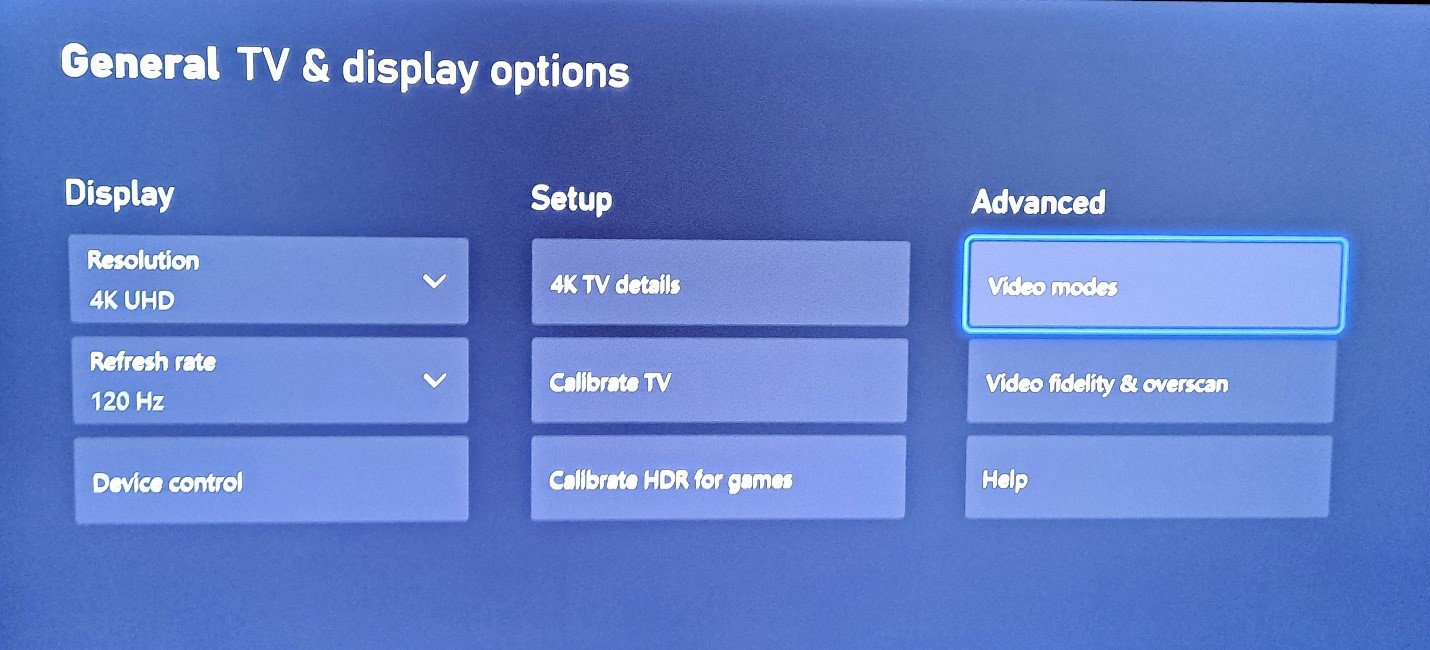
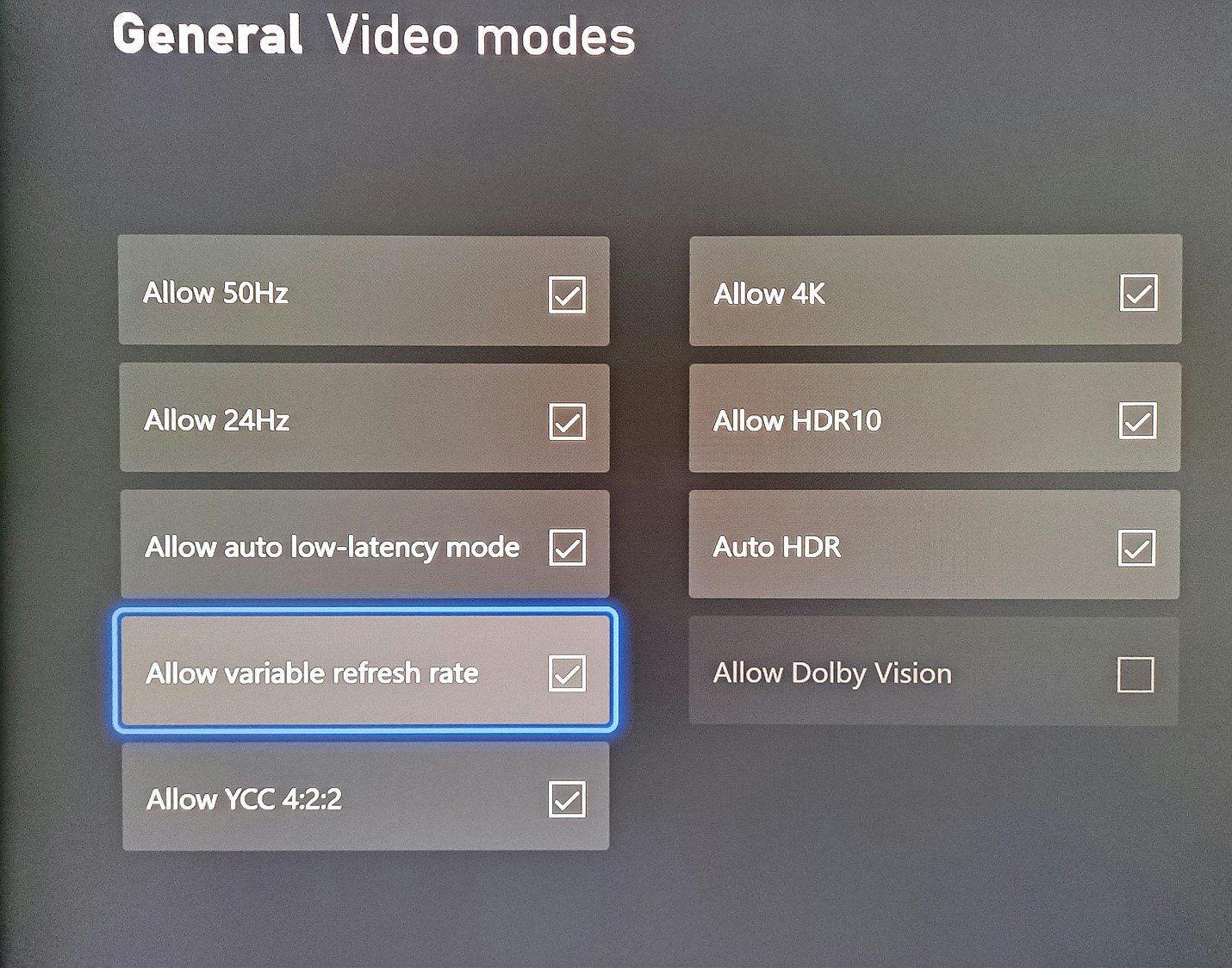
To turn on VRR, go to Settings and then Video modes. 

Then, take a look at the list of features that you can enable and disable. Make sure Allow variable refresh rate is checked. That will tell your Xbox to look for FreeSync/Adaptive Sync on the destination display, and coordinate frame rates with the monitor to prevent tearing. 

Benefits on Console

Now that Xbox Series X routinely hits 60 frames per second in games and even goes up to 120fps in select titles, VRR proves a lot more useful than was the case before. Fast, reflexive shooters like Call of Duty: Black Ops Cold War and Borderlands 3 benefit most from VRR. If you have a good gaming monitor that supports FreeSync and 120Hz, you should definitely enable VRR on your Xbox. The feature is not active by default, even when the consoles are connected to a FreeSync display. You need to enable it manually for now.

And that’s all there is to it! 

Was this article helpful?

Yes No

Recommended Products

  • EX2710U | MOBIUZ 4K 27 inch True HDMI 2.1 (48Gbps) Gaming Monitor

    • 27 inch 3840x2160 16:9 IPS true 10-bit gaming display
    • HDRi and true sound audio by treVolo deliver immersion
    • 1ms MPRT and AMD FreeSync™ Premium Pro for smooth gameplay
  • EX3210U | MOBIUZ 4K 32 inch True HDMI 2.1 (48Gbps) Gaming Monitor

    • 32 inch 3840x2160 16:9 IPS true 10-bit gaming display
    • HDRi and true sound audio by treVolo deliver immersion
    • 1ms MPRT and AMD FreeSync™ Premium Pro for smooth gameplay

Temporarily unavailable.

Link under maintenance.