azure-location
In this article
  • What Makes an iMac Desk Setup Work for Designers?
  • Build the Setup Around Your Creative Workflow
  • Go Beyond Ambient Lighting in Your iMac Setup
  • iScreenBar: Lighting Designed to Fit the iMac
  • Final Thought: Complete Your Designer iMac Setup
  • FAQ
iMac® Desk Setup for Designers: Build a Better Workspace
  • BenQ
  • 2026-08-25

An iMac is a natural centerpiece for a clean, modern desk. Its all-in-one design reduces cables and hardware clutter, making it easy to build a workspace that looks polished. With an M5 iMac and refreshed color options rumored for later in 2026, more users may also be reconsidering how to build a workspace that complements the iMac’s distinctive design.

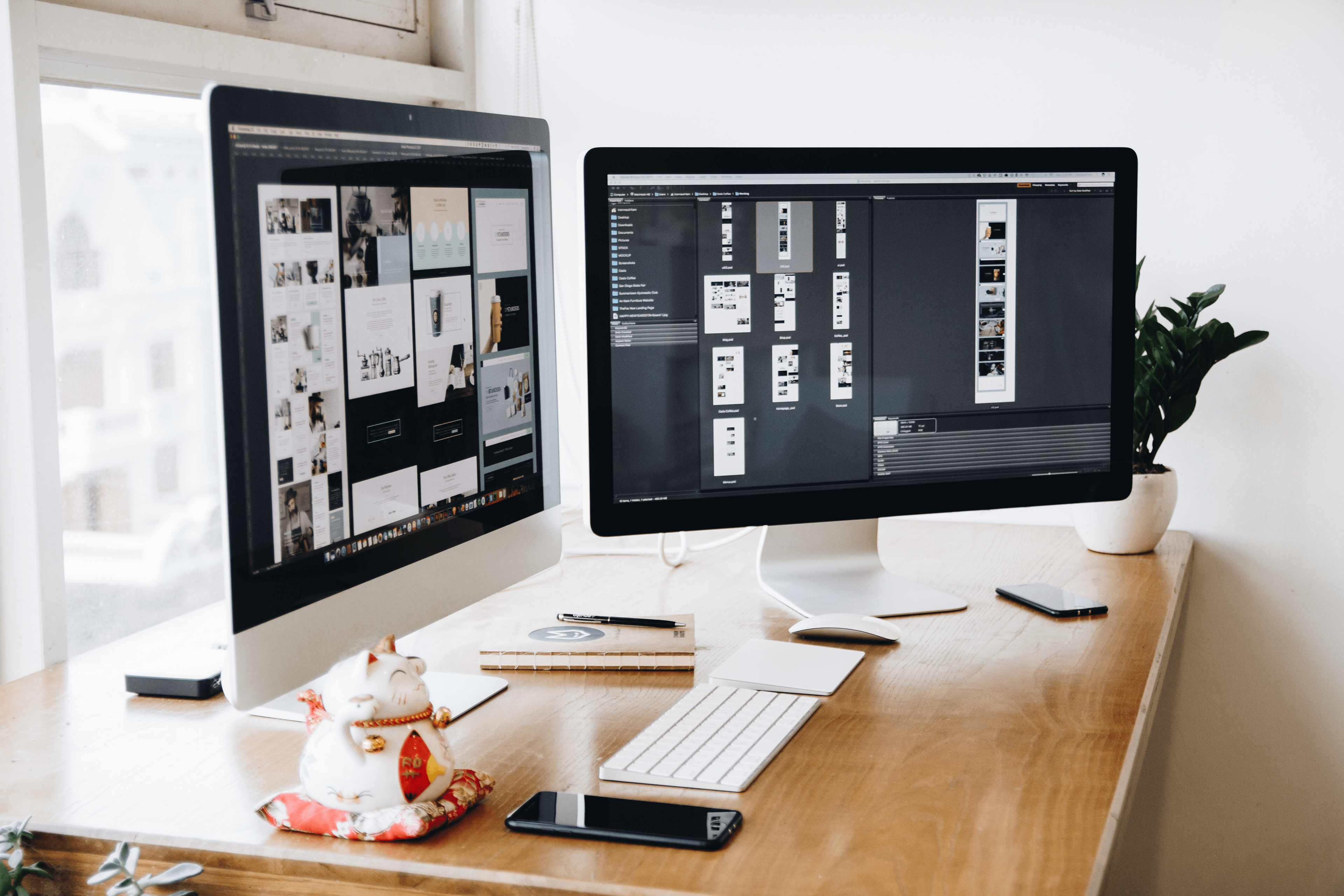
However, a visually minimal desk is not automatically a designer-friendly workspace. Graphic designers, UI/UX designers, photographers, and video editors often move between on-screen content, drawing tablets, physical references, storage devices, and other collaborative tools. Their iMac desk setup needs to support visual judgment, keep essential tools accessible, and provide a comfortable environment for long creative sessions. 

Five quick tips for improving your home office setup with lamps, ergonomic chairs, monitors, adjustable desks, and accessories.

This guide covers five essentials for building an iMac setup that looks clean while supporting the way designers actually work—including task lighting, one of the most overlooked parts of a creative workspace.

What Makes an iMac Desk Setup Work for Designers?

A general iMac desk setup may prioritize appearance, matching accessories, and cable management. Designers need all of these, but they also need a workspace that supports visual accuracy, creative productivity, and smooth transitions between digital and physical tools. 

One of the most commonly overlooked setup factors is lighting. Even a well-organized desk can become difficult to work at if reflections obscure the display, physical references are unevenly lit, or the surrounding light changes throughout the day. 

In this guide we will take you on a journey into the world of the ultimate digital artist desk setups.

A designer-focused setup should address 4 priorities:

Design Need

What the Setup Should Provide

Visual clarity

A clear view of the display with minimal reflections

Creative productivity

Easy access to drawing, storage, and input devices

Consistent viewing

Controlled lighting and display settings for visual work

Long-session comfort

A layout that reduces unnecessary reaching and interruptions

The goal is not to add as many creative accessories as possible. It is to create a workspace where every tool supports the workflow without making the desk feel crowded.

Before choosing products, consider the tasks you perform most often. A UI designer working mainly in Figma will organize the desk differently from a photographer who frequently transfers files or an illustrator who needs space for a large drawing tablet.

Build the Setup Around Your Creative Workflow

Rather than adding accessories wherever space is available, organize your iMac desk setup around how you move between tasks. 

A simple way to begin is to divide the workspace into 3 zones:

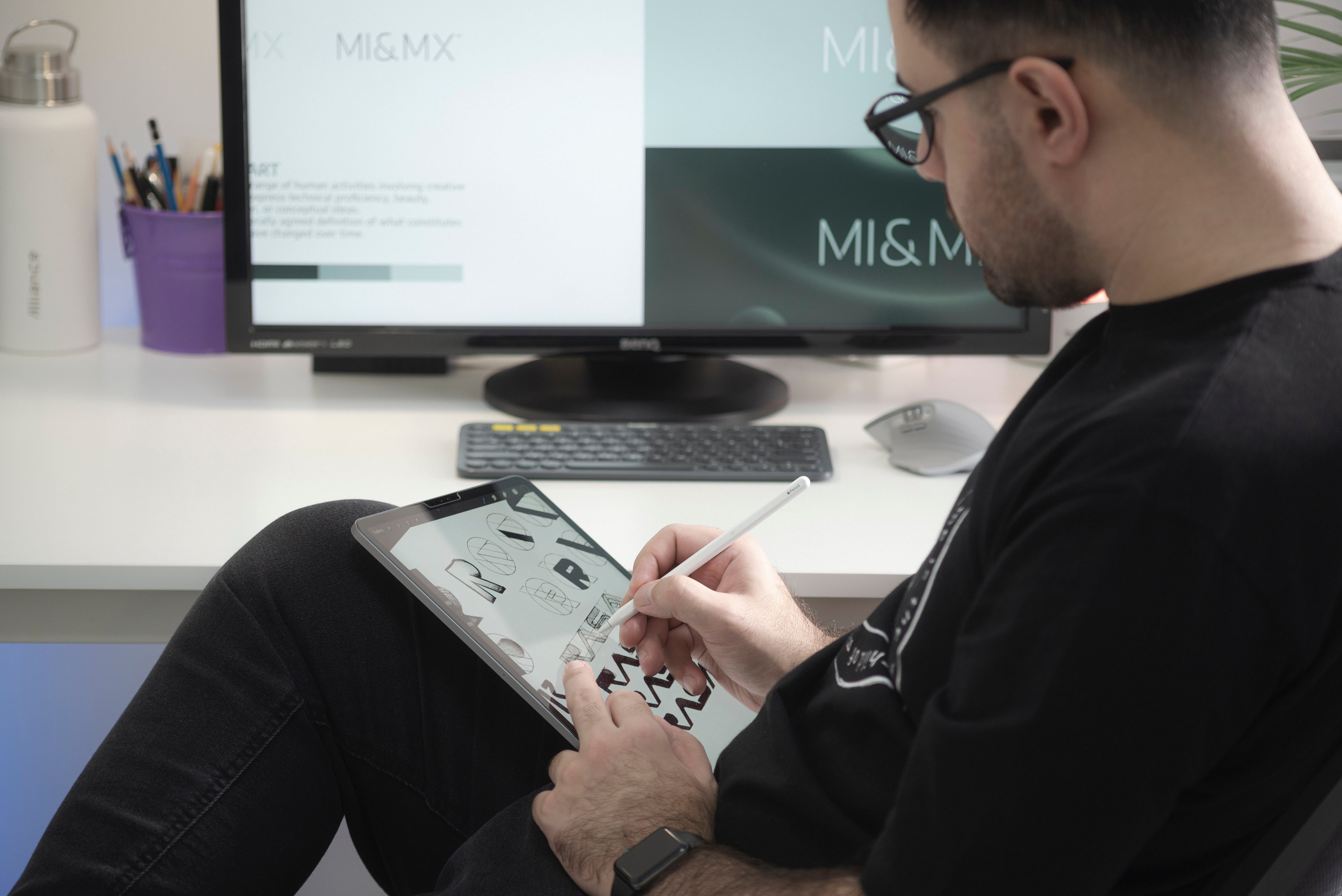
A top-notch drawing monitor or graphics display helps unlock your digital art potential.

Workspace Zone

Key Elements

How It Supports Productivity

Primary work zone

iMac, keyboard, mouse or trackpad, and well-directed task lighting

Keeps the main digital tools centered and accessible while illuminating the keyboard and main desk area without creating distracting screen reflections

Creative work zone

Drawing tablet, sketchbook, printed references, or color samples

Provides an open, well-lit surface for moving between on-screen and hands-on work

Support zone

Docking station, external SSD, card reader, chargers, and audio equipment

Keeps essential connections accessible without crowding the main working area

The size of each zone should reflect your workflow. A UI designer may give more space to the primary work zone, while an illustrator may need a larger creative area for a drawing tablet. Photographers and video editors may need a more accessible support zone for storage devices, memory cards, and audio equipment.

The goal is not to fill the desk with creative accessories, but to give every tool a clear place so that moving between tasks requires less reaching, reconnecting, and rearranging. Task lighting should be planned to support both the primary and creative work zones, rather than treated as decoration around the setup.

Many iMac setups already use ambient or decorative lighting to create atmosphere, but these lights often illuminate the wall or surrounding space rather than the areas where work actually happens. A productive setup also needs functional light for the keyboard, drawing area, and physical references—without creating screen reflections or taking up valuable desk space.

Go Beyond Ambient Lighting in Your iMac Setup

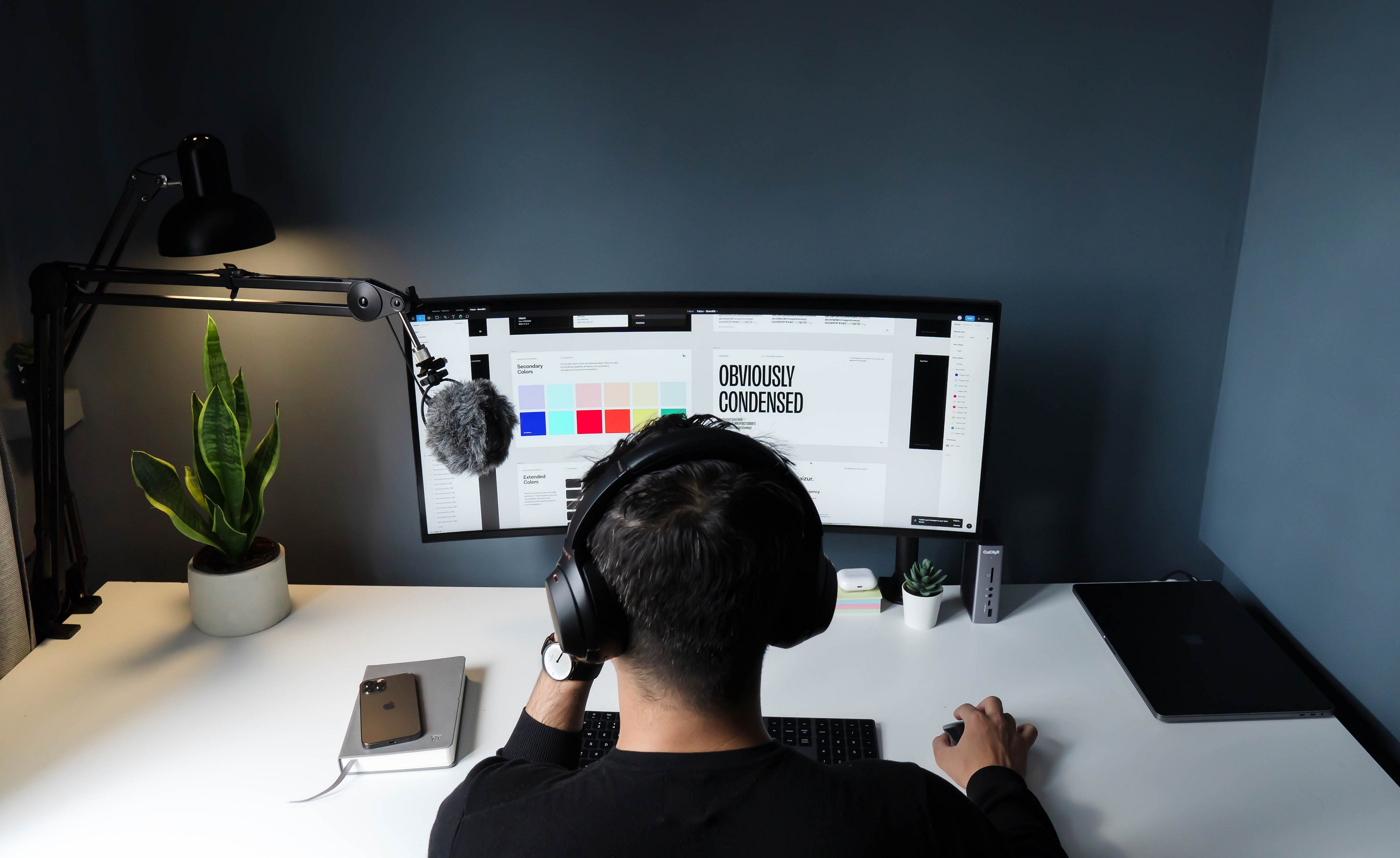
Lighting is already part of many iMac desk setups, but it is often used mainly to create atmosphere. LED strips and backlighting may illuminate the wall while leaving the keyboard, pen tablet, and physical references dim or unevenly lit.

  • Ambient lighting adds atmosphere and softly illuminates the surrounding space. 

  • Task lighting provides functional illumination for creative work, physical references, and other activities performed at the iMac.

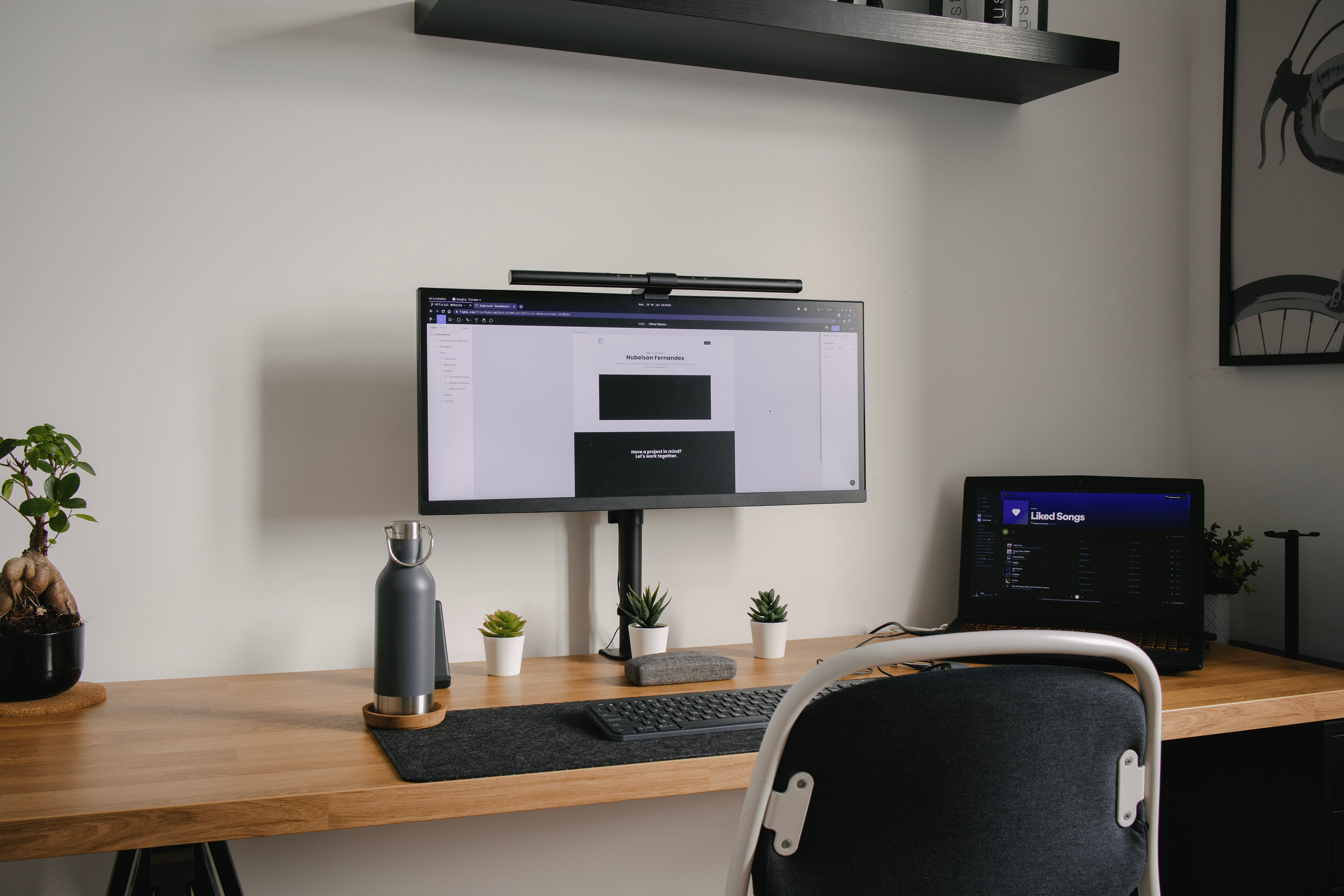
Monitor light bars can provide suitable illumination and a better working environment without increasing the screen's glare.


For designers, task lighting should support both screen-based and hands-on work without creating distracting reflections.
It may also need to adapt to online meetings, where well-positioned light helps keep the face visible without blocking the iMac camera. 

Yet finding task lighting that provides functional illumination while preserving the iMac’s clean, minimal aesthetic can be difficult. Traditional lamps may occupy desk space, add visual clutter, or feel disconnected from the iMac itself—creating a gap between how the setup looks and how well it supports creative work.

iScreenBar: Lighting Designed to Fit the iMac

Designed specifically for iMac, BenQ iScreenBar brings functional task lighting into the workspace while preserving the clean design and intuitive experience that iMac users value. 

A Natural Extension of the iMac

iScreenBar attaches magnetically to the iMac, freeing valuable desk space while keeping the built-in camera and microphones unobstructed. Its aluminum body and glass touch interface complement the iMac’s materials and minimal aesthetic, making it feel like a natural extension of the workspace rather than an added-on lamp.

Lighting That Follows the iMac Workflow

A dedicated macOS® app designed for iScreenBar brings lighting control directly into the iMac workflow. Users can save brightness and color temperature settings for creative work, everyday browsing, or winding down, then switch between them with a single click.

Video Call Mode keeps stray light away from the built-in camera while providing more natural facial lighting, allowing users to move smoothly from creating to meetings without managing a separate device.

Visual Comfort Without Compromising Color Judgment

ASYM-Light™ optical technology directs light toward the desk instead of the display, illuminating the entire workspace for a more comfortable environment, including the keyboard, drawing tablet, sketches, and physical references, while reducing screen reflections and preventing direct glare to the eyes.

Full-spectrum LEDs help nearby physical colors appear natural, supporting designers who compare on-screen work with printed references, materials, or color samples. While the light does not calibrate the iMac display, it helps create a clearer, more controlled environment for long creative sessions.

With iMac-specific fit, macOS integration, and professional optics, BenQ iScreenBar becomes a seamless part of a workspace built for creative productivity. 

Final Thought: Complete Your Designer iMac Setup

A well-designed iMac desk setup is not defined by how many accessories it includes, but by how naturally each element supports the creative workflow. Clear work zones keep essential tools accessible, while the right balance of ambient and task lighting helps the setup remain visually inviting and functional for both digital and hands-on work.

Designed specifically for iMac, BenQ iScreenBar brings together a precise physical fit, macOS-integrated control, and professional lighting—adding functional illumination without compromising the clean aesthetic that makes the iMac workspace distinctive.

Designers who use another monitor can still build a similarly effective lighting setup. Explore our guide to compare compatibility, workspace coverage, and lighting features, and find the best ScreenBar that fits your monitor and creative workflow.

FAQ

What should be included in an iMac desk setup for designers?

Start with the tools that support your actual workflow, such as a drawing tablet, accessible storage, a dock, and well-directed task lighting. Keep frequently used tools close while avoiding accessories that add unnecessary clutter.

Is ambient lighting enough for an iMac workspace?

Ambient lighting can improve the atmosphere of the setup, but it may not clearly illuminate the keyboard, drawing area, or physical references. Task lighting is still needed where creative work actually takes place.

Can task lighting affect color accuracy?

A lamp does not calibrate or change the iMac display’s technical color output. However, well-controlled lighting can reduce reflections and help physical references and materials remain more consistently visible.

Will a monitor light bar block the iMac camera?

Compatibility depends on the mounting design. Choose a light specifically designed around the iMac’s built-in camera and microphones so that they remain unobstructed.


*iMac® and FaceTime® are registered trademarks of Apple Inc. iScreenBar is not affiliated with, endorsed by, sponsored by, or otherwise associated with Apple Inc. or any of its affiliates.

Upgrade your art game with a cutting-edge scanner or camera to capture your masterpieces in stunning detail.

Digital art softwares help bring Your vision and art to life.

Was this article helpful?

Yes No

Recommended Products

  • Save {{currency}}{{item.saveAmount| numberThousandsCommas | numberDecimalPoint}}
    Save {{item.savePercent| numberThousandsCommas | numberDecimalPoint}}%

    {{item.productWordingTag}}

    {{item.title}}

    • {{point}}

    {{currency}}{{item.finalPrice| numberThousandsCommas | numberDecimalPoint}} Save {{currency}}{{item.saveAmount | numberThousandsCommas | numberDecimalPoint}} Save {{item.savePercent | numberThousandsCommas | numberDecimalPoint}}%

    new device price{{currency}}{{item.regularPrice| numberThousandsCommas | numberDecimalPoint}}