Keeping Your Vivid Memories
BenQ Paper Color Sync
Memorable photos are worth printing out to make every moment stay. Experience Paper Color Sync to get your photos down on paper just clicks away.

By Scenario
Home Entertainment 4K UHD Projectors Best Gaming Projectors Best Projector for World Football Video Streaming Ceiling ProjectorsBy Trending Word
4K UHD (3840×2160) Short Throw 2D, Vertical/Horizontal Keystone LED Laser With Android TV With Low Input LagExplore Commercial Projector
Professional Installation Exhibition & Simulation Golf Simulator Small Business & Corporation EducationRemote Work & Learning
Explore Monitor Arms
Ergo ArmsExplore Docks and Hubs
beCreatus DP1310Projector
By Scenario
Home Entertainment 4K UHD Projectors Best Gaming Projectors Best Projector for World Football Video Streaming Ceiling ProjectorsBy Trending Word
4K UHD (3840×2160) Short Throw 2D, Vertical/Horizontal Keystone LED Laser With Android TV With Low Input LagExplore Commercial Projector
Professional Installation Exhibition & Simulation Golf Simulator Small Business & Corporation EducationMonitor
Lighting
Remote Work & Learning
Interactive Display | Signage
Store
Cookie Setting
How can I change my BenQ cookie settings?
Page updated: May 2020
Some essential features on BenQ sites just won’t work without cookies. And having other cookies switched off can seriously affect the way you’ll be able to enjoy our services.
Please check your cookie settings below and turn on any cookies you’re happy with.
“Strictly necessary” cookies can’t be turned off. But Functional and Performance cookies can be turned on or off below. You can learn more about cookies and what they do on our other pages.
If you've chosen to block third-party cookies on your browser, your cookie preferences won't carry over from benq.eu to benq.xx and vice versa. Please make sure to set your cookie preferences in both places.
On
Strictly necessary cookies
These cookies are essential so that you can move around the website and use its features. Without these cookies services you have asked for cannot be provided.
On
Off
Functional cookies
These cookies allow the website to remember choices you make to give you better functionality and personal features.
On
Off
Performance cookies and advertising cookies
Performance cookies
These cookies help to improve the performance of BenQ. If you want to opt-out of advertising cookies, you have to turn-off performance cookies. We also use Google Analytics, SessionCam and Hotjar to track activity and performance on the BenQ website. You can control the information provided to Google, SessionCam and Hotjar. To opt out of certain ads provided by Google you can use any of the methods set forth here or using the Google Analytics opt out browser add-on here. To opt-out of SessionCam collecting data, you can disable tracking completely by following link:https://sessioncam.com/choose-not-to-be-recorded/. To opt-out of Hotjar collecting data, you can disable tracking completely by following link:https://www.hotjar.com/privacy/do-not-track/.
See list of performance and advertising cookies
Advertising cookies
These cookies are used to track your activity on the BenQ website and other websites across the Internet, help measure the effectiveness of our advertising campaign and deliver advertisements that are more relevant to you and your interests. We use various advertising partners, including Amazon, Facebook, and Google. These cookies and other technologies capture data like your IP address, when you viewed the page or email, what device you were using and where you were. You can find out how to avoid them below.
See list of performance and advertising cookies
MA-UP Glossy Series is here!
Shop NowMA-UP Glossy Series is here!
Shop Now
BenQ Paper Color Sync
Memorable photos are worth printing out to make every moment stay. Experience Paper Color Sync to get your photos down on paper just clicks away.
BenQ Paper Color Sync
Memorable photos are worth printing out to make every moment stay. Experience Paper Color Sync to get your photos down on paper just clicks away.
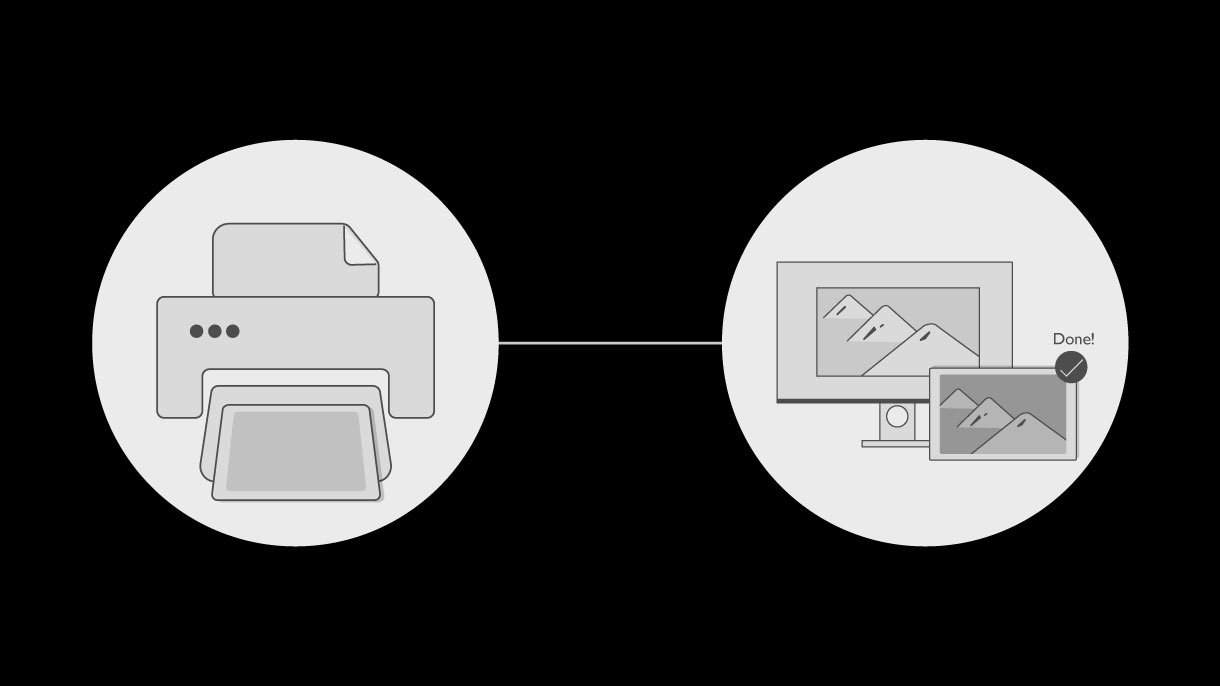
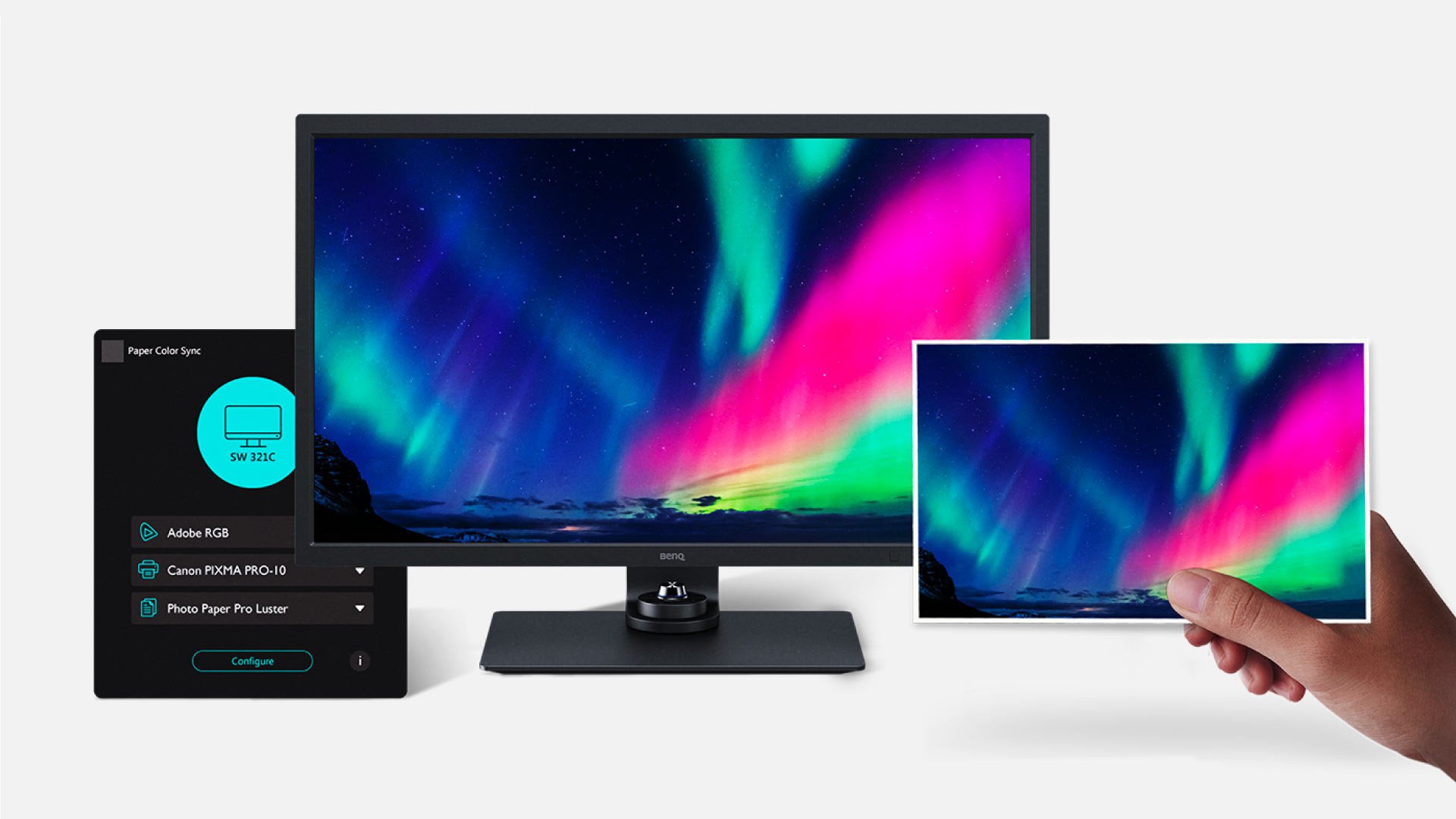
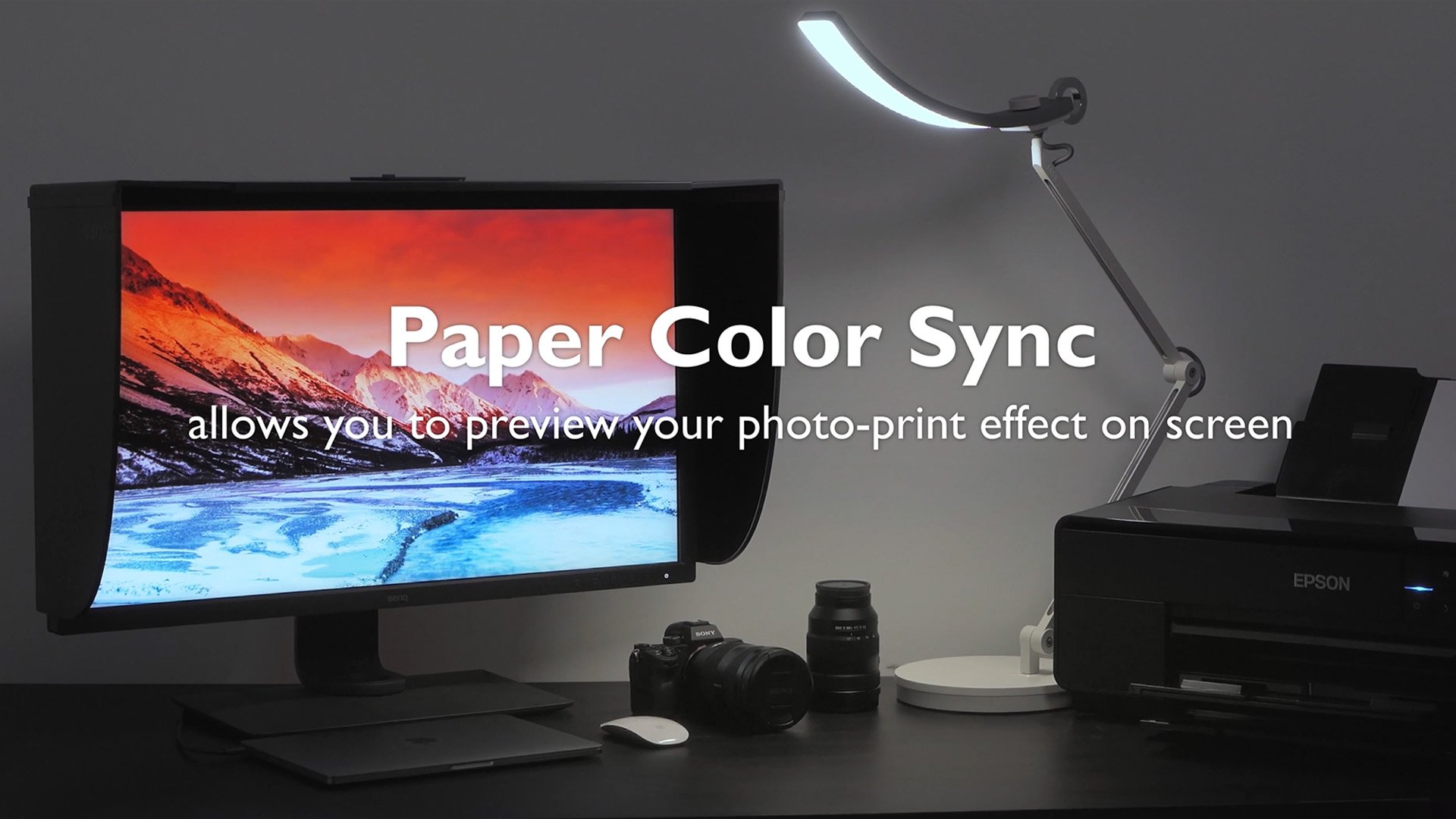
Paper Color Sync is the BenQ proprietary software to simulate the printing results. You can edit photos with efficiency and confidence in this time-saving screen-to-print process by selecting the colour gamut, printer model and paper type to get an on-screen preview which faithfully reproduces the final colour output.
Paper Color Sync allows you to facilitate the editing-to-printing process by just choosing the colour gamut, printer model and the photo paper.
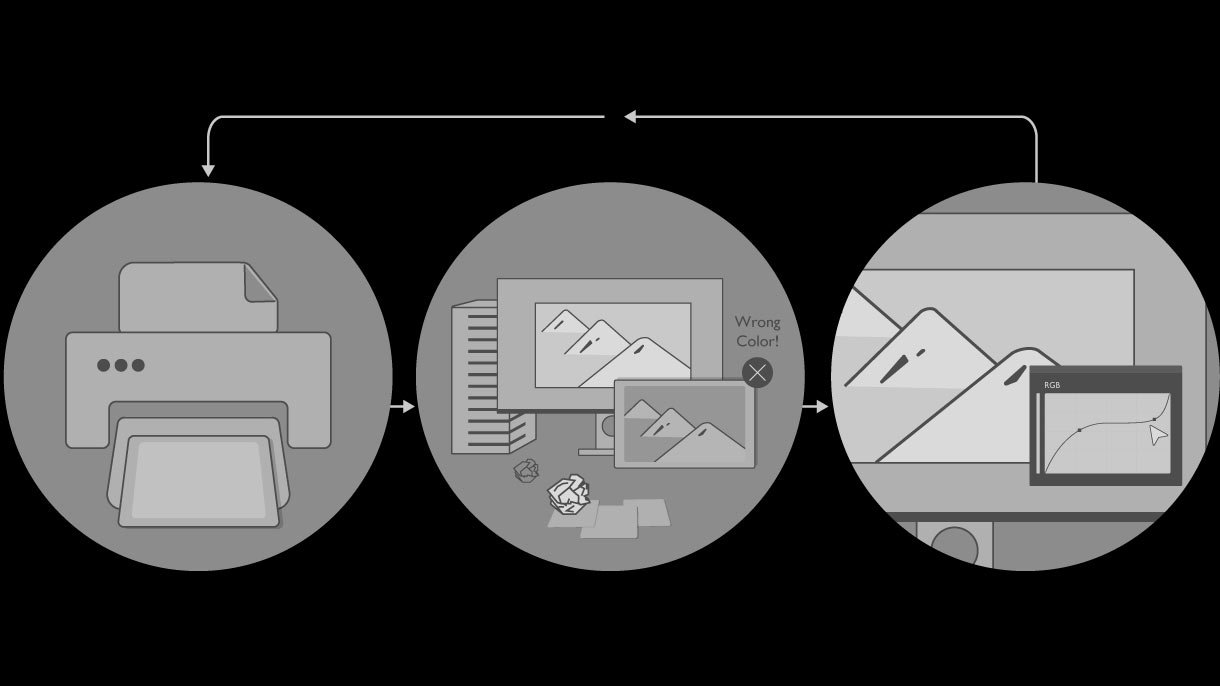
With Paper Color Sync, you can confidently retouch your photos on our colour-critical SW series Photographer monitor to get the satisfactory results saving you the time and efforts from repetitively comparing your photos against your monitor.
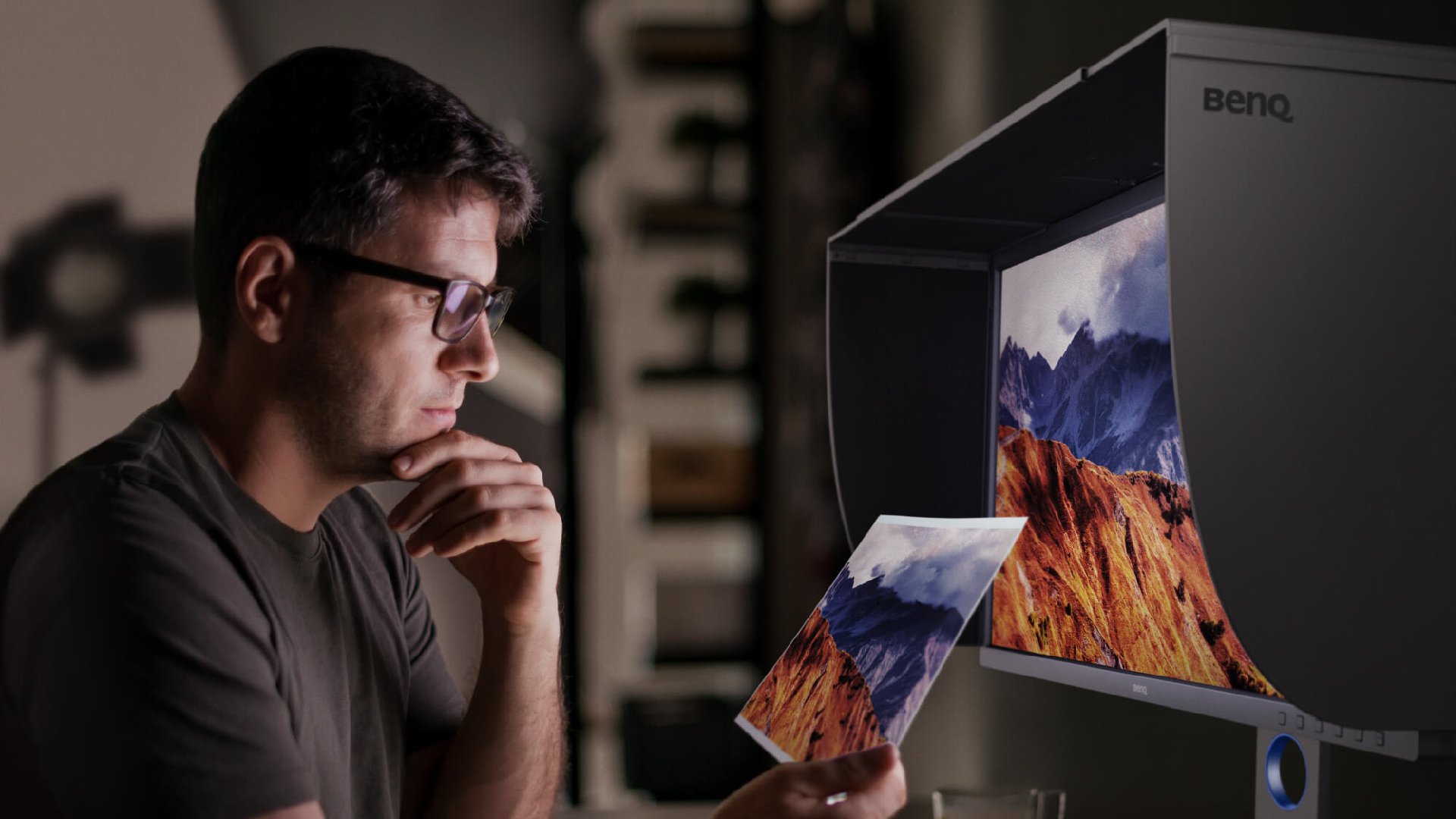
How Paper Color Sync Assists to Preview Results on Screen?
Using a shading hood will help decrease the influence of the ambient light. * It's highly recommended finding a lamp which allows its users to change the colour temperatures, such as WiT.
Make sure all the cables are connected and the printer driver installed.
Control ambient light conditions with colour temperatures. Make sure the printed hard copy with colour temperatures between 4500K-5000K.
Make sure all the cables are connected and the printer driver installed.
Control ambient light conditions with colour temperatures. Make sure the printed hard copy with colour temperatures between 4500K-5000K.
Follow ⓐ to ⓔ and your monitor will be switched to Paper Color Sync mode.
Retouching your photo under colour matching condition. * You can refer to User Manual for more details
Once configured, your monitor will be switched to Paper Color Sync mode and the monitor's colour setting will simulate the final output.
* You can refer to User Manual for more details
After retouching, check the colour and ICC profile setting and then start printing the photo. * For Lightroom Classic users, adjust colour setting before print.
Match the Photo against the Monitor for comparison.