InstaShare
Wireless screen sharing for seamless collaboration
Application
 How do I add a device by using QR code for DMS Cloud?

A device must be added first in order to remotely monitor, control, and configure devices individually or as groups. Please follow the demo video to add device using QR code for DMS Cloud.
Learn More
How do I use DMS Cloud to control the device remotely?
Devices can be controlled remotely in DMS Cloud. Please follow the demo video for detail steps.
Learn More
Why does it show "Display ID is invalid" when I tried to register EasySetting with my device?
Please make sure to check the followings:
(1) Is the network working properly? Make sure to use LAN instead of Wi-Fi for internet access.
(2) Make sure EasySetting whitelist is set up already. Learn More
(1) Is the network working properly? Make sure to use LAN instead of Wi-Fi for internet access.
(2) Make sure EasySetting whitelist is set up already. Learn More
Where can I download InstaShare App for Android/iOS/Windows/MAC OS?
Please refer to the following download sites for the app:
- Android phone/tablet: Search for "InstaShare" in Google Play and download the app.
- iOS phone/tablet: Search for "InstaShare" in the App Store and download the app.
- Windows/MAC: Follow the below steps to download the app from IFP:
(1) Ensure both IFP and PC are connected to the same network.
(2) Open IFP InstaShare app.
(3) Follow InstaShare instructions to download the app. Learn More
- Android phone/tablet: Search for "InstaShare" in Google Play and download the app.
- iOS phone/tablet: Search for "InstaShare" in the App Store and download the app.
- Windows/MAC: Follow the below steps to download the app from IFP:
(1) Ensure both IFP and PC are connected to the same network.
(2) Open IFP InstaShare app.
(3) Follow InstaShare instructions to download the app. Learn More
What should I do when InstaShare displays "machine code" error?
Please connect to the Internet when you use the InstaShare for the first time in order to register to the cloud server.
Learn More
Does InstaShare support projecting the content from a Chrome OS device to the IFP?
Yes. InstaShare supports projecting the content from a Chrome OS device to the IFP.
Learn More
How do I use InstaShare to mirror?
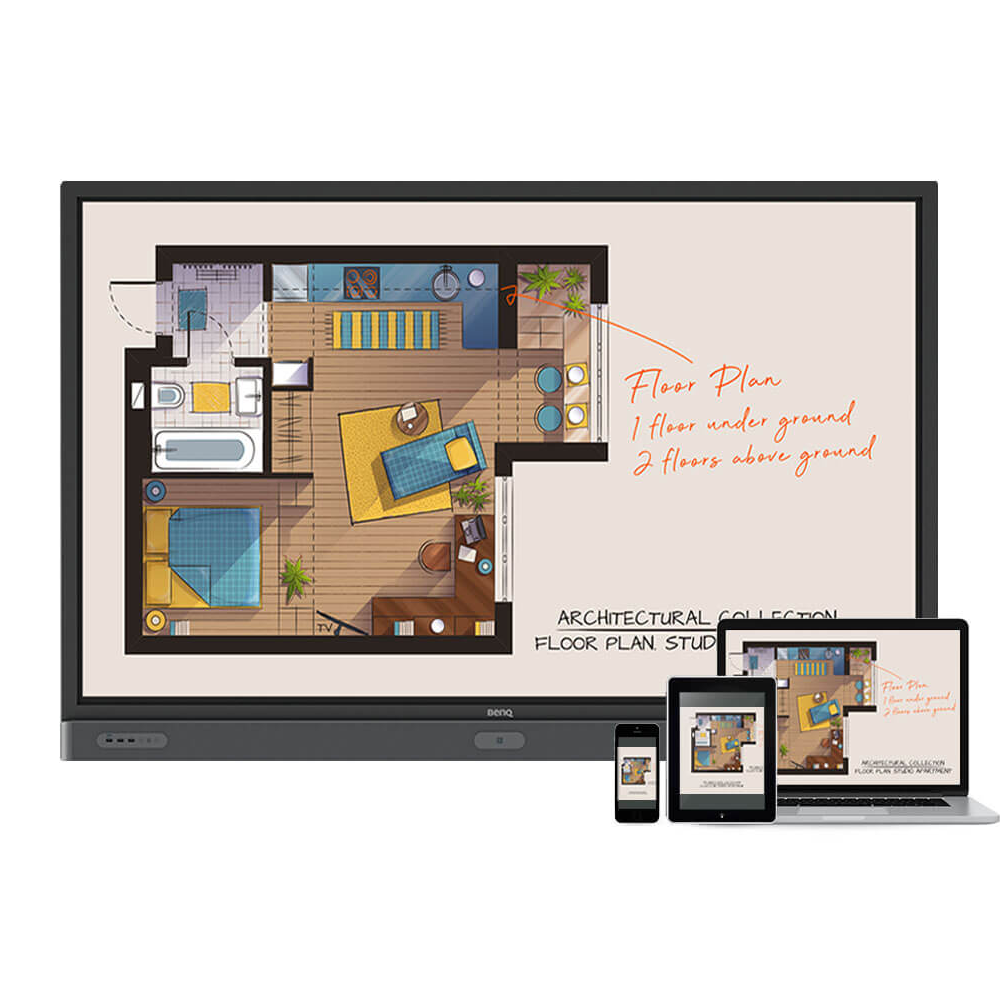
InstaShare software is designed to allow seamless wireless presentation and collaboration, utilising smooth streaming of both audio files and Full HD videos.
Users can also mirror and control all digital content across their devices including BenQ IFPs, PCs, tablets, and smartphones, empowering contributors to enrich their sessions with a variety of multimedia resources.
Here is the step by step tutorial for using InstaShare to do mirroring.
Learn More
How do I connect with InstaShare?
InstaShare software is designed to allow seamless wireless presentation and collaboration, utilising smooth streaming of both audio files and Full HD videos.
Users can also mirror and control all digital content across their devices including BenQ IFPs, PCs, tablets, and smartphones, empowering contributors to enrich their sessions with a variety of multimedia resources.
Here is the step by step tutorial for connecting your device with InstaShare.
Learn More
Why is it required to install the "Eumus Design Sound Cards & Media Devices" during the InstaShare installation process?
"Eumus Design Sound Cards & Media Devices" is a virtual audio card. As there are too many audio cards on the market with support for different Windows versions (Windows 7, Windows 8, Windows 10, and even older versions), in order to avoid compatibility issues with InstaShare, installing a virtual audio driver can solve any audio issues that you may experience while using InstaShare.
Learn More
Can InstaShare work between different subnets, VLANs, and SSIDs?
Yes, InstaShare can work between different subnets, VLANs, and SSIDs.
It is usually recommended to connect both devices to the same SSID initially because you assume they will be placed on the same subnet and generally do not have other network variables that prevent casting. Once we confirm this setup works, you can then try moving to different SSIDs.
If you have 2 devices on different subnets\VLANs you can get InstaShare to communicate by making sure that multicast traffic is forwarding between the VLAN interfaces.
If you have 2 different SSIDs that place the devices on the same subnet\VLAN, then they should be able to cast to each other unless you have an SSID-specific rule like client isolation enabled, as that may be preventing traffic from reaching each device. Another SSID-specific setting that may cause issues is filtering certain broadcast traffic.
Learn More
It is usually recommended to connect both devices to the same SSID initially because you assume they will be placed on the same subnet and generally do not have other network variables that prevent casting. Once we confirm this setup works, you can then try moving to different SSIDs.
If you have 2 devices on different subnets\VLANs you can get InstaShare to communicate by making sure that multicast traffic is forwarding between the VLAN interfaces.
If you have 2 different SSIDs that place the devices on the same subnet\VLAN, then they should be able to cast to each other unless you have an SSID-specific rule like client isolation enabled, as that may be preventing traffic from reaching each device. Another SSID-specific setting that may cause issues is filtering certain broadcast traffic.
Learn More
The connection code for InstaShare is 6 digits but my Mac OS only asked me to enter 4 digits. How can I resolve this inconsistency?
Please download the latest AirPlay app from BenQ Suggests.
When turning on the connection code option from InstaShare and using AirPlay to mirror content, BenQ smart displays will show the AirPlay PIN code. Please enter that PIN code on your Mac or other Apple device.
Learn More
Is there any recommended bandwidth requirement when using InstaShare or InstaShare 2 for a smooth casting experience?
| The minimum is 30Mbps for basic performance. To ensure a smooth casting experience, we recommend 100Mbps or more. |
Further Query
Why isn't "Display ID" shown on the device?
"Display ID" will not be shown if the network is not available. Please make sure your device is successfully connected to the Internet.
Learn More
Why does the device screen turn black when Netflix video is played through InstaShare or HDMI connection from a laptop or Macbook?
This problem is related to HDCP (High-Bandwidth Digital Content Protection) issues.
Netflix does not allow video content to be played though external monitors.
Therefore users won’t be able to view video content via external displays through HDMI or InstaShare mirroring. Learn More
Netflix does not allow video content to be played though external monitors.
Therefore users won’t be able to view video content via external displays through HDMI or InstaShare mirroring. Learn More
Why does my interactive flat panel (IFP) show white stripes onscreen or crash repeatedly when I try to enable iMirror via InstaShare from my iPhone or iPad?
The issue typically occurs due to an out of date iOS version on your iPhone or iPad. Make sure your device runs the latest version of iOS available. For iOS 12 and later, you need to use InstaShare app version 1.5.0 or later to resolve striping and crash issues.
Learn More
How do I add a device by using QR code for DMS Cloud?
A device must be added first in order to remotely monitor, control, and configure devices individually or as groups. Please follow the demo video to add device using QR code for DMS Cloud.
Learn More
How do I use DMS Cloud to control the device remotely?
Devices can be controlled remotely in DMS Cloud. Please follow the demo video for detail steps.
Learn More
Why does it show "Display ID is invalid" when I tried to register EasySetting with my device?
Please make sure to check the followings:
(1) Is the network working properly? Make sure to use LAN instead of Wi-Fi for internet access.
(2) Make sure EasySetting whitelist is set up already. Learn More
(1) Is the network working properly? Make sure to use LAN instead of Wi-Fi for internet access.
(2) Make sure EasySetting whitelist is set up already. Learn More
Where can I download InstaShare App for Android/iOS/Windows/MAC OS?
Please refer to the following download sites for the app:
- Android phone/tablet: Search for "InstaShare" in Google Play and download the app.
- iOS phone/tablet: Search for "InstaShare" in the App Store and download the app.
- Windows/MAC: Follow the below steps to download the app from IFP:
(1) Ensure both IFP and PC are connected to the same network.
(2) Open IFP InstaShare app.
(3) Follow InstaShare instructions to download the app. Learn More
- Android phone/tablet: Search for "InstaShare" in Google Play and download the app.
- iOS phone/tablet: Search for "InstaShare" in the App Store and download the app.
- Windows/MAC: Follow the below steps to download the app from IFP:
(1) Ensure both IFP and PC are connected to the same network.
(2) Open IFP InstaShare app.
(3) Follow InstaShare instructions to download the app. Learn More
What should I do when InstaShare displays "machine code" error?
Please connect to the Internet when you use the InstaShare for the first time in order to register to the cloud server.
Learn More
Does InstaShare support projecting the content from a Chrome OS device to the IFP?
Yes. InstaShare supports projecting the content from a Chrome OS device to the IFP.
Learn More
How do I use InstaShare to mirror?
InstaShare software is designed to allow seamless wireless presentation and collaboration, utilising smooth streaming of both audio files and Full HD videos.
Users can also mirror and control all digital content across their devices including BenQ IFPs, PCs, tablets, and smartphones, empowering contributors to enrich their sessions with a variety of multimedia resources.
Here is the step by step tutorial for using InstaShare to do mirroring.
Learn More
How do I connect with InstaShare?
InstaShare software is designed to allow seamless wireless presentation and collaboration, utilising smooth streaming of both audio files and Full HD videos.
Users can also mirror and control all digital content across their devices including BenQ IFPs, PCs, tablets, and smartphones, empowering contributors to enrich their sessions with a variety of multimedia resources.
Here is the step by step tutorial for connecting your device with InstaShare.
Learn More
Why is it required to install the "Eumus Design Sound Cards & Media Devices" during the InstaShare installation process?
"Eumus Design Sound Cards & Media Devices" is a virtual audio card. As there are too many audio cards on the market with support for different Windows versions (Windows 7, Windows 8, Windows 10, and even older versions), in order to avoid compatibility issues with InstaShare, installing a virtual audio driver can solve any audio issues that you may experience while using InstaShare.
Learn More
Can InstaShare work between different subnets, VLANs, and SSIDs?
Yes, InstaShare can work between different subnets, VLANs, and SSIDs.
It is usually recommended to connect both devices to the same SSID initially because you assume they will be placed on the same subnet and generally do not have other network variables that prevent casting. Once we confirm this setup works, you can then try moving to different SSIDs.
If you have 2 devices on different subnets\VLANs you can get InstaShare to communicate by making sure that multicast traffic is forwarding between the VLAN interfaces.
If you have 2 different SSIDs that place the devices on the same subnet\VLAN, then they should be able to cast to each other unless you have an SSID-specific rule like client isolation enabled, as that may be preventing traffic from reaching each device. Another SSID-specific setting that may cause issues is filtering certain broadcast traffic.
Learn More
It is usually recommended to connect both devices to the same SSID initially because you assume they will be placed on the same subnet and generally do not have other network variables that prevent casting. Once we confirm this setup works, you can then try moving to different SSIDs.
If you have 2 devices on different subnets\VLANs you can get InstaShare to communicate by making sure that multicast traffic is forwarding between the VLAN interfaces.
If you have 2 different SSIDs that place the devices on the same subnet\VLAN, then they should be able to cast to each other unless you have an SSID-specific rule like client isolation enabled, as that may be preventing traffic from reaching each device. Another SSID-specific setting that may cause issues is filtering certain broadcast traffic.
Learn More
The connection code for InstaShare is 6 digits but my Mac OS only asked me to enter 4 digits. How can I resolve this inconsistency?
Please download the latest AirPlay app from BenQ Suggests.
When turning on the connection code option from InstaShare and using AirPlay to mirror content, BenQ smart displays will show the AirPlay PIN code. Please enter that PIN code on your Mac or other Apple device.
Learn More
Is there any recommended bandwidth requirement when using InstaShare or InstaShare 2 for a smooth casting experience?
| The minimum is 30Mbps for basic performance. To ensure a smooth casting experience, we recommend 100Mbps or more. |