-
1. Prepare lessons on the cloud
-
2. Access lessons with a tap
-
3. Deliver lessons with AI tools
-
Teach your way with BenQ education solutions

- 2025-03-21

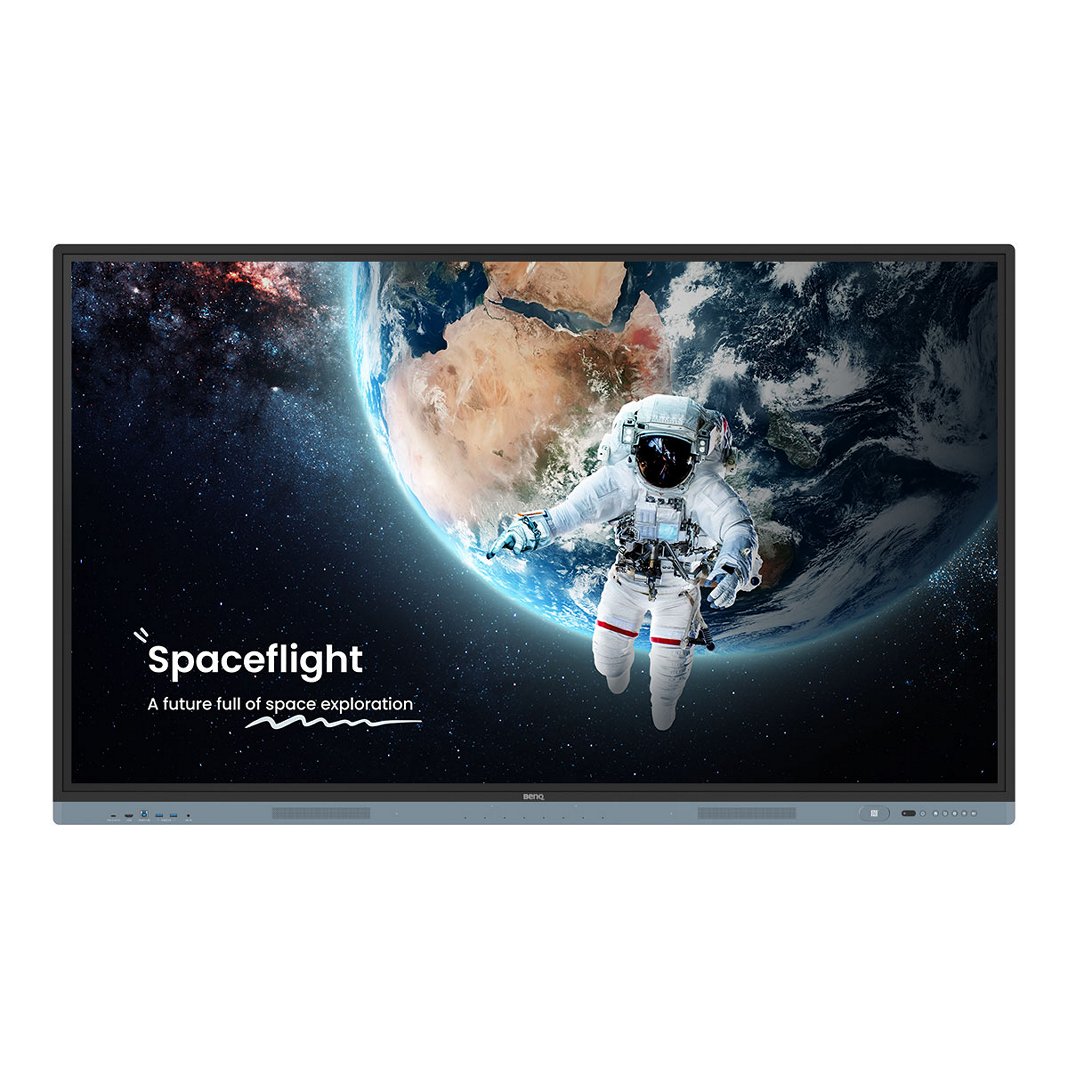
Imagine an education solution that seamlessly adapts to your teaching style. Ditch the limitations – instead, create dynamic lessons, easily access your teaching materials, and give lessons with AI tools to ignite engagement and foster inclusivity. Introducing BenQ Boards, the cutting-edge interactive displays designed to empower you.
This article delves deeper into how these boards can transform your classroom experience.
1. Prepare lessons on the cloud
Teachers: You juggle lesson plans, conquer grading mountains, and wear countless other hats. Yet, crafting truly engaging lessons can feel like finding a hidden oasis in the desert. What if technology could be your guide, streamlining your workflow and revealing a path to inspire your students?
BenQ Boards simplify your workflow by making lesson prep more efficient than ever. Here’s how:
- Prepare lessons anytime, anywhere: Create interactive lessons with multimedia content (videos, images, games) using BenQ’s EZWrite interactive whiteboarding software on Windows, macOS, iPadOS, Chromebook, or a web browser.
- Effortlessly save to the cloud: Save your lesson files to popular cloud drives (Google Drive, OneDrive, Dropbox, Box Drive) with a click.
- Instant access in class: The BenQ Account Management System (AMS) seamlessly connects to your cloud storage and Google Classroom, allowing you to pull up your materials with ease.

2. Access lessons with a tap
Now that it’s time for class you need to sign into the board and all your favorite apps. With BenQ Boards, you can say goodbye to classroom login hassles: A simple tap of your NFC card unlocks instant access to everything you need. No more remembering passwords or logging into each app individually. Single sign-on (SSO) seamlessly connects you to the board, your AMS account, and all your cloud drives and apps.
Plus, with SSO you access your personalized teaching space automatically. Your saved app shortcuts, wallpaper, and website bookmarks load instantly, ensuring a familiar and efficient environment every time you walk into the classroom.
EZWrite takes convenience even further. Your annotations are saved seamlessly across platforms, so you can easily pick up where you left off, whether you’re working on a Windows device or directly on the board. This consistent user experience allows you to focus on what matters most - engaging your students.

3. Deliver lessons with AI tools
It’s no secret that artificial intelligence is here to stay. AI has found its place in the classroom as a tool to help teachers, not replace them. Here are four ways to use AI tools that are built into BenQ Boards to deliver better, more accessible lessons:
Make handwriting perfect: When writing notes or drawing shapes you can use the Handwriting Recognition tool in EZWrite to make your handwritten annotations perfect and editable. Simply write something by hand, or draw a 2D shape, and then select it and tap the Handwriting Recognition icon. EZWrite will convert it into editable text or shapes that you can resize, change colors, and then easily share with students.
Hear text read aloud: To make sure every student can hear the text on the board, we’ve built a text-to-speech (TTS) function right into EZWrite. Select the text you want read aloud, and then press the TTS button. The board will read the text for the whole class to hear. You can even select from various languages for even greater accessibility.
Make any text editable: Do you need to turn a passage in your textbook into digital text? Or, do you want to extract text from an image file? Simply take a screenshot of your textbook with a document camera or import your image file to EZWrite. Then, press the optical character recognition (OCR) button. The OCR function will then pull the text out of the image and turn it into digital text that you can edit with ease.
Keep lessons safe: BenQ Boards make it easy for students to share content to the board for collaborative discussions or presentations. Yet, what if a student tries to cast inappropriate content to the board? InstaShare 2 has a built-in AI Guardian feature that automatically blocks content containing nudity from being cast to the board. This way you can keep lessons safe and disruption-free.

Teach your way with BenQ education solutions
BenQ recognizes that every educator teaches differently. That’s why our solutions empower you to teach your way, maximizing your impact without changing your style.
Ready to elevate your school’s educational outcomes with BenQ Boards? Get in touch with one of our experts to experience the BenQ difference today.