azure-location

End of Year Office Closure - Last Day of Shipping on 17th December

End of Year Office Closure - Last Day of Shipping on 17th December

End of Year Office Closure - Last Day of Shipping on 17th December

End of Year Office Closure - Last Day of Shipping on 17th December

KVM Switch Monitors: One Switch to Control Your PC and Mac® System

  • BenQ
  • 2025-02-26

Are you tired of constantly plugging and unplugging cables when switching between your MacBook®, another laptop, and a PC? In today's digital world, having an efficient and productive setup is crucial for designers, photographers, programmers, and gamers. One solution to this problem is a KVM (Keyboard, Video, and Mouse) switch monitor. BenQ offers a range of KVM monitors that are designed to streamline your workflow and boost productivity.

Table of Contents

What Is a KVM Switch?

A KVM switch is a hardware device that lets users control multiple computers with one or more sets of peripherals, keyboards, monitors, and mice. This technology offers different methods of connecting to computers and reduces the need for multiple keyboards and mice on a desk.

What Is a KVM Monitor?

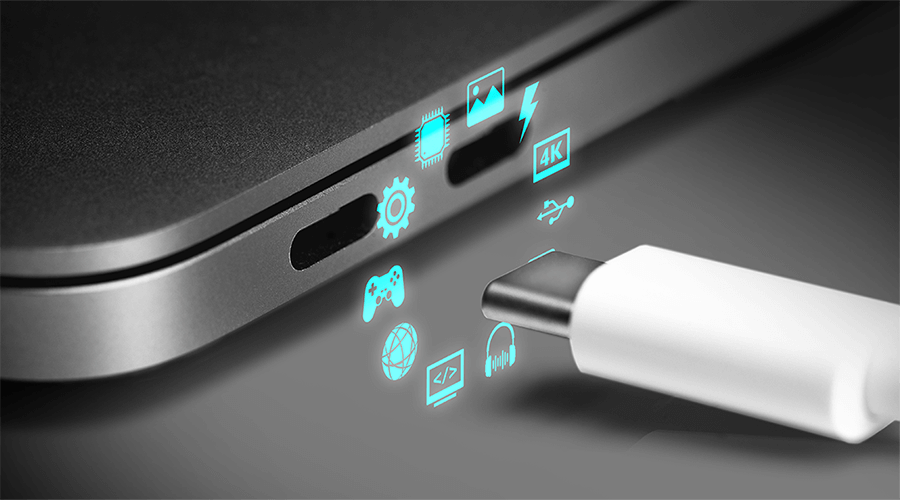
A KVM switch on a monitor directly integrates the KVM switch into the monitor itself for convenience. This means you can connect several computers to a single monitor and switch between them using the monitor's built-in KVM features. BenQ’s KVM monitors also have features such as USB-C connectivity, making system swapping even smoother.

What Are the Benefits of KVM Monitors?

KVM monitors bring several advantages to the table in comparison to regular monitors. A few examples of these benefits are:

  • Space Saving: Reduces the need for additional peripherals, decluttering your workspace.
  • Cost-Efficient: Eliminates the need to purchase extra keyboards, mice, and monitors.
  • Convenience: Simplifies switching between different systems with a single control setup.
  • Efficiency: Enhances productivity by allowing seamless transitions between tasks on different devices.

Are KVM Monitors Worth It?

KVM monitors are a great investment overall and offer specific benefits for different fields of focus.

For Designers and Photographers

Working across multiple devices for creating, editing, and previewing creative works can be tiring. Switching from a MacBook to a desktop PC and then to another device for final previews often disrupts the workflow and wastes time. KVM monitors streamline these transitions, enabling you to move seamlessly between devices with a single control setup, helping you maintain focus on your creative tasks without interruption.

Learn more about KVM monitors for designers and photographers.

KVM Switch Monitors for Designers and Photographers

Color Match at Its Best

Looks perfect as you'd expect

For Programmers

Testing code on different operating systems can be a hassle, involving starting Virtual Machines (VMs) or physically switching cables between a MacBook and Windows PC. These interruptions break concentration and waste time. KVM monitors eliminate these disruptions, allowing you to switch quickly and seamlessly between systems to reduce hassle, enhancing multitasking and coding efficiency. Ultimately, it can help you enter a state of flow and boost your productivity.

KVM Switch Monitors for Programmers

For Gamers

Switching between a gaming console and a PC can be tedious, involving unplugging and reconnecting cables, which disrupts gaming. Moving from a PC to a console might require adjusting the monitor and peripherals. KVM monitors simplify this process, enabling easy transitions between devices with one control setup, reducing desk clutter, and maintaining a smooth gaming experience.

KVM Switch Monitors for Gamers

How to Use the KVM Switch

To make the most of the KVM switch, let’s look at how to set it up and use it.

Before you start, prepare:

  • Two source devices (desktops/laptops/consoles)
  • One keyboard and mouse set
  • Video cable (HDMI/DisplayPort/USB-C/Thunderbolt)
  • Upstream USB cable (if you are using USB-C/Thunderbolt, then you don’t need this)

Let’s get started:

  1. Turn on your devices and monitor
  2. Connect your monitor to two source devices using either
    • USB-C/Thunderbolt 3 or 4
    • HDMI/DisplayPort cable + USB upstream cable*Plug the ports in order following what’s on the instruction label (The form of the instructions may vary by model). The cables and ports will go into pairing mode automatically.
  3. Go to the OSD menu > KVM switch
  4. Switch the keyboard and mouse control over different inputs If you select “Auto” or “Auto Switch,” then the USB ports are switched automatically when the input signals switch.(Or click on the HotKey Puck G2 if you are using a DesignVue Monitor)

Why Use BenQ KVM Monitors?

Adding a KVM switch monitor to your setup can revolutionize your workflow, boost productivity, and tidy up your workspace. BenQ’s range of KVM monitors stand out with their superior features, making them an excellent choice for designers, programmers, gamers, and photographers. Explore BenQ’s KVM monitor options today and experience a new level of convenience and efficiency in your daily tasks.

Mac® and MacBook® are trademarks of Apple Inc.

Was this article helpful?

Yes No

Recommended Products

  • New

    PD2730S|27-inch 5K 2000:1 98% P3 Thunderbolt 4 Designer Monitor

    • Experience 5120x2880 clarity with 218 PPI, delivering ultra-sharp details and smooth gradients. View details with 77.8% more pixels than 4K monitors.
    • Factory-calibrated for out-of-the-box colour accuracy and intuitive colour matching across displays
    • Thunderbolt 4 with 90W power delivery for fast data transfer and seamless Mac compatibility

    A$1999

  • New

    PD3226G|32-inch 4K UHD 144Hz Refresh Rate 95% P3 Thunderbolt 4 Designer Monitor

    • Factory-calibrated for out-of-the-box color accuracy and intuitive color matching across displays
    • Thunderbolt 4 with 90W power delivery for fast data transfer and seamless Mac compatibility

    A$1899

  • RD320UA|32” 4K BenQ Programming Monitor with MoonHalo and Flexible Arm

    • BenQ Nano Matte Panel and advanced coding modes for improved code differentiations: BenQ Programming Series is crafted for programmers.
    • Night Hours Protection's ambient light detection and auto-switch capabilities require minimal user intervention, ensuring effortless and consistent eye care.
    • BenQ Ergo Arm enhances flexibility and provides the optimal screen position for a more comfortable and productive user experience.

    A$1399

  • RD320U|32” 4K BenQ Programming Monitor with MoonHalo Backlight

    • BenQ Nano Matte Panel and advanced coding modes for improved code differentiations: BenQ Programming Series is crafted for programmers.
    • Night Hours Protection's ambient light detection and auto-switch capabilities require minimal user intervention, ensuring effortless and consistent eye care.
    • 2000:1 contrast ratio for deeper blacks and high contrast with a premium 4K display for coding, movies, and gaming, ensuring exceptional visual performance.

    A$1299

  • RD280UA|28” 4K+ BenQ Programming Monitor with Backlight and Flexible Arm

    • Fine-Coated Panel and advanced coding modes for improved code differentiations: BenQ Programming Series is crafted for programmers.
    • Boost productivity with a swift press of the </> Coding HotKey to instantly enter the coding realm
    • Rare 3:2 aspect ratio design, crafted for coders to provide them with an expansive field of view (3:2 aspect ratio is not natively available on Mac devices)

    A$1199

  • RD280U|28” 4K+ BenQ Programming Monitor with Backlight MoonHalo

    • Fine-Coated Panel and advanced coding modes for improved code differentiations: BenQ Programming Series is crafted for programmers:
    • Boost productivity with a swift press of the </> Coding HotKey to instantly enter the coding realm
    • Rare 3:2 aspect ratio design, crafted for coders to provide them with an expansive field of view (3:2 aspect ratio is not natively available on Mac devices)

    A$1099

  • Recommended

    EX321UX|32” 4K BenQ MOBIUZ Gaming Monitor

    • Comes with BenQ Detail-Driven AI refinement best for AAA console
    • Equipped with the latest 1152-zone Mini LED panel capable of 1,000 nits of peak brightness for Display HDR1000
    • Built-in eARC supporting up to 7.1 channels

    A$1899

  • Recommended

    PD3225U|32-inch 4K UHD 2000:1 P3 Thunderbolt 3 Mac® Compatible Designer Monitor

    • With a 2000:1 contrast ratio supports Display P3 and Thunderbolt 3 for Mac users
    • Compatible with Display P3, ICCsync can be achieved instantly through the BenQ Display Pilot 2
    • Covers 98% P3, 99% sRGB, 99% Rec.709 colour space, ensuring ΔE≤2 accuracy with factory calibration

    A$1799

  • PD2706U|27-inch 4K UHD 95% P3 HDR400 USB-C Designer Monitor

    • Covers 95% P3 and offer Delta E ≤ 3 color consistency
    • KVM & BenQ ICCsync boost work efficiency

    A$799

  • PD3205U|31.5-inch 4K UHD sRGB USB-C Designer Monitor

    • 31.5” 3840x2160 UHD 16:9 HDR IPS 4K Monitor
    • 99% sRGB and Rec.709 color spaces
    • USB-C One-Cable Connectivity

    A$869

  • PD2705U|27-inch 4K UHD sRGB USB-C Designer Monitor

    • 27” 3840x2160 UHD 16:9 HDR IPS 4K Monitor
    • 99% sRGB and Rec.709 color spaces
    • USB-C One-Cable Connectivity

    A$699

  • PD3205UA|32-inch Ergo Arm 4K UHD sRGB HDR10 USB-C Designer Monitor

    • Create with the comfort of ergo arm and enjoy the productivity
    • 32” 3840x2160 UHD 16:9 HDR IPS 4K Monitor
    • 99% sRGB and Rec.709 colour spaces
  • New

    PD2706UA|27-inch Ergo Arm 4K UHD P3 DisplayHDR 400 USB-C Designer Monitor

    • Create with the comfort of ergo arm and enjoy the productivity
    • Equipped with 95% P3 color space to guarantee consistent color applications
    • 27” 4K UHD 16:9 IPS LED monitor with 90W USB-C connectivity

    A$999

  • PD2725U|27-inch 4K UHD P3 Thunderbolt 3 Mac® Compatible Designer Monitor

    • Thunderbolt 3 synchronises images, videos, data seamlessly, and can charge your mobile devices with all-in-one cable.
    • Daisy Chain by Thunderbolt 3 to extend your workspace on up to dual 4k monitors and high-speed transfer.

    A$1199