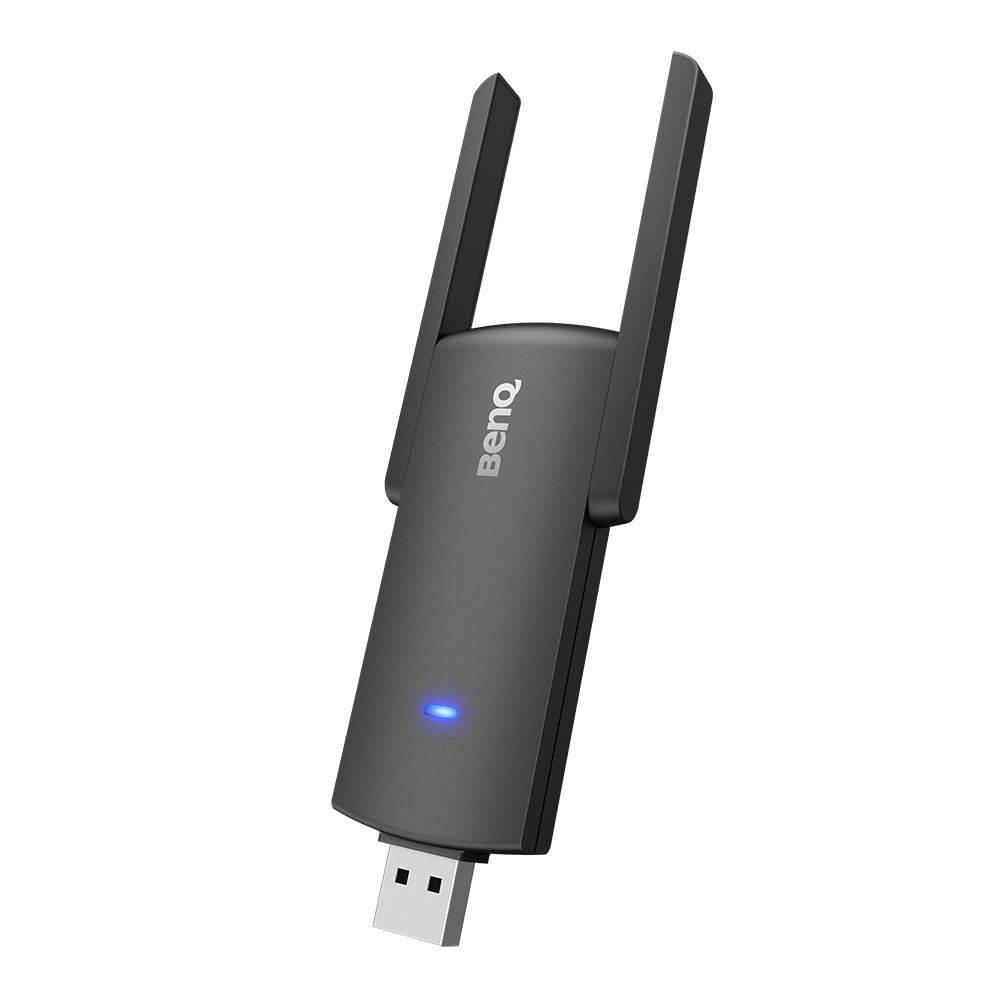
TDY31 Wireless USB Adapter
Enables wireless internet connection on BenQ displays
Application
 How do I add a device by using QR code for DMS Cloud?

A device must be added first in order to remotely monitor, control, and configure devices individually or as groups. Please follow the demo video to add device using QR code for DMS Cloud.
Learn More
How do I use DMS Cloud to control the device remotely?
Devices can be controlled remotely in DMS Cloud. Please follow the demo video for detail steps.
Learn More
Why does it show "Display ID is invalid" when I tried to register EasySetting with my device?
Please make sure to check the followings:
(1) Is the network working properly? Make sure to use LAN instead of Wi-Fi for internet access.
(2) Make sure EasySetting whitelist is set up already. Learn More
(1) Is the network working properly? Make sure to use LAN instead of Wi-Fi for internet access.
(2) Make sure EasySetting whitelist is set up already. Learn More
Where can I download InstaShare App for Android/iOS/Windows/MAC OS?
Please refer to the following download sites for the app:
- Android phone/tablet: Search for "InstaShare" in Google Play and download the app.
- iOS phone/tablet: Search for "InstaShare" in the App Store and download the app.
- Windows/MAC: Follow the below steps to download the app from IFP:
(1) Ensure both IFP and PC are connected to the same network.
(2) Open IFP InstaShare app.
(3) Follow InstaShare instructions to download the app. Learn More
- Android phone/tablet: Search for "InstaShare" in Google Play and download the app.
- iOS phone/tablet: Search for "InstaShare" in the App Store and download the app.
- Windows/MAC: Follow the below steps to download the app from IFP:
(1) Ensure both IFP and PC are connected to the same network.
(2) Open IFP InstaShare app.
(3) Follow InstaShare instructions to download the app. Learn More
How do I connect with InstaShare?
InstaShare software is designed to allow seamless wireless presentation and collaboration, utilising smooth streaming of both audio files and Full HD videos.
Users can also mirror and control all digital content across their devices including BenQ IFPs, PCs, tablets, and smartphones, empowering contributors to enrich their sessions with a variety of multimedia resources.
Here is the step by step tutorial for connecting your device with InstaShare.
Learn More
Further Query
Why isn't "Display ID" shown on the device?
"Display ID" will not be shown if the network is not available. Please make sure your device is successfully connected to the Internet.
Learn More
Why can't InstaShare 2 pair with BenQ Smart Display automatically?
Please select InstaShare 2 on the BenQ Smart Display and check that it is in hotspot mode, then connect InstaShare Button to the display for pairing.
Learn More
Why is the LED indicator of InstaShare Button not on after connecting to a BenQ Smart Display?
Please check the following:
1. If there is a loose connection between InstaShare Button and the device. Try to unplug and plug it in again.
2. Check if the USB-C port of the connected device is working correctly by testing it with other devices that have a USB Type-C connector.
Learn More
How do I add a device by using QR code for DMS Cloud?
A device must be added first in order to remotely monitor, control, and configure devices individually or as groups. Please follow the demo video to add device using QR code for DMS Cloud.
Learn More
How do I use DMS Cloud to control the device remotely?
Devices can be controlled remotely in DMS Cloud. Please follow the demo video for detail steps.
Learn More
Why does it show "Display ID is invalid" when I tried to register EasySetting with my device?
Please make sure to check the followings:
(1) Is the network working properly? Make sure to use LAN instead of Wi-Fi for internet access.
(2) Make sure EasySetting whitelist is set up already. Learn More
(1) Is the network working properly? Make sure to use LAN instead of Wi-Fi for internet access.
(2) Make sure EasySetting whitelist is set up already. Learn More
Where can I download InstaShare App for Android/iOS/Windows/MAC OS?
Please refer to the following download sites for the app:
- Android phone/tablet: Search for "InstaShare" in Google Play and download the app.
- iOS phone/tablet: Search for "InstaShare" in the App Store and download the app.
- Windows/MAC: Follow the below steps to download the app from IFP:
(1) Ensure both IFP and PC are connected to the same network.
(2) Open IFP InstaShare app.
(3) Follow InstaShare instructions to download the app. Learn More
- Android phone/tablet: Search for "InstaShare" in Google Play and download the app.
- iOS phone/tablet: Search for "InstaShare" in the App Store and download the app.
- Windows/MAC: Follow the below steps to download the app from IFP:
(1) Ensure both IFP and PC are connected to the same network.
(2) Open IFP InstaShare app.
(3) Follow InstaShare instructions to download the app. Learn More
How do I connect with InstaShare?
InstaShare software is designed to allow seamless wireless presentation and collaboration, utilising smooth streaming of both audio files and Full HD videos.
Users can also mirror and control all digital content across their devices including BenQ IFPs, PCs, tablets, and smartphones, empowering contributors to enrich their sessions with a variety of multimedia resources.
Here is the step by step tutorial for connecting your device with InstaShare.
Learn More