How to Easily Connect-and-Share Through Your Own Device in Hybrid Meetings?
- BenQ
- 2022-09-15
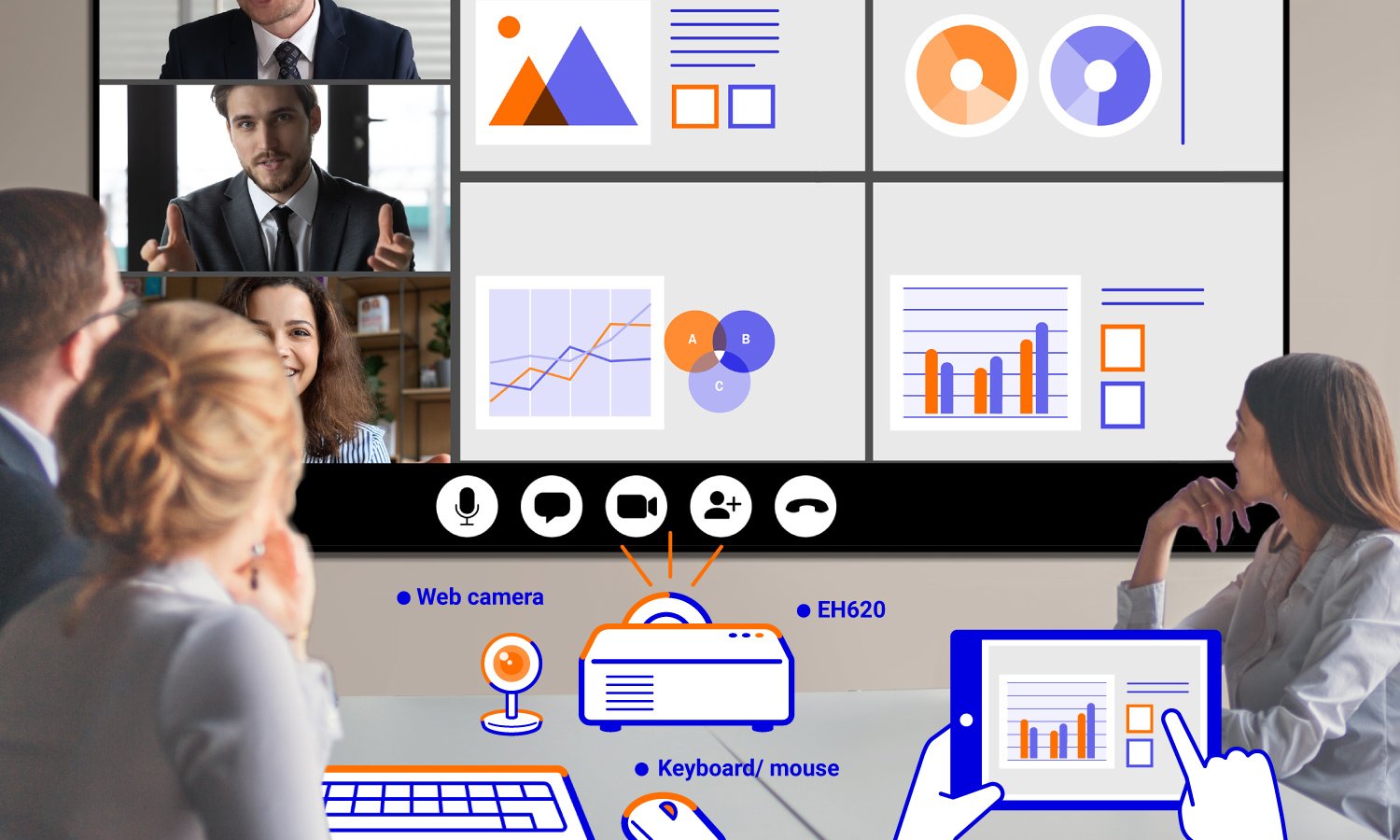
Connect-and-Share Hybrid Meetings
Turn on EH620 and start the meeting without everyone logging into. Utilize wireless BYOD content sharing via EH620 for multiple screen sharing. File sharing becomes so easy and up to 4 presenters can present at the same time without switching one after another.
What is BenQ EH620?
EH620 is a Windows-based smart projector to offer companies an easier and more inexpensive way to enjoy the convenience of hybrid meetings and online collaborations. Learn more about EH620.
Easy Setup. Quick Casting.

Go to BenQ Launcher and find the wireless projections icon. Click it.

- Click the Settings button and turn on both the Mirroring & Controlling Switch and the Wisdom Division Switch.

- Connect the devices to the EH620 Wi-Fi network and follow the instructions to start screen casting.
3 Steps to Share Content Remotely

Step 1: Log in to VC app
The host logs in to Zoom or other video conferencing apps on EH620 to start the remote meeting.
Step 2: Cast Simultaneously
Presenters cast ideas to the screen on their own devices. EH620 auto-displays split screens* when detecting multiple sources.
*Up to four screens at the same time


Step 3: Share the Screens Remotely
Share the 4-way split screens directly via EH620 to start collaboration remotely without login to the conference.
A New Hybrid Work Solution
Utilize EH620 to boost your team’s productivity in the hybrid workplace.
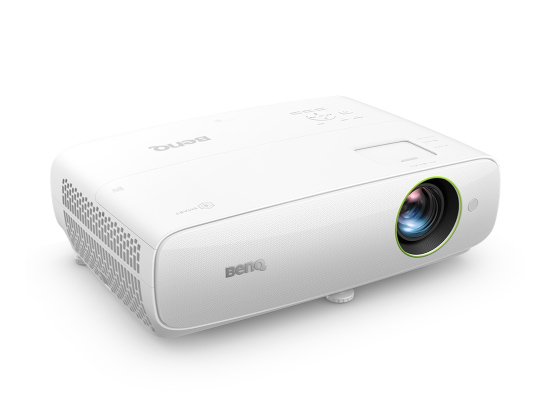
Built-in Win 11 OS and Internet connectivity
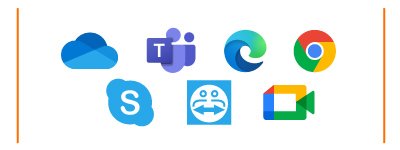
Embedded with browsers and VC apps
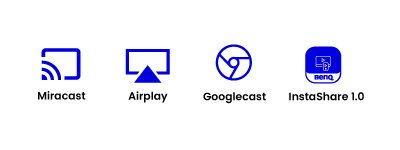
Supports AirPlay, Miracast and Google Cast wireless casting technologies
Recommended Articles
-
Trends & Knowledge
How a Windows Projector Gives you an All-In-One Solution
This article introduces what is this new technology of Windows projector? And what benefits does it provide the users and organizations who use it.
2022.07.06 -
Trends & Knowledge
How Windows Smart Projector Extends Your Data Security
This article points out the security concerns in the hybrid workplace and why a Windows Smart Projector is ideal for corporate users and large organizations
2022.07.06