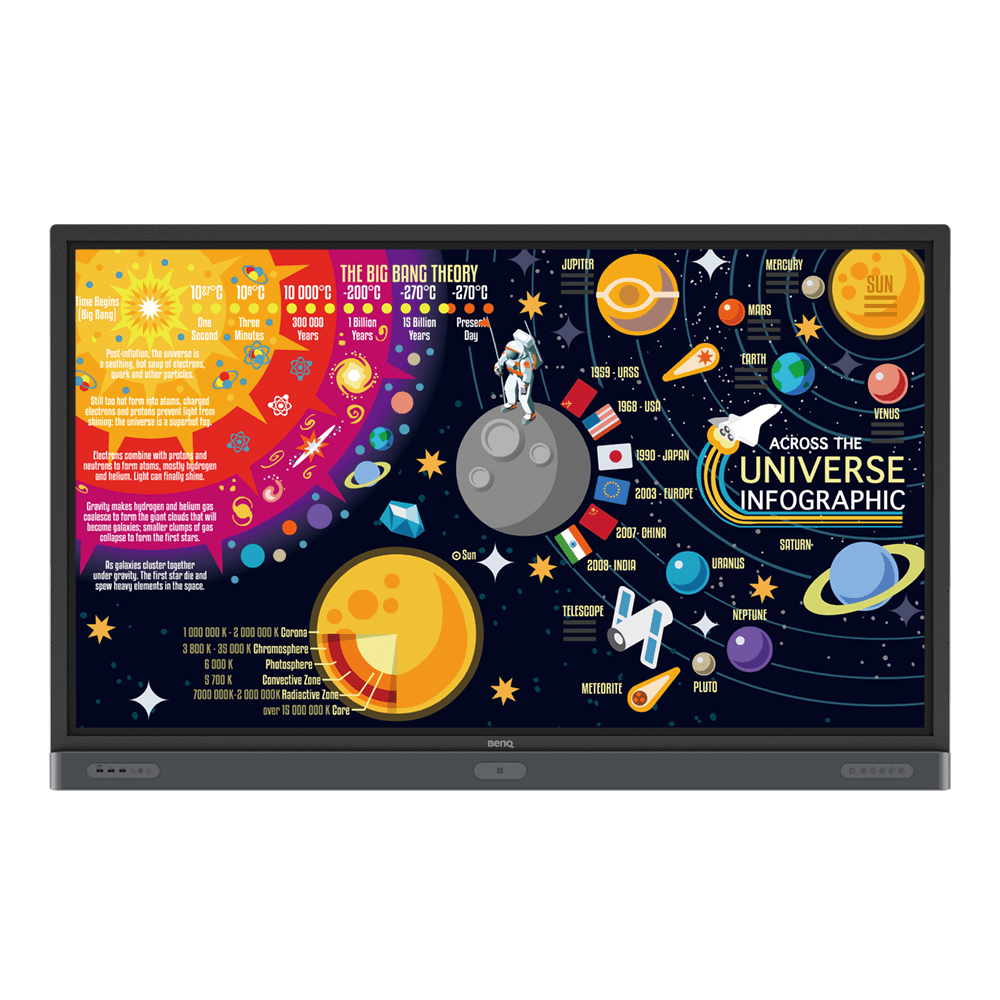
Corporate Interactive Flat Panel Display | RP7501K
RP7501K is designed to tap into the dynamic possibilities of the classroom and help teachers build a healthy.
Application
 Why does it show "Display ID is invalid" when I tried to register EasySetting with my device?

Please make sure to check the followings:
(1) Is the network working properly? Make sure to use LAN instead of Wi-Fi for internet access.
(2) Make sure EasySetting whitelist is set up already. Learn More
Where can I download InstaShare App for Android/iOS/Windows/MAC OS?
Please refer to the following download sites for the app:
- Android phone/tablet: Search for "InstaShare" in Google Play and download the app.
- iOS phone/tablet: Search for "InstaShare" in the App Store and download the app.
- Windows/MAC: Follow the below steps to download the app from IFP:
(1) Ensure both IFP and PC are connected to the same network.
(2) Open IFP InstaShare app.
(3) Follow InstaShare instructions to download the app. Learn More
How do I connect with InstaShare?
InstaShare software is designed to allow seamless wireless presentation and collaboration, utilising smooth streaming of both audio files and Full HD videos.
Users can also mirror and control all digital content across their devices including BenQ IFPs, PCs, tablets, and smartphones, empowering contributors to enrich their sessions with a variety of multimedia resources.
Here is the step by step tutorial for connecting your device with InstaShare.
Learn More
How can I clean my screen without damaging it?
As our IFP (Interactive Flat Panel) is covered with glass on the panel module, it is actually safe to clean it with alcohol-based wipes.
However, please make no liquid reaches the IR sensor located between the glass screen and the bezel.
Learn More
Why is it required to install the "Eumus Design Sound Cards & Media Devices" during the InstaShare installation process?
"Eumus Design Sound Cards & Media Devices" is a virtual audio card. As there are too many audio cards on the market with support for different Windows versions (Windows 7, Windows 8, Windows 10, and even older versions), in order to avoid compatibility issues with InstaShare, installing a virtual audio driver can solve any audio issues that you may experience while using InstaShare.
Learn More
Further Query
Why can't I set up an email account on the unit using my personal Gmail address?
Most likely the app used has been tagged as not secure by Gmail and is therefore blocked. Please follow the steps below to lower Gmail's security level, as most product-bundled apps don't support new Gmail authentication requirements. This does not mean the app presents a security risk.
Go to Google Account > Security > Less secure app access > Change it to ""ON"" to lower security level.
Why can't my device be bound to another admin account and is still showing as bound to the previous admin account?
(1) Login to your AMS Web using the admin account, then find the IFP and remove it.
(2) Login to your DMS Cloud with the admin account, then find the IFP and remove it.
(3) Do a factory reset on the IFP.
(4) Re-bind the IFP with the DMS Client app.
(5) Add the IFP to the AMS service again.
(6) Enable the AMS service on the IFP.
What should I do if I added my IFP to the X-Sign broadcast again but X-Sign Broadcast had already been bound?
(1) Log in to X-Sign broadcast with your admin account and find the IFP to update it to the latest version (V2.3).
(2) Delete the duplicate IFP that shows as online.
(3) The offline IFP will go online and take effect, and the cross-service binding mechanism will activate as well.
Why is my device still showing as "offline" after updating to X-Sign Broadcast V2.3?
(1) Log in to X-Sign Broadcast with your admin account and find the IFP then remove it.
(2) Log in to DMS Cloud with your admin account, find the IFP and remove it.
(3) Re-bind the IFP with the DMS Client app.
Why does it show "Display ID is invalid" when I tried to register EasySetting with my device?
Please make sure to check the followings:
(1) Is the network working properly? Make sure to use LAN instead of Wi-Fi for internet access.
(2) Make sure EasySetting whitelist is set up already. Learn More
Where can I download InstaShare App for Android/iOS/Windows/MAC OS?
Please refer to the following download sites for the app:
- Android phone/tablet: Search for "InstaShare" in Google Play and download the app.
- iOS phone/tablet: Search for "InstaShare" in the App Store and download the app.
- Windows/MAC: Follow the below steps to download the app from IFP:
(1) Ensure both IFP and PC are connected to the same network.
(2) Open IFP InstaShare app.
(3) Follow InstaShare instructions to download the app. Learn More
How do I connect with InstaShare?
InstaShare software is designed to allow seamless wireless presentation and collaboration, utilising smooth streaming of both audio files and Full HD videos.
Users can also mirror and control all digital content across their devices including BenQ IFPs, PCs, tablets, and smartphones, empowering contributors to enrich their sessions with a variety of multimedia resources.
Here is the step by step tutorial for connecting your device with InstaShare.
Learn More
How can I clean my screen without damaging it?
As our IFP (Interactive Flat Panel) is covered with glass on the panel module, it is actually safe to clean it with alcohol-based wipes.
However, please make no liquid reaches the IR sensor located between the glass screen and the bezel.
Learn More
Why is it required to install the "Eumus Design Sound Cards & Media Devices" during the InstaShare installation process?
"Eumus Design Sound Cards & Media Devices" is a virtual audio card. As there are too many audio cards on the market with support for different Windows versions (Windows 7, Windows 8, Windows 10, and even older versions), in order to avoid compatibility issues with InstaShare, installing a virtual audio driver can solve any audio issues that you may experience while using InstaShare.
Learn More