azure-location
In this article
  • What is the Importance of Monitor Size?
  • What is Resolution, and How Does Monitor Size Affect it?
  • Will 2K Do? Is 4K Practical?
  • Is a Monitor with an IPS Panel the Right Choice?
  • What is Colour Gamut?
  • What is Monitor Calibration and Why is it Important?
Choosing the Best Monitor for Photo Editing & Photography
  • BenQ
  • 2025-02-26

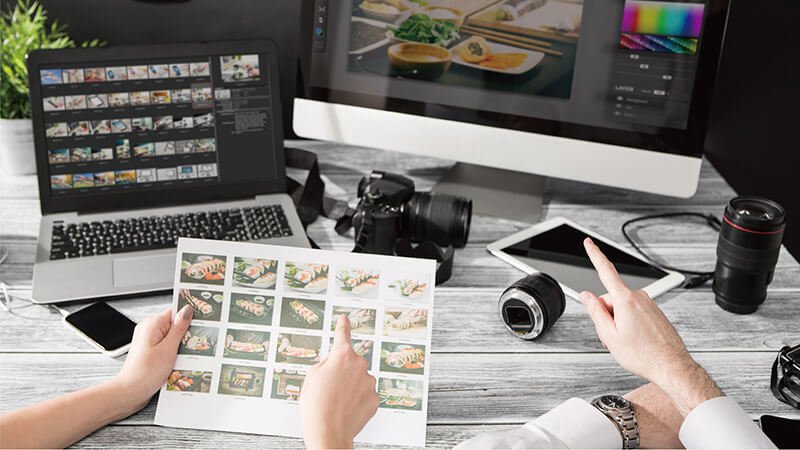
Whether you’re a professional photographer with a business or a beginner in the field looking to get started, your work may involve situations and events where you double as a videographer. You probably use various software suites, such as Photoshop and Lightroom, but in order to make the most out of them you need a factory-calibrated, colour-accurate monitor with a resolution of at least 1440p (2K), preferably 4K. A monitor meeting these standards ensures the best photo and video editing results. It eliminates the need to review multiple previews or try various tools to determine the best settings for your printer and paper type.

How do you determine the quality of a monitor? Researching specifications, materials, technology, brands, and prices is an excellent way to find the best monitor for photography and editing. In this article, we will review guidelines to help you determine how to find the best monitor to suit your needs.

What is the Importance of Monitor Size?

As you search for the best monitor, you’ll notice a variety of sizes available, typically ranging from 23 inches up to 29 inches. Monitor size represents the dimensions of a monitor and is usually measured in inches. The size of a monitor is the diagonal length of its display area converted from centimeters to inches (1 in = 2.54 cm). Large, wide-format monitors are currently trending in the market, 27-inch monitors with a 16:9 aspect ratio, because they offer a bigger screen and deliver more details, which is essential for photographers who edit images regularly. Additionally, these monitors can accommodate more windows and toolbars at the same time when using editing software, such as Photoshop, Lightroom, VEGAS, and iMovie, which improves working efficiency.

To measure a monitor's size, convert the display area's diagonal length to inches.

To measure a monitor's size, convert the display area's diagonal length to inches. 

What is Resolution, and How Does Monitor Size Affect it?

While the size of the monitor directly affects productivity, the resolution capabilities of monitors are another crucial factor when making your decision. A monitor’s resolution refers to the number of pixels it can display on the screen. Any image, picture, or text viewed on monitors are comprised of densely packed pixels. For monitors that are the same size, ones with a higher resolution (more pixels) will display more precise details and more realistic images.

Resolution refers to the number of "pixels" within a display. A 4K display has 3840 pixels in length and 2160 pixels in width, four times the detail of a Full HD.

Resolution refers to the number of "pixels" within a display. A 4K display has 3840 pixels in length and 2160 pixels in width, four times the detail of a Full HD.

A common misconception is that larger monitors have a higher resolution. Unfortunately, this is not always correct. Imagine comparing a 25-inch monitor with Full HD (1920×1080) and a 23-inch monitor with 4K resolution (3840×2160). The 23-inch monitor with 4K resolution (eight million pixels displayed on the 23-inch monitor) will offer more details and better imagery. Although the 25-inch monitor is more significant, with a lower resolution (only two million pixels displayed on a 25-inch monitor), its image will be pixelated. A larger monitor requires a higher resolution to meet visual effects and image quality standards.

Pixel per inch (PPI), or the pixel density, represents the number of pixels in 1 square inch of area.

Pixel per inch (PPI), or the pixel density, represents the number of pixels in 1 square inch of area.

Will 2K Do? Is 4K Practical?

Your monitor resolution depends on your focus: general use, professional editing, or audio/video applications. A 24-inch monitor or 27-inch with 2K resolution will do for public use in the home and office. If you have higher standards for audiovisual entertainment, such as watching 4K high-bitrate videos or editing videos to show more details, then go for 4K. A monitor with 4K resolution will provide more working space and better quality than a 2K monitor and help provide access to multiple applications simultaneously.

Is a Monitor with an IPS Panel the Right Choice?

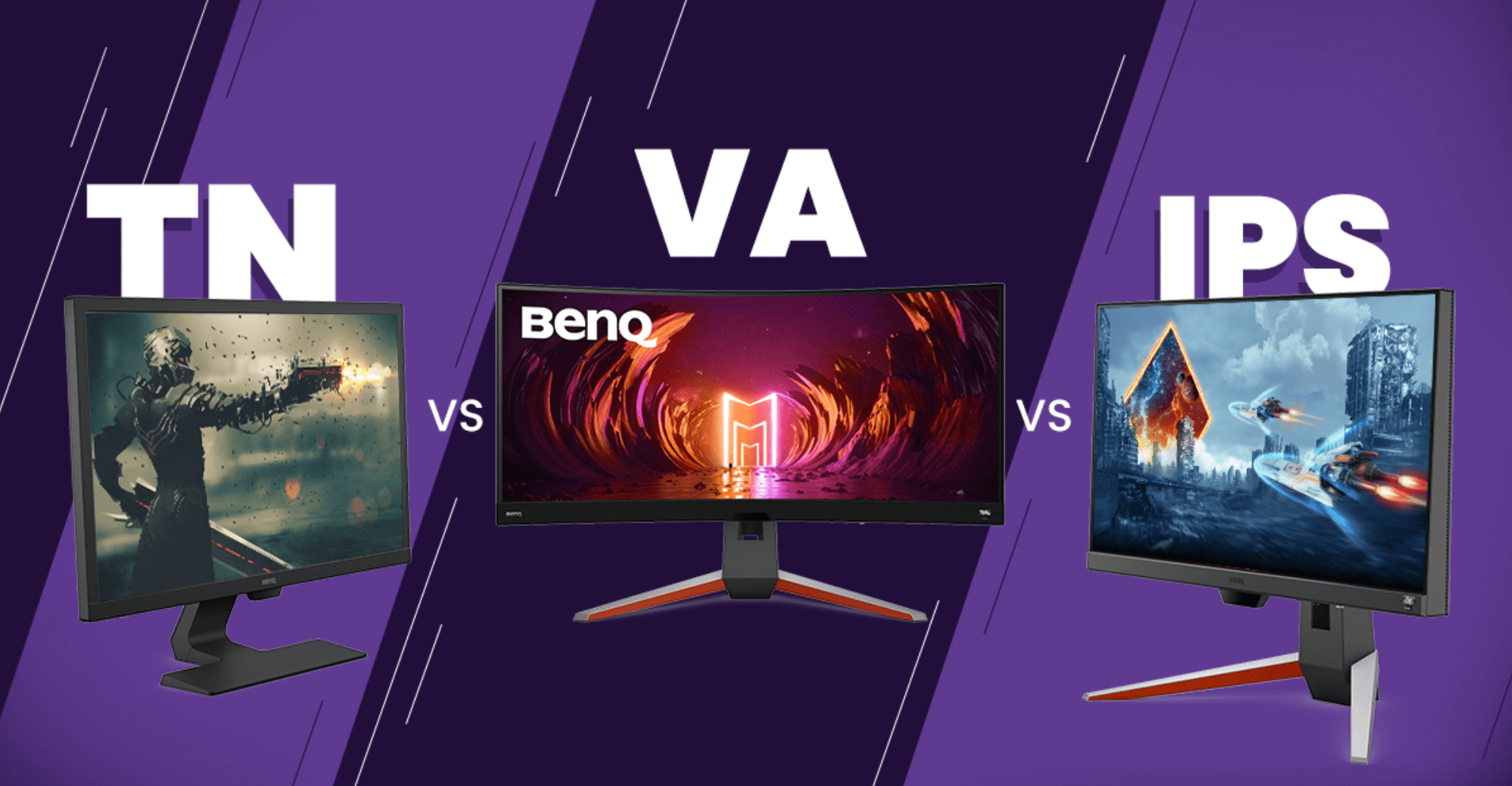
Imagine this: You and a client are discussing an image while looking at it on a monitor, but you notice that the colours look different from different angles. Narrow viewing angles cause this phenomenon. Most monitors used for image processing incorporate an IPS panel with a 178° viewing angle that does not exhibit colour shifting from different viewing angles. IPS panels also deliver better colour ranges and accuracy for the best results. Other panels, such as TN or VA, have certain limitations that will affect productivity and adaptability. The biggest flaw of a TN panel is the phenomenon of colour cast from a narrow viewing angle, making it ill-suited for a photographer’s work.

Compared to TN or VA panels used in other products, IPS panels are the right choice for all photographers.

Compared to TN or VA panels used in other products, IPS panels are the right choice for all photographers.

What is Colour Gamut?

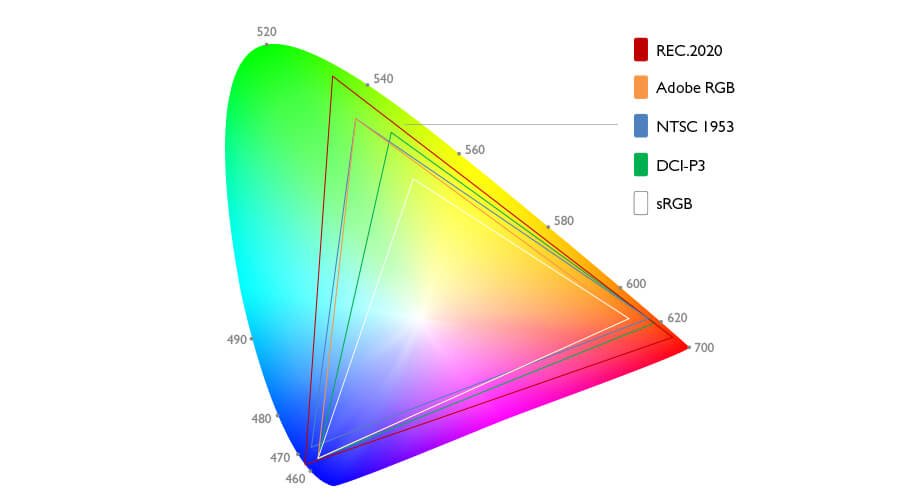
Usually, professional photography cameras have an option in the menu to switch between AdobeRGB and sRGB. These options are referred to as colour spaces. A colour space, also known as a colour gamut, is the range of colours that can be displayed on your camera and monitor.

AdobeRGB has a broader colour spectrum compared to sRGB by 35%. From a photographer's perspective, a monitor capable of displaying more colours and details is a huge benefit that optimises their work. However, if AdobeRGB is selected on the camera but the monitor does not support it, the images will not display the colour range AdobeRGB helps. Choosing a monitor that supports Adobe RGB is a good option because the colour gamut can cover the CMYK colour model used in printing and allows users to preview the colour of the printed image on the monitor without printing out multiple test images.

AdobeRGB has a wider gamut than sRGB and covers the blue-green color in the CMYK gamut, a range that sRGB cannot accommodate.

AdobeRGB has a wider gamut than sRGB and covers the blue-green colour in the CMYK gamut, a range that sRGB cannot accommodate.

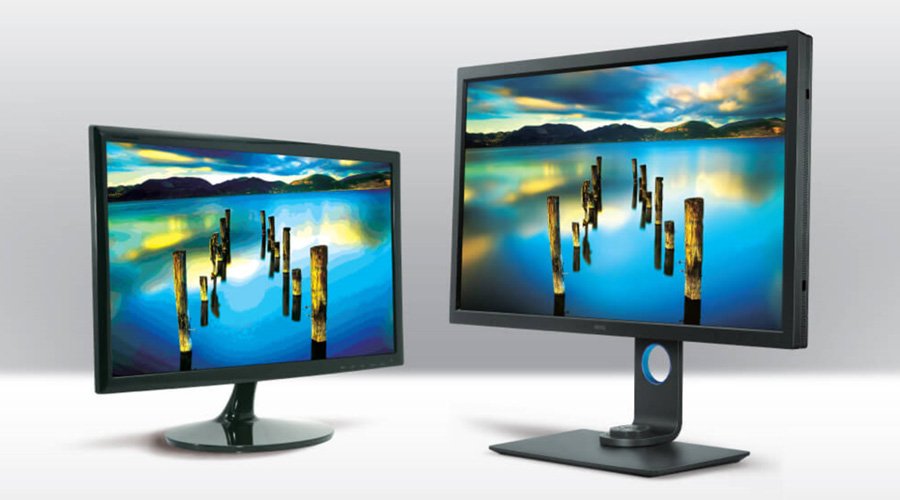
The monitor image on the right supports Adobe RGB, which displays richer colors similar to natural ones.

The monitor image on the right supports Adobe RGB, which displays richer colours similar to natural ones.

What is Monitor Calibration and Why is it Important?

As monitors are used over time, they experience brightness decay and colour shifts. When these issues are ignored and monitor calibration is not maintained, it will lead to a loss in image quality and severe colour shift compared to hardcopy prints. It is recommended that users conduct monitor calibration at least once every six months to maintain colour accuracy. However, some photographers run the calibration once a month to ensure that the colours displayed are always accurate.

There are two types of calibration: software calibration and hardware calibration. Hardware calibration calibrates the monitor by storing data directly into 3D-LUT (Look Up Table) inside the monitor, while software calibration is limited to adjusting the RGB values in the graphics card with additional processor inside the monitor. Hardware calibration has more advantages as it delivers more accurate colours regardless of the connected computer or graphic card and retains the maximum number of colour steps on the monitor to maintain colour continuity and prevent contour.

Monitor calibration is necessary because it is the only way to ensure that the colors displayed are always accurate.

Monitor calibration is necessary because it is the only way to ensure that the colours displayed are always accurate.

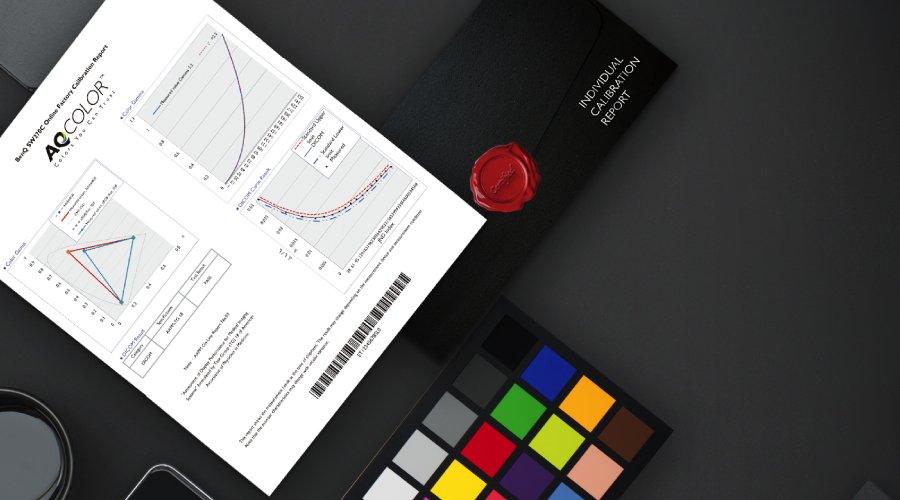
If you don’t know anything about monitor calibration, don’t worry, not all photographers have a detailed understanding of it. Monitor calibration is something that needs to be studied. Professional monitors designed for imaging purposes have been colour-calibrated before reaching customers, and some of these monitors are delivered with a colour calibration report, which is excellent for photographers who know little about colour calibration. Additionally, purchasing monitors with Delta E≤2 regarding colour accuracy is recommended. The smaller value entails a more faithful reproduction of colours.

BenQ professional monitors have undergone color calibration before leaving the factory and are released with the full-color calibration report to customers.

BenQ professional monitors have undergone colour calibration before leaving the factory and are released with the full-colour calibration report to customers.

What Else Should I Consider?

A Shading Hood If you struggle to see your monitor correctly when it’s placed directly under a light source, catches reflections from the lighting in your working space, or has sunlight shining directly onto your screen, you should consider a shading hood. Much like a lens hood, a monitor shading hood blocks scattered ambient light from shining on your screen to prevent it from affecting the image displayed on the monitor and ensuring consistent brightness and colours. If you work on a multi-monitor setup, a shading hood bridge is recommended as well because it is easy to adjust the angle between the two connected monitors.

shading-hood
shading-hood

Adjustable Height and Pivot

When photographers are adjusting the view of their image or displaying it for others to view, having a monitor that can be adjusted with ease is crucial. Monitors with height, swivel, and pivot adjustment features help users set the optimal monitor position in the shortest amount of time. A pivot adjustment feature allows photographers to quickly switch the monitor to a vertical position, which utilises the whole screen when editing portrait photos and displaying images to others.

adjustable-height-and-pivot

Versatile Switching Between Colour Gamuts

AdobeRGB and sRGB are the two most used colour gamut’s for photographers. While Adobe RGB is generally the preferred option, sRGB is often used when the retouched image is only posted online. When you need to process two images taken by different photographers that are different colour gamuts, a monitor capable of switching between them will allow users to preview and compare accurately.

versatile-switching-color-gamuts

HotKey Puck

An easy way to switch between colour gamuts is with a HotKey Puck, a device unique to BenQ PhotoVue monitors. This device allows users to easily switch between settings, save preferred preset settings, and optimise time management and efficiency. By continuously listening to genuine user feedback, the latest generation of the HotKey Puck G3 has a design that is more user-friendly and includes a new feature, the Information Key, which allows users to easily access the current colour parameters of the monitor with a single press of a button.

hotkey-puck
hotkey-puck

Utilising the information presented in this article, you can select a suitable monitor that meets your needs and will benefit your workflow. Finding a monitor for photo and video editing can be difficult, and many monitors also offer accessories to consider. Learning about and understanding these factors to select or upgrade your monitor will help you find the best option to optimise productivity. 

Was this article helpful?

Yes No

Recommended Products

  • Save {{currency}}{{item.saveAmount| numberThousandsCommas | numberDecimalPoint}}
    Save {{item.savePercent| numberThousandsCommas | numberDecimalPoint}}%

    {{item.productWordingTag}}

    {{item.title}}

    • {{point}}

    {{currency}}{{item.finalPrice| numberThousandsCommas | numberDecimalPoint}} Save {{currency}}{{item.saveAmount | numberThousandsCommas | numberDecimalPoint}} Save {{item.savePercent | numberThousandsCommas | numberDecimalPoint}}%

    new device price{{currency}}{{item.regularPrice| numberThousandsCommas | numberDecimalPoint}}