


MA320U|32" 4K Nano Matte Monitor for MacBook
Tampilkan Warna Mac. Tanpa Pantulan Cahaya.

Skenario
Home Entertainment Projectors Best 4K Projectors Best Projector for World Football Video StreamingBy Trending Word
4K UHD (3840×2160) Short Throw 2D, Vertical/Horizontal Keystone LED Laser With Android TV With Low Input LagExplore Proyektor Komersil
Professional Installation Exhibition & Simulation Small Business & Corporation Education Golf Simulator

Tampilkan Warna Mac. Tanpa Pantulan Cahaya.

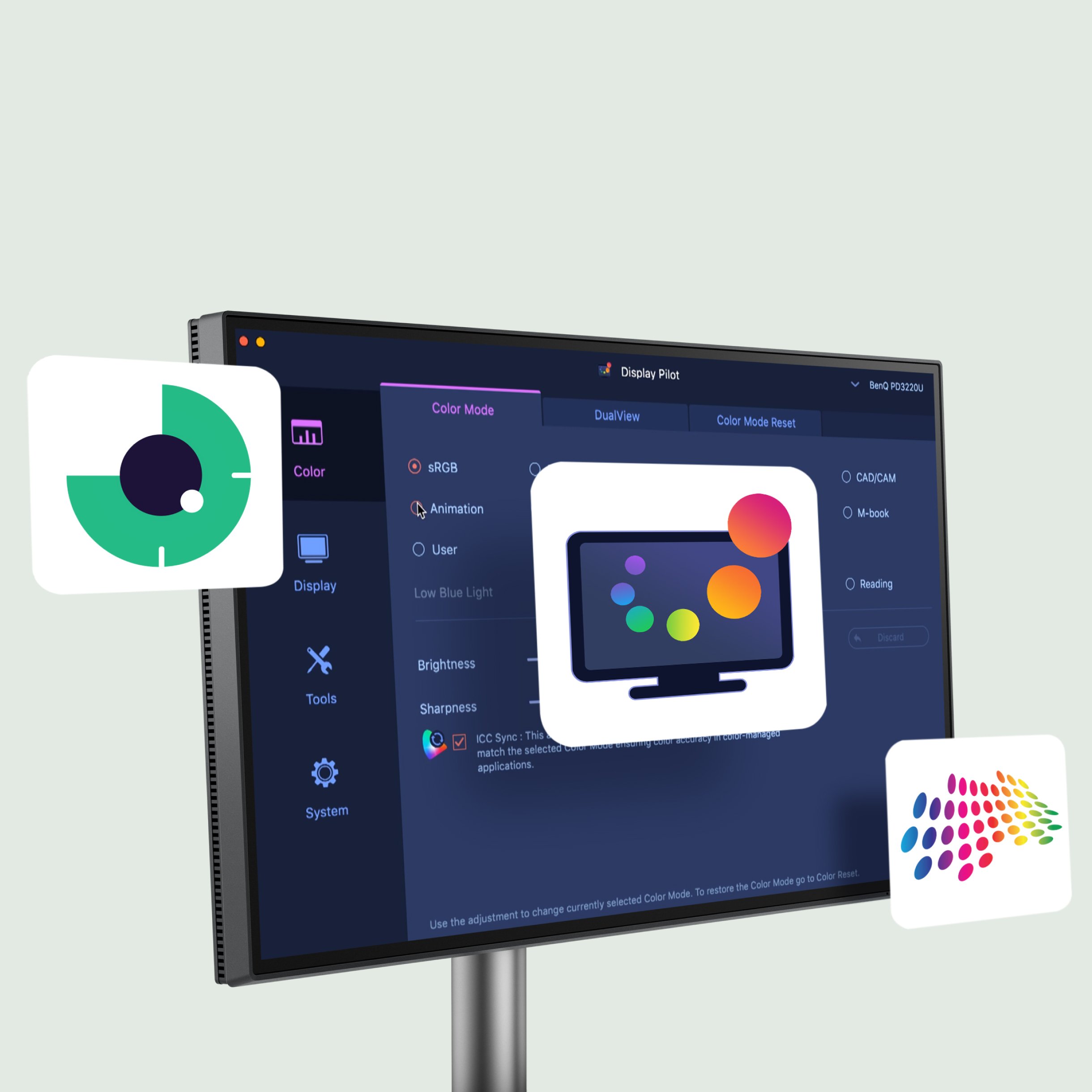
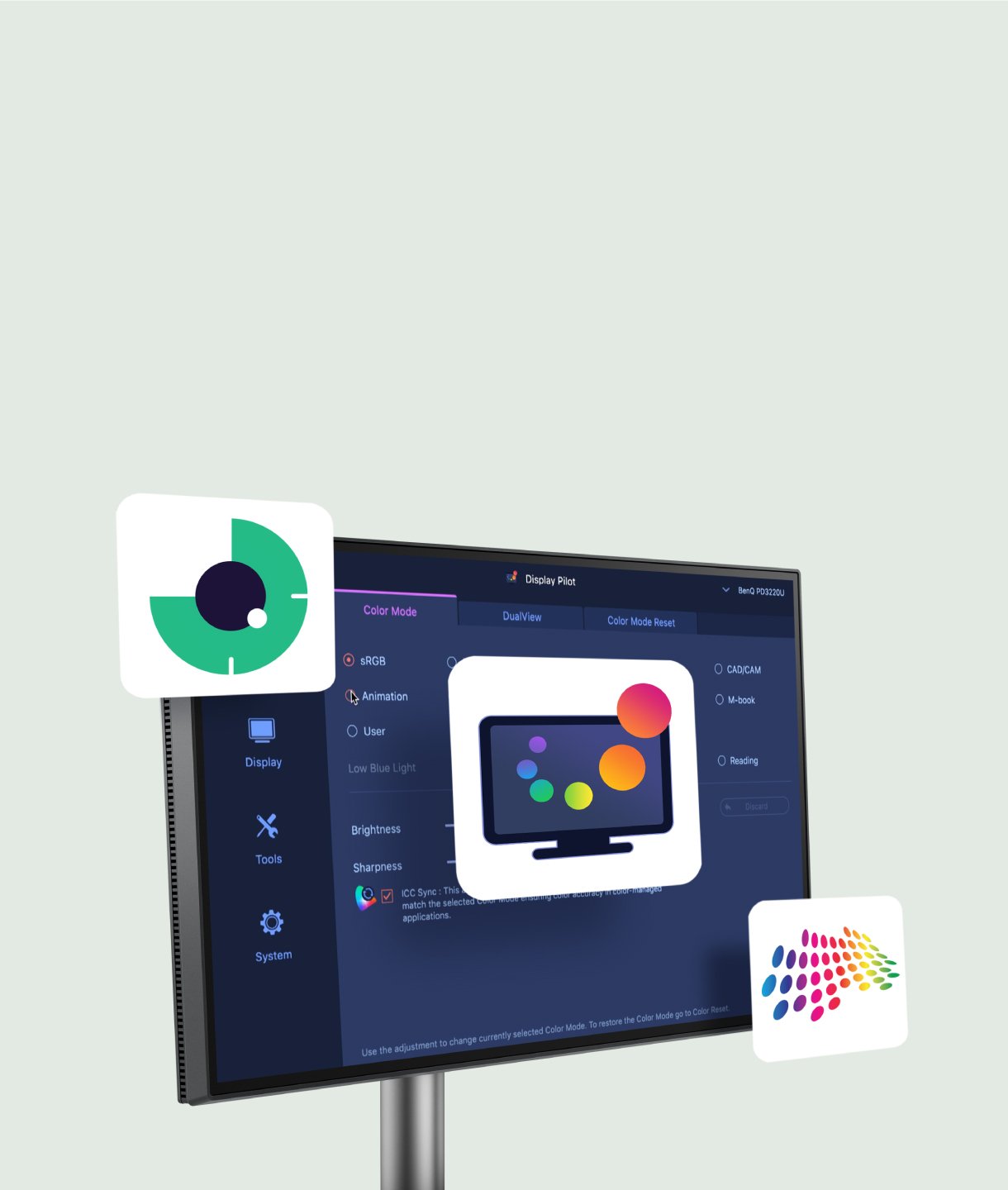
Nikmati pengaturan yang disederhanakan layaknya di Mac dengan perangkat lunak BenQ Display Pilot 2.
Selesaikan Tugas Anda dengan Display Pilot 2
Nikmati pengaturan yang disederhanakan layaknya di Mac dengan perangkat lunak BenQ Display Pilot 2.
Panel yang Melindungi
BenQ memproduksi monitor terbaik yang ramah bagi mata Anda. Panel Nano Matte yang inovatif dan teknologi BenQ Eye-Care menghilangkan faktor-faktor seperti pantulan dan silau yang dapat membahayakan penglihatan Anda.
TÜV Reflection Free Certified
Sertifikasi TÜV Reflection Free memastikan Anda dapat melakukan berbagai tugas sekaligus dengan gangguan yang diminimalkan. TÜV Rheinland, lembaga keselamatan global, juga mensertifikasi fitur Low Blue Light pada seri MA sebagai fitur yang benar-benar ramah bagi mata manusia, sehingga memastikan layar tersebut mengurangi cahaya biru yang berbahaya.
Lebih dari sekadar monitor eksternal yang bergaya untuk MacBook Pro dan MacBook Air Anda, perangkat ini juga berfungsi sebagai hub yang tangguh untuk ekosistem Apple desktop Anda. Port USB-C bawaan berdaya 90W dan 15W* dapat mengisi daya perangkat iPad dan iPhone Anda saat Anda bekerja.
*Port USB-C bersertifikasi USB-IF menjamin pengisian daya yang aman dan konektivitas yang andal tanpa risiko kerusakan pada perangkat Apple Anda.
MacBook Computers
iPad Devices
iPhone Devices
Mac mini Computers
Game Consoles
Hubungkan ke berbagai perangkat untuk melakukan banyak tugas sekaligus
Port USB-C bawaan berdaya 90W dan 15W menjaga perangkat Anda tetap terisi daya* dan memperluas konektivitas
*Pastikan perangkat Anda tetap terisi daya meskipun monitor dalam keadaan mati berkat fitur Always-on Power Charging.
Tidak ada lagi postur tubuh yang buruk. Monitor terbaik dari BenQ untuk MacBook Pro dan MacBook Air tidak hanya sekadar mengatasi keterbatasan layar, tetapi juga menawarkan kebebasan yang lebih besar berkat berbagai pilihan sudut pandang dan penyesuaian ketinggian untuk pengalaman menonton yang lebih baik.
FAQ
Unduh
Pertanyaan yang Sering Diajukan
Browse all related FAQsHow do BenQ monitors for MacBooks achieve high color consistency?
The BenQ Color Lab experts, renowned for their authority in color science, apply meticulous Mac color-tuning technology to BenQ MA series monitors to ensure high color consistency with MacBooks. According to test data, MA monitors closely match the MacBook Pro* regarding color gamut volume, area coverage, and color difference, providing users with a consistent color experience. (*The measurements were benchmarked against the MacBook Pro 13” M2 2022. While the results are ensured to be within a reasonable range, they do not represent identical measurement data for every MA model)
What should I do if I cannot find the settings to adjust in the OSD menu?
To adjust more display settings or enable functions, such as color modes, audio modes, B.I.+ Gen2, and Low Blue Light, please download Display Pilot 2 software to manage the display settings and functions of your MA series monitor. Please click and check the download page below.
Why can't I adjust the brightness or volume of my BenQ monitor using the keyboard of my MacBook?
To adjust the brightness or volume of your BenQ monitor using the keyboard of your MacBook, please download the Display Pilot 2 software and enable the iKeyboard Control function. Additionally, ensure that you switch the audio output option to the monitor in your MacOS system settings.
Can the monitor keep charging devices when turned off? How do I enable this feature?
Yes, the monitor has an Always-on Power Charging feature, allowing it to charge your devices through USB-C and USB hubs (including USB-C (15W) and USB-A ports) even when in sleep mode or turned off.
How do the five audio modes differ and how are they individually optimized?
- Standard mode sound everyday video.
- Dialogue mode human voices.
- Music mode live music concerts.
- Cinema mode impactful sounds.
- Game mode sound localization.
Please click and follow the instructions below, or read on to learn more about this topic.
Can I use USB-C to charge my MacBook or Windows laptop or USB-C devices?
The monitor's USB-C port delivers 90W which is sufficient for MacBook/ Windows laptops /USB-C devices. However, you still need to check if your laptop supports. Please click and follow the instructions below, or read on to learn more about this topic.


