{{item.name}}
Price: {{currency}}{{item.price| numberThousandsCommas | numberDecimalPoint}}
Qty: {{item.amount}}

By Series
4K Gaming Projectors Home Cinema Series TV Projector Series Portable Projectors Golf Simulator ProjectorsBy Feature
Home Entertainment Best 4K Projectors Best Gaming Projectors Best Projectors for Sports GV Series Portable Ceiling Projectors House Mapping ProjectorsBy Trending Word
4K UHD (3840×2160) Short Throw 2D, Vertical/Horizontal Keystone LED Laser With Android TV With Low Input LagExplore Commercial Projector
Professional Installation Simulation Projection Small Business Corporation K12 & Higher EducationBy Feature
Photographer Monitors Best 4K Monitors Best Monitors for MacBook Pro & Mac Best Monitors for Versatile MacBook Users Best Monitors for ProgrammingRemote Work & Learning
Explore treVolo Speaker
Dialogue Speaker for Learning Electrostatic Bluetooth Speaker Carry Case & Stand

Projectors

Monitors
Lighting
Remote Work & Learning
Interactive Displays | Signage
Store
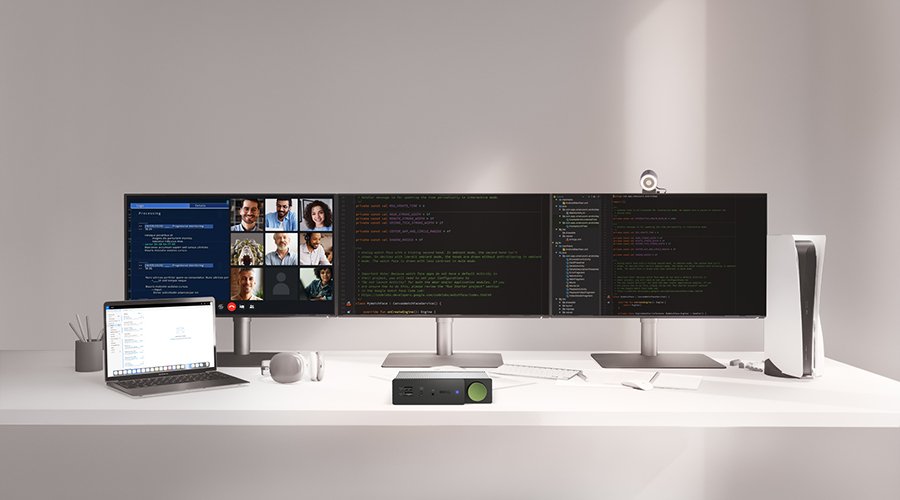
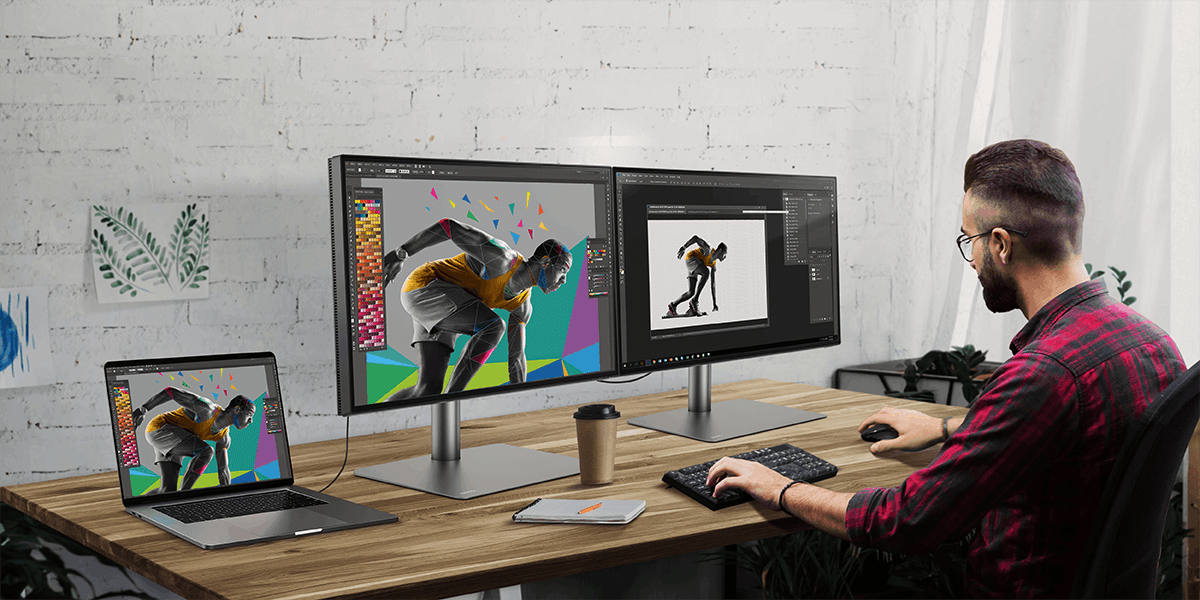
If you find yourself needing more monitor real estate for your various usage needs, you really only have two options. One is to get a bigger monitor, but that will only go so far. The other is to connect multiple monitors, and thankfully that’s made simple with daisy chaining. Essentially, using the daisy chain method, you can have several monitors connect to your laptop or desktop with a single DisplayPort or Thunderbolt connection. All you need is one cable to the first monitor, and then one additional cable for each additional monitor in the chain.
With DisplayPort or Thunderbolt daisy chaining, you enjoy the flexibility of having several displays for all of your work or entertainment needs. You can duplicate the displays or have each dedicated to a different app or task. How you use them is entirely up to you. The whole idea behind daisy chaining is simple flexibility, while keeping the cables to a minimum.
There are two types of ports that allow you to daisy chain monitors: DisplayPort and Thunderbolt. Ensure that your PC features an output port of either type and that the monitors feature both input and output ports of the same type.
Apple’s Mac ® or MacBook® computers can only support daisy chaining via Thunderbolt. Additionally, some Mac devices with the M1, M2, or M3 chips can only connect to a single external display. For more information about connecting different models of Mac devices to external displays, please refer to the Apple website. Daisy chaining is not supported over HDMI or via standard USB ports on any device.
For daisy chain connections via Thunderbolt, the Thunderbolt port on all your devices must be version 3 or higher, and all connections require use of Thunderbolt 3 or Thunderbolt 4 cables.
To daisy-chain via Thunderbolt:
*NOTE: The connection to the final monitor can also be USB-C with DP Alt mode support. Please check with your computer’s manufacturer for the resolution and number of external displays that it can support. Apple users can check here: Apple Official Site For connections to monitor 2 and beyond, it is best to use cables at least 1m long for increased placement flexibility.
Thunderbolt supports higher bandwidth relative to DisplayPort in daisy chain, which allows for 4K@60Hz for two monitors, and up to six monitors at 1080p@60Hz. Check the official Thunderbolt website for specifications regarding support for multiple screens.
*Please use Thunderbolt 3 or Thunderbolt 4 certified cables with the Thunderbolt 3 or 4 icons shown.
For daisy chaining to work, all connected devices must support DisplayPort 1.2 or higher with Multi-Stream Transport (MST). This applies to both native DisplayPort connections and USB-C ports with DisplayPort Alt Mode.
To daisy chain your monitors via DisplayPort or USB-C:
Due to bandwidth limitations, connecting more than two monitors via DisplayPort or USB-C may cause a lowering of resolution on one or all of the monitors. Check the specifications of your laptop or desktop’s graphics hardware to see if it supports adding multiple monitors.
Can I daisy chain monitors using USB-C?
Yes, but only if your USB-C port supports DisplayPort Alt Mode and MST. Standard USB-C ports that don’t include video output can’t support daisy chaining, even if the cable fits.
*Supported resolutions and refresh rates may vary when using daisy chain connections. Please refer to the User Manual of each model for detailed specifications.
Mac® and MacBook® are trademarks of Apple Inc.
• What do I need to daisy chain multiple monitors?
Monitors must support one of these standards:
Your computer or docking station must support the chosen standard. Use certified cables for DisplayPort or Thunderbolt. For USB-C Alt Mode source connection, use USB 3.2 Gen 2 or higher cables. Standard USB-C charging cables do not support video daisy chaining.
BenQ Thunderbolt monitors are fully daisy-chain compatible.
• How do I know if my monitor supports daisy chaining?
Check if your monitor has a DisplayPort or USB-C output or supports MST (Multi-Stream Transport)via DisplayPort or Thunderbolt. This is usually listed in the product’s specs or port layout.
• What is the difference between daisy chaining and using a docking station?
Daisy chaining links monitors in sequence using fewer cables, while docking stations connect all devices through a central hub. Daisy chaining helps reduce desk clutter, especially when paired with MST-ready monitors or Thunderbolt monitors from BenQ.
• Can HDMI be used for daisy chaining monitors?
No. HDMI does not support daisy chaining. You’ll need DisplayPort with MST or a Thunderbolt connection to link multiple monitors in a chain.
• Is daisy chaining better than using multiple monitor cables?
It depends. Daisy chaining simplifies your setup and minimizes cable mess, but it only works with compatible hardware. For a cleaner, more professional workspace, BenQ’s MST-capable monitors or Thunderbolt monitors are worth considering.
• Can I mix different brands of monitors in a daisy chain?
Yes, as long as all monitors support DisplayPort with MST or Thunderbolt daisy chaining. However, performance and color consistency are usually better when using monitors from the same model line.
For a seamless visual experience, consider using BenQ Thunderbolt monitors of the same model, which are factory-calibrated for consistent color output.
• Why is my daisy chain not working?
Common issues include using incompatible cables, connecting monitors in the wrong order, or missing MST/Thunderbolt support on your device or monitors. Always check for DisplayPort output and firmware updates on each screen.
• Do I need a special graphics card for daisy chaining?
Not always, but your GPU or docking station must support DisplayPort MST or Thunderbolt video output. Most modern GPUs from Intel, AMD, and NVIDIA support MST, but check your specs to be sure.
• How many monitors can I daisy chain at once?
It's all about total bandwidth. Higher resolutions and refresh rates take up more bandwidth lanes. Once the lanes are maxed out, you can't add more monitors without lowering the quality of the others.
The number of monitors you can chain depends on the interface version:
Interface
Total Bandwidth
Example Configuration
DisplayPort 1.4 (MST)
21.6 Gbps (DP 1.2)
• 1× 4K@60Hz and 1× 4K@30Hz
• 4× 1080p@60Hz
• 1× 4K@30Hz and 1× 4K@30Hz and 1x 1080p @60Hz
Thunderbolt 4
40 Gbps
• 2× 5K@60Hz (with DSC)
• 2× 4K@144Hz (with DSC)
*MST daisy chaining is limited to DP 1.2 bandwidth regardless of port specification.
*Please refer to the User Manual of each model for detailed specifications.
macOS® Note: Despite updates, macOS still does not support DisplayPort MST for extended displays. If you use a standard DP MST daisy chain with a Mac, the screens will only show mirrored images. To achieve an extended desktop via a single port on a Mac, you must use Thunderbolt 3 or 4 monitors and cables. Regardless of the interface, most single-port setups are limited to a maximum of 2 monitors due to hardware and bandwidth constraints.
Recommended Products
{{item.productWordingTag}}
{{currency}}{{item.finalPrice| numberThousandsCommas | numberDecimalPoint}} Save {{currency}}{{item.saveAmount | numberThousandsCommas | numberDecimalPoint}} Save {{item.savePercent | numberThousandsCommas | numberDecimalPoint}}%
new device price{{currency}}{{item.regularPrice| numberThousandsCommas | numberDecimalPoint}}






?$ResponsivePreset$)