User Role
In this article
Account management portals and access settings
-
Account management portals and access settings
-
What roles can you assign to BenQ smart display users?
-
Which role has the most privileges?
-
What combination of settings offers the strongest security?
-
Choosing the secure solution for your school
Access Granted: Balancing User Authority and Security on BenQ Smart Displays

- 2025-08-29
Having smart boards, smart signage, and smart projectors at school is incredibly helpful with lessons, as they allow both teachers and students to utilise many interactive tools and features. But since these displays are often permanent classroom fixtures, anyone can easily walk into a room and use them freely. This now brings up an essential security-related question: How much authority should you grant each user?
The answer really depends on your school’s security strategy. If your school is small enough, and it’s easy to keep tabs on how your students use the display, then just having usage guidelines should suffice. But if your smart displays are in environments where guests can come in at any time, then you may be opening up your school to potential data security risks.
Fortunately for schools, BenQ smart displays come with security features that allow you to enforce stricter access controls.

Account management portals and access settings
The BenQ Account Management System (AMS) is mostly for teachers. AMS is an online platform that they can use to log in to their smart displays, personalize their home screens, bookmark webpages, and most importantly, link their cloud storage account for easy access to their lesson files.
Next up is the BenQ Identity and Access Management (IAM) platform, which is designed for IT administrators. IAM is a cloud-based management console that allows admins to enforce access controls for their BenQ smart displays. They can easily add and remove authorized users (either manually or by syncing with their school’s directory service) as well as assign them specific roles.
Last but not least is BenQ Device Management Solution, which IT admins can use to remotely manage and monitor all their BenQ Boards, smart signage, and smart projectors from a power web console. It also allows IT to create, edit, and push policies and automations.
What roles can you assign to BenQ smart display users?
Below is the list of different user roles. But before we get to that, we must first discuss three settings that affect the level of access these users have on BenQ smart displays.
1. Is AMS enabled?
When setting up their displays, IT administrators have the option to either enable or disable the AMS service for their BenQ Board, smart signage, or smart projector. Without AMS, everyone will have the same level of user privileges and access as an administrator. This can work for very small schools with only a handful of BenQ displays, where teachers can easily enforce usage guidelines and monitor who can access their displays at any given time. But for larger schools, we highly recommend enabling AMS service for better control and security.
How to enable AMS on BenQ smart displays

1. On the bottom left corner of the screen, tap User.
2. Enable AMS Service.
3. Enter the local administrator password, and then tap Log in.
2. Is Authentication mode enabled?
Authentication mode is a special setting that administrators can find on DMS. When activated, it will enable AMS service and lock the control panel buttons. What this means is that only users that admins invite can log in to the BenQ smart display and access its features.
How to enable Authentication mode

Method 1:
1. Log in to https://dms.benq.com.
2. Go to Policies.
3. Edit an existing policy or create a new one.
4. Go to Launcher settings.
5. Enable Remotely control BenQ AMS settings.
6. Enable Activate BenQ AMS.
7. Click Confirm when prompted for your password.
8. Click Access security.
9. Enable Authentication mode.
10. Click Confirm, then Apply.
11. Click Deploy.
Method 2:
1. Log in to https://dms.benq.com.
2. Go to Devices.
3. Find a device and click on Detail info.
4. Click on the Apps tab.
5. Enable Remotely control BenQ AMS settings.
6. Enable Activate BenQ AMS.
7. Click Confirm when prompted for your password.
8. Click Access security.
9. Enable Authentication mode.
10. Click Confirm, then Apply.
3. Are users assigned special roles?
IT administrators can go to their school’s IAM console and assign a special role to an individual user or user groups. When someone becomes a restricted user, they will only be able to modify the most basic BenQ smart display settings, such as display brightness and volume controls. They won’t be able to tamper with critical device settings, which are normally reserved for those assigned the administrator role.
How to assign user roles

1. Log in to https://iam.benq.com.
2. Go to Accounts.
3. Select a user.
4. Click Edit service permissions.
5. For AMS, select a role.
You can select between User (also known as Authenticated User) and Restricted User.
Here’s the summary of all the user roles:


AMS Service

Public user
If AMS is disabled on the smart display, you cannot assign any of the roles listed below. The smart display is essentially for public use, and all users are considered public users and have administrator privileges. In addition, AMS Files will not show connected cloud storage accounts.

Disabled

Guest user
A guest user is anyone without a registered user account on IAM.

Enabled

Authenticated user
Only users that an admin invites can log into the BenQ smart display and access its features.
Enabled

Restricted user
This is a limited role that can only access the BenQ smart display’s basic settings.
Enabled

Local admin
This role has direct control over the settings, files, and folders on a specific smart display and can enable or disable AMS service on the display.
Enabled
AMS admin
The IAM administrator or sub-admin is set as AMS admin by default. They can manage their BenQ smart displays, have access to high-level device settings, and can grant user permissions from the IAM console.
Enabled
Which role has the most privileges?
User role

Level of authority
AMS admin
This role is assigned to individuals responsible for managing their BenQ smart displays. They have access to high-level device settings and can grant user permissions from the IAM console.

Highest
Local admin
The local admin has access to the password used to enable or disable AMS service on the smart display. They can also access all the display’s settings and local files and folders.

High
Public user (AMS disabled)
If AMS is disabled on the smart display, anyone who uses the display is a public user. They have access to the full set of device settings and all the device’s local files and folders, but they cannot enable or disable AMS service as they do not have access to the local admin password.
High
Authenticated user (AMS enabled)
If AMS is enabled, AMS admins can invite these users to log into the smart display. They can access their files and folders and modify the device’s settings. But unlike admins, they do not have access to critical settings such as factory reset, among other things.

Medium
Restricted user (AMS enabled)
With stricter controls imposed on their accounts, restricted users only have access to their files and folders as well as the smart display’s key features and the smart display’s basic settings.

Low
Guest user (AMS enabled)
A guest user is anyone without a registered user account on IAM. If Authentication mode is disabled, then guests can still use the smart display’s key features. These include connections to external input sources, the EZWrite 6 whiteboard, and wireless screen sharing through InstaShare 2.
If Authentication mode is enabled, guest users will not be able to use the smart display at all.
If Authentication mode is enabled, guest users will not be able to use the smart display at all.
No Authority
User Role
AMS

Will the user be able to link their cloud storage accounts?

Is the user allowed to modify the smart display’s settings?

Will the user be able to access other users’ local files and folders?
Public user
Disabled


Full range of settings
All users
Guest user
Enabled

Authenticated user
Enabled
Regular user settings
Restricted user
Enabled
Only basic settings
Administrator
Enabled
Full range of settings
Only the administrator
What combination of settings offers the strongest security?
Earlier we noted that there are three different settings that affect user access on BenQ smart displays:
Is AMS service enabled?
Is Authentication mode enabled?
What roles are assigned to each user?
How you configure all three affect the types of users who can access the smart display, and subsequently, the level of security that comes with the level of access they have. The diagram and table below explain what each combination of settings entails.


Level of security

Security Settings

Weakest

As mentioned earlier, if you opt not to enable BenQ account access on your BenQ smart display, any person with physical access to the smart display can use features such as EZWrite and InstaShare, view and modify locally stored files and folders, and alter the device settings.
Since there is no way to limit who can do what on the smart display, it exposes the device and locally stored data to potential compromise and security risks.
Medium

Enabling BenQ account access on your BenQ smart display allows you to create or import user accounts, effectively giving authenticated users their own private folders on the smart display. This helps keep their files separate and prevents other users from changing their home screen preferences.
Guest users will still be able use the smart display, but they will only have access to the BenQ smart display’s key features.
Guest users will still be able use the smart display, but they will only have access to the BenQ smart display’s key features.
Strong

With Authentication mode enabled in DMS, all users will be required to log in. This means that only authenticated users can use the smart display and its features.
Strongest

Assigning the Restricted user role to some authenticated users further enhances security as restricted users are not allowed to modify any critical BenQ smart display settings.
Choosing the secure solution for your school
In short, while smart boards, smart signage, and projectors can greatly enhance learning, they also introduce new considerations around user access. The key is aligning your user permissions with your school’s security needs. Whether that means setting clear usage guidelines or enforcing stricter access controls, BenQ smart displays offer built-in features to help you strike the right balance between accessibility and protection.
Want to learn more about securing your school’s displays? Fill out the form below to speak with a BenQ expert.

Talk to an Expert


Related articles


30/10/2024


17/07/2024
Related products
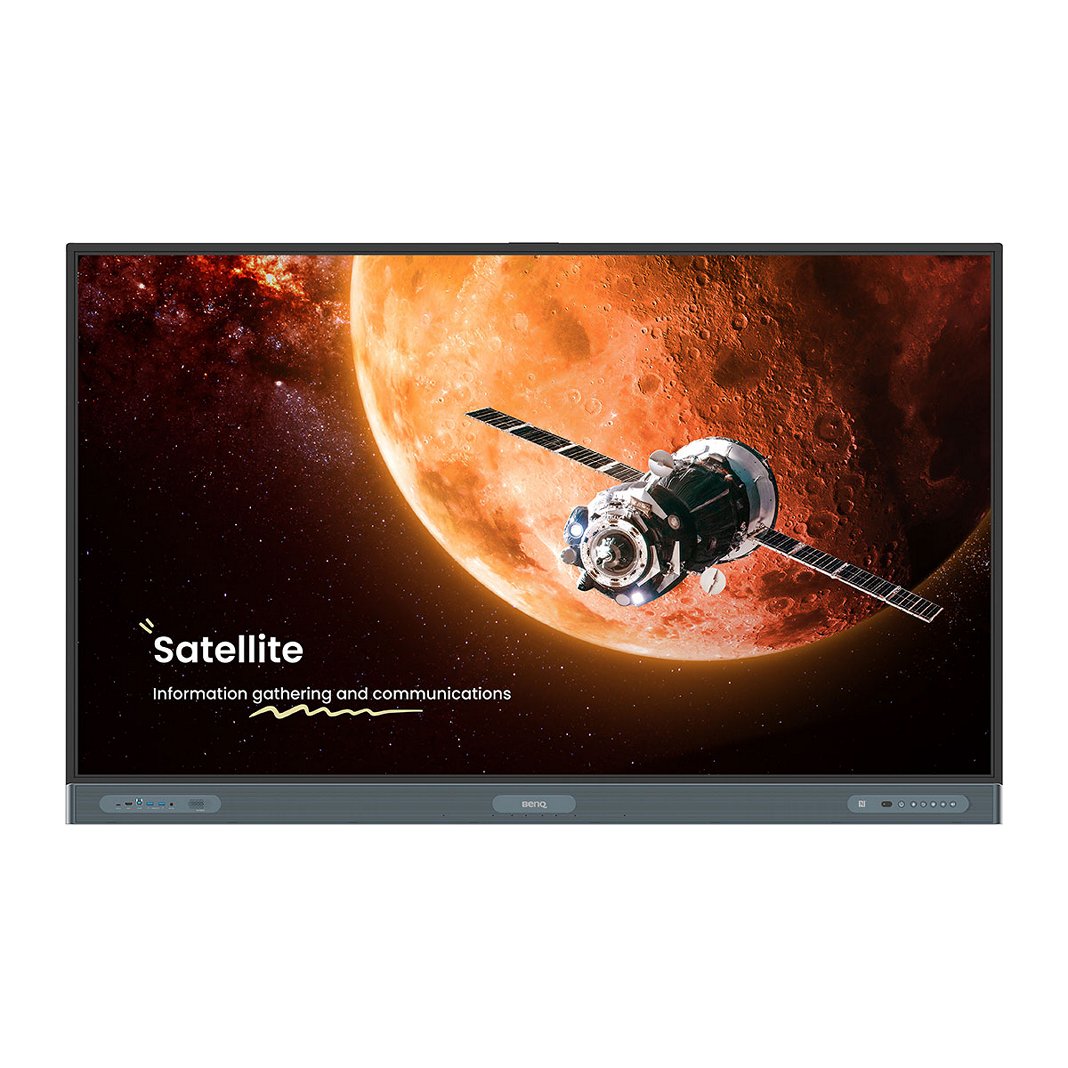
Google EDLA BenQ Board Pro | RP04
BenQ Board Pro RP04 is a powerful Google EDLA-certified smart board, offering the top-tier protection for your eyes, classroom air quality, and guards against germs.
Contact Sales
Learn More
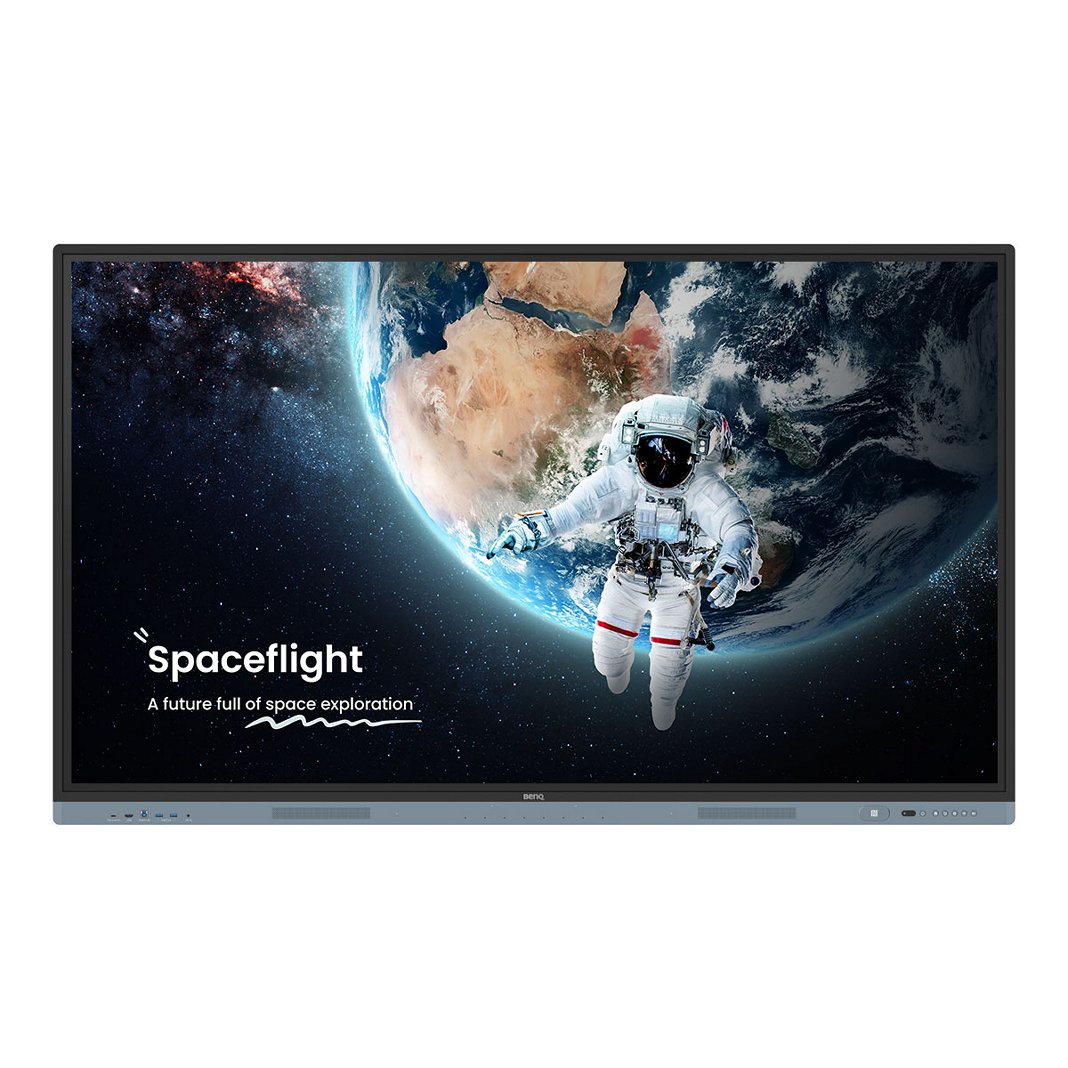
Google EDLA BenQ Board Master | RM04
BenQ Board Master RM04 is an innovative Google EDLA-certified smart board featuring low blue light, flicker-free technology, and defense against germs.
Contact Sales
Learn More
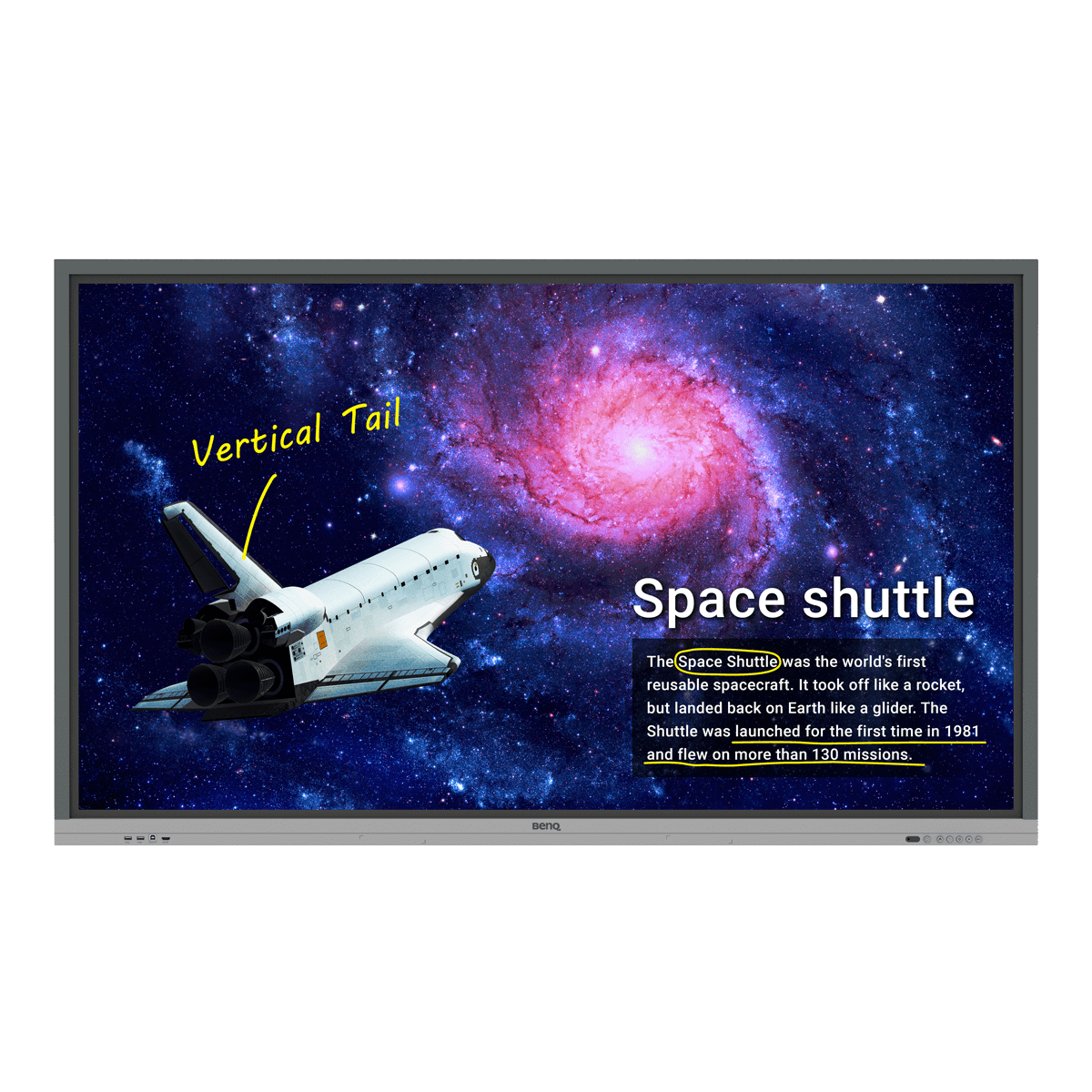
BenQ Board Essential | RE03
BenQ Board Essential RE03 fulfills the requirements for interactive learning and designed with ClassroomCare® technologies for eye protection and basic germ resistance.
Contact Sales
Learn More


